අපි නොදන්න VLC player හි වැඩ කිඩ
අපි නොදන්න VLC player හි වැඩ කිඩ

VLC player කියපුවහම නොදන්න කෙනෙක් නෑනේ..
ඒත් මේකේ අපි නොදන්න වැඩ කෑලි ගොඩක් තියෙනවා..
සමහර අය දන්නවත් ඇති..නොදන්න අයට දැන ගන්නත් එක්ක ඔන්න දැම්මා....

VLC player කියපුවහම නොදන්න කෙනෙක් නෑනේ..
ඒත් මේකේ අපි නොදන්න වැඩ කෑලි ගොඩක් තියෙනවා..
සමහර අය දන්නවත් ඇති..නොදන්න අයට දැන ගන්නත් එක්ක ඔන්න දැම්මා....
Basic Image Adjustments
VLC provides basic image adjustment options. Under Basic tab, you can play around with various color adjustments; Hue, Contrast, Brightness, Gamma, etc. On adjusting the color, you can view changes in realtime. Color adjustment options can also be very helpful especially when you are playing a video, having noise, glitches and lacks normal color pattern.

Video Sharpness effect
Apart from basic image adjustment options, there is another much demanded feature which will let you adjust video sharpness up to the acme of clarity. Under Basic tab, enable Sharpen option and adjust the sigma control as required. It will show you the changes in realtime so you can promptly adjust sharpness accordingly.
Scrutinize the wonderful sharp effect it produced in the video shown below.

Transforming to different angles
The Transform option allows you to rotate video by multiple degrees. Enabling Transform option would activate the video rotation feature. It offers rotation in 90,180, and 270 degrees. This comes useful if you have a video that you recorded via the camcorder in a different angle.

Video magnification/Zoom in & out
Another intriguing feature is Video Magnification. Under Geometry tab, enable Magnification/Zoom option, to let it zoom in/out the video. You will see a small window at top left corner with main magnification control. Fill in the triangle by clicking it to zoom into the video. To view the desired video portion, move the square capturing screen across the box.

Video Rotation
With an excellent rotation feature, you can rotate the video in any direction. Enable Rotation option, and start moving the rotary control in circle.

Add a bit fun with Puzzle Game
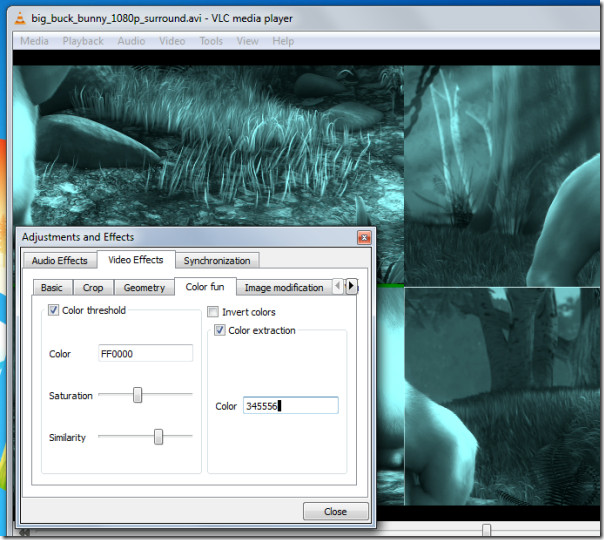
The moment you hit Puzzle game option, it would turn the video into puzzling pieces. Enter number of columns & rows in which you need to solve out video puzzle. It divides the video into specified chunks on the screen.

VLC provides basic image adjustment options. Under Basic tab, you can play around with various color adjustments; Hue, Contrast, Brightness, Gamma, etc. On adjusting the color, you can view changes in realtime. Color adjustment options can also be very helpful especially when you are playing a video, having noise, glitches and lacks normal color pattern.

Video Sharpness effect
Apart from basic image adjustment options, there is another much demanded feature which will let you adjust video sharpness up to the acme of clarity. Under Basic tab, enable Sharpen option and adjust the sigma control as required. It will show you the changes in realtime so you can promptly adjust sharpness accordingly.
Scrutinize the wonderful sharp effect it produced in the video shown below.

Transforming to different angles
The Transform option allows you to rotate video by multiple degrees. Enabling Transform option would activate the video rotation feature. It offers rotation in 90,180, and 270 degrees. This comes useful if you have a video that you recorded via the camcorder in a different angle.

Video magnification/Zoom in & out
Another intriguing feature is Video Magnification. Under Geometry tab, enable Magnification/Zoom option, to let it zoom in/out the video. You will see a small window at top left corner with main magnification control. Fill in the triangle by clicking it to zoom into the video. To view the desired video portion, move the square capturing screen across the box.

Video Rotation
With an excellent rotation feature, you can rotate the video in any direction. Enable Rotation option, and start moving the rotary control in circle.

Add a bit fun with Puzzle Game
The moment you hit Puzzle game option, it would turn the video into puzzling pieces. Enter number of columns & rows in which you need to solve out video puzzle. It divides the video into specified chunks on the screen.

Last edited: