


How To Enable Facebook Chat On Firefox Sidebar
Facebook is the most popular social network in the world. It launched in February 2004. Facebook says that they have,
- More than 800 million active users.
- More than 50% of our active users log on to Facebook in any given day.
- Average user has 130 friends.
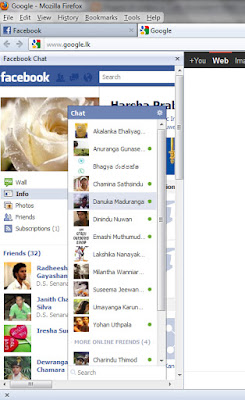
So Enabling Facebook chat on Firefox sidebar is very important to all Facebook users.
Step 1
Go to Bookmarks--> Show All Bookmarks.
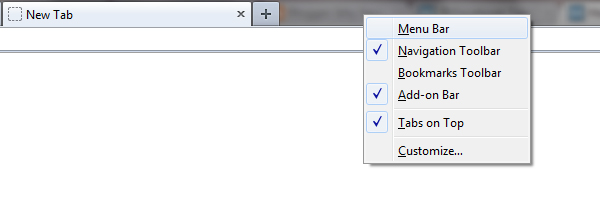
If you can't see the menu bar right click on Firefox and click Menu Bar.
Step 2
Select Bookmarks Toolbar from the left tab.
Then go to Organize--> New Bookmark
Enter the following
Name: Facebook Chat
Location: http://www.facebook.com/presence/popout.php
Check Load this bookmark in sidebar.
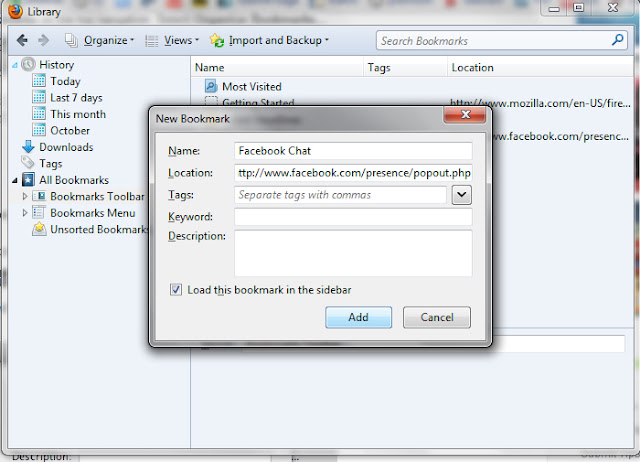
Press Add.
Step 3
Go to Facebook and log in to your account.
Then go to View--> Sidebar--> Bookmarks or press Ctrl+B.
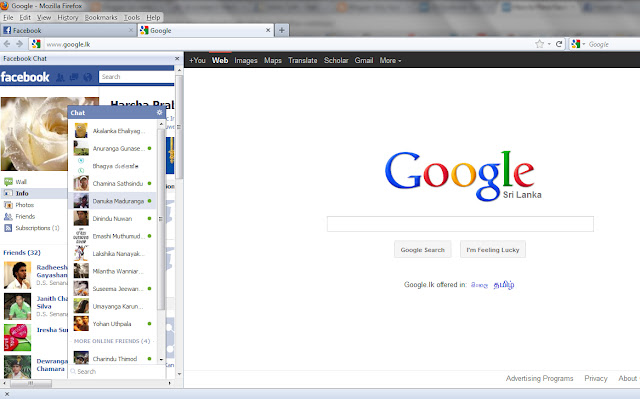
Sidebar will open.
Select Facebook Chat under Bookmarks Toolbar.
You are done!!!!!
Facebook is the most popular social network in the world. It launched in February 2004. Facebook says that they have,
- More than 800 million active users.
- More than 50% of our active users log on to Facebook in any given day.
- Average user has 130 friends.
So Enabling Facebook chat on Firefox sidebar is very important to all Facebook users.
Step 1
Go to Bookmarks--> Show All Bookmarks.
If you can't see the menu bar right click on Firefox and click Menu Bar.
Step 2
Select Bookmarks Toolbar from the left tab.
Then go to Organize--> New Bookmark
Enter the following
Name: Facebook Chat
Location: http://www.facebook.com/presence/popout.php
Check Load this bookmark in sidebar.
Press Add.
Step 3
Go to Facebook and log in to your account.
Then go to View--> Sidebar--> Bookmarks or press Ctrl+B.
Sidebar will open.
Select Facebook Chat under Bookmarks Toolbar.
You are done!!!!!
Code:
source
[URL="http://ishysays.blogspot.com/2011/11/how-to-enable-facebook-chat-on-firefox.html"]http://ishysays.blogspot.com/2011/11/how-to-enable-facebook-chat-on-firefox.html[/URL]


