


Anyone who has purchased a JVC Everio HDD video camera has probably learned that they chose to use some god forsaken proprietary video format - the .MOD extension.
Apparently this is some sort of MPEG2 encoding, however, most major video editing suites prefer not to accept this format… what we need is something more common… such as .AVI or .MPG. I would be happy with the .MOD file format if the software that came with the JVC Everio actually worked.
I have tried many video converters software with no luck so far, it’ll get halfway through the process, and then something will fail.
Now a type of converter called Mod Converter appears. Here I want to share the one regarded as the best on the market by most people. I also want to share the instructions about how to use it.
Step 0: Free download 4easysoft Mod Converter and install it.
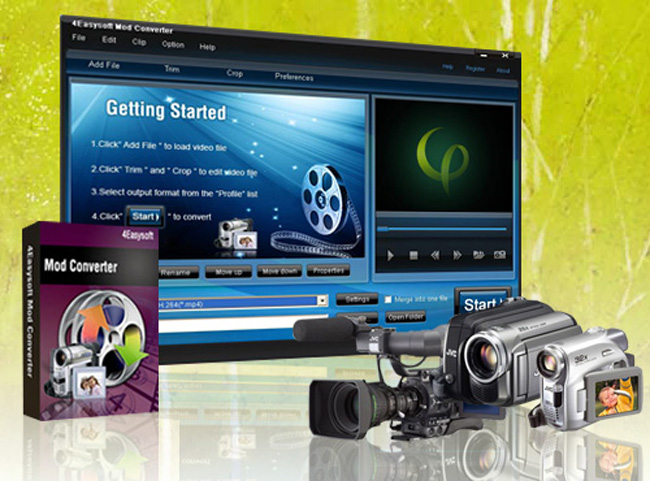
Step 1: Run 4Easysoft Mod Converter and load your Mod/Tod files.
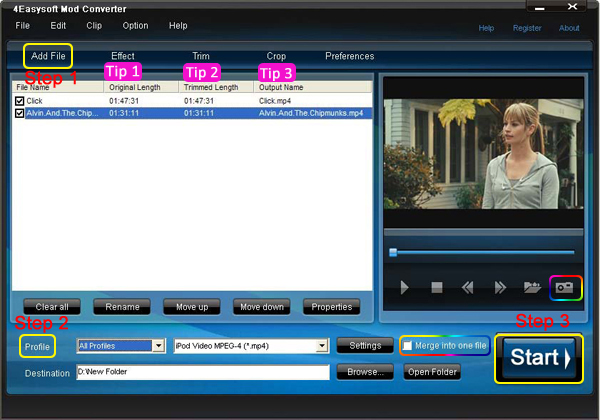
Step 2:Setup the output profile and the output file path.
Step 3: Start conversion
After you set all the settings, you can click “Start” to start conversion.
With this powerful converter, you can convert Mod to WMV, Mod to 3GP, Mod to FLV, Mod to iPod,etc.
Tips:
1: How to adjust your video effect
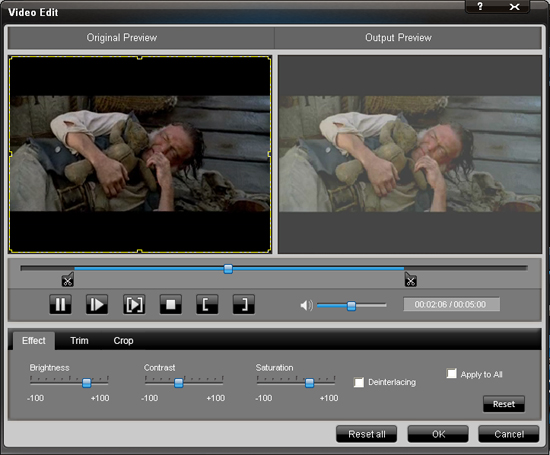
Use the function of “effect”, you can set the video Brightness, Contrast, Saturation. And checking Deinterlacing helps you to convert interlaced video to the progressive video.
2: How to split your video
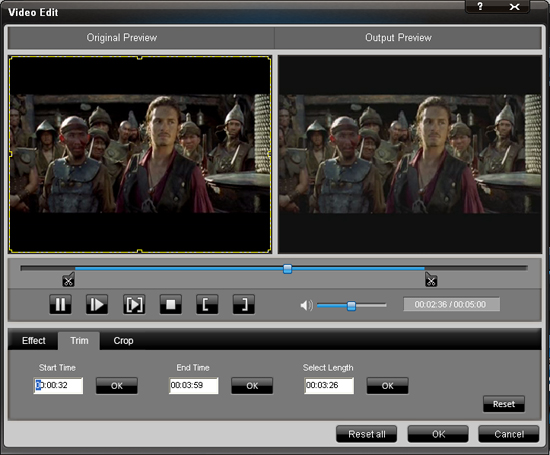
The "Trim" function also servers as a video splitter for you to get any time-length video episode. You can set the "Start Time" and "End Time" to set the time of the clip or you can directly drag the slide bar to the accurate position.
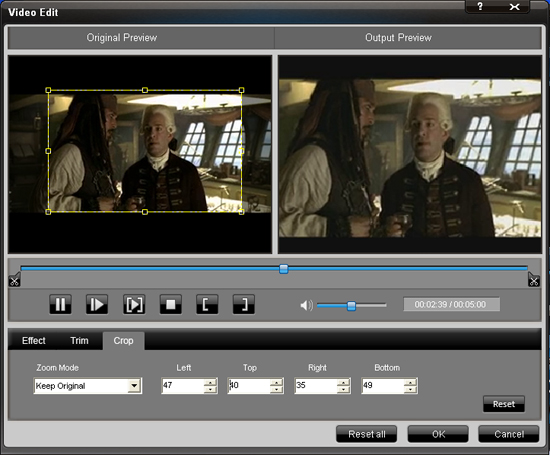
3: How to crop off the black edges and adjust the size of video play region
By using the "Crop" function you can crop the black edge of your video and you can also drag the line around the video image to adjust the video play region to fit for your mobile devices.
4: How to join your file pieces
If you want to merge several files into one file you can choose them and click the "Merge into one file" to do it.
5: How to save your favorite picture
If you like the current image when preview video, you can use the "Snapshot" option. Just click the "Snapshot" button the image will be saved and you can click the "Open" button next to "Snapshot" button to open your picture.
Now you can edit and convert your Mod/Tod videos to regular video formats. You can upload them onto YouTube, Myspace and so on to share them with your friend and other people.
AVI Converter Total Video Converter MP4 Converter
Apparently this is some sort of MPEG2 encoding, however, most major video editing suites prefer not to accept this format… what we need is something more common… such as .AVI or .MPG. I would be happy with the .MOD file format if the software that came with the JVC Everio actually worked.
I have tried many video converters software with no luck so far, it’ll get halfway through the process, and then something will fail.
Now a type of converter called Mod Converter appears. Here I want to share the one regarded as the best on the market by most people. I also want to share the instructions about how to use it.
Step 0: Free download 4easysoft Mod Converter and install it.
Step 1: Run 4Easysoft Mod Converter and load your Mod/Tod files.
Step 2:Setup the output profile and the output file path.
Step 3: Start conversion
After you set all the settings, you can click “Start” to start conversion.
With this powerful converter, you can convert Mod to WMV, Mod to 3GP, Mod to FLV, Mod to iPod,etc.
Tips:
1: How to adjust your video effect
Use the function of “effect”, you can set the video Brightness, Contrast, Saturation. And checking Deinterlacing helps you to convert interlaced video to the progressive video.
2: How to split your video
The "Trim" function also servers as a video splitter for you to get any time-length video episode. You can set the "Start Time" and "End Time" to set the time of the clip or you can directly drag the slide bar to the accurate position.
3: How to crop off the black edges and adjust the size of video play region
By using the "Crop" function you can crop the black edge of your video and you can also drag the line around the video image to adjust the video play region to fit for your mobile devices.
4: How to join your file pieces
If you want to merge several files into one file you can choose them and click the "Merge into one file" to do it.
5: How to save your favorite picture
If you like the current image when preview video, you can use the "Snapshot" option. Just click the "Snapshot" button the image will be saved and you can click the "Open" button next to "Snapshot" button to open your picture.
Now you can edit and convert your Mod/Tod videos to regular video formats. You can upload them onto YouTube, Myspace and so on to share them with your friend and other people.
AVI Converter Total Video Converter MP4 Converter


