Questions:
One: Do you still not to know how to rip DVD to the formats supported by your portable devices so you can enjoy DVD movies anywhere and at any time?
Two: Do you still not to know how to convert video from one popular video format to another?
Three: Do you still not to know how to backup things on your ipod to pc?
Now, it’s time to get rid of the problem. A professional Aiseesoft
DVD Converter Suite can help you solve all the problems.
DVD Converter Suite is the perfect combination of Aiseesoft DVD Ripper, Aiseesoft Total Video Converter and Aiseesoft iPod to Computer Transfer. With it, your can enjoy your DVD/ videos on your portable devices at will!
You can take the following step-by-step instructions to start your conversion.
Step 0: Download and install Aiseesoft DVD Converter Suite.
After a short while, you can see the following interface:
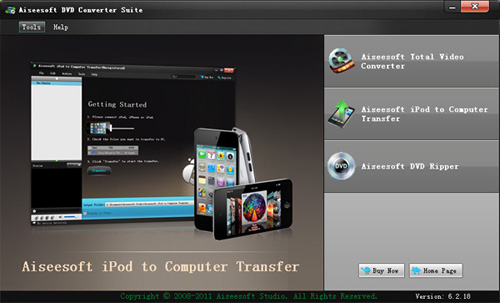
On the interface, you can see three buttons: DVD Ripper, Total Video Converter and iPod to Copputer Transfer. I’ll introduce them one by one.
Step Two:
Click “DVD Ripper”, you can see the following interface:
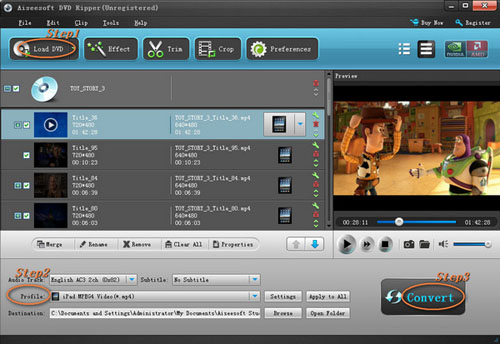
Then you can use it to rip DVD to the formats supported by your portable devices.
1. Import DVD
Place the DVD into your DVD drive and click the “Load DVD” button to load DVD.
2. Set output format
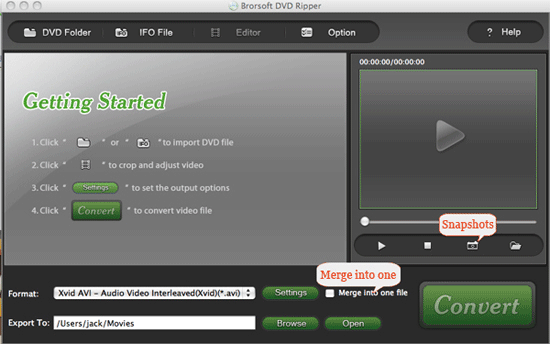
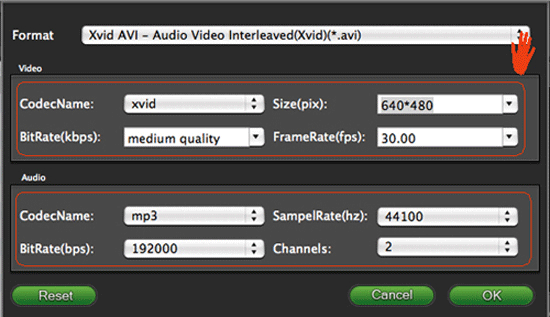
Click "Profile" button to select the output format . You can click the "Settings" button to to set parameters of your output video such as Frame Rate, Resolution and Video Bitrate, etc.
3. Click the “Start” button.
If you want to your own conversion path, you could click “Browse” button to specify a location on your computer to save them. If you want to open the output folder, you can just click “Open”.
Tips
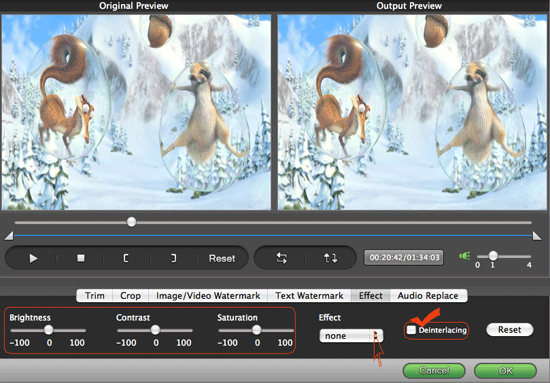
1. Click "Effect" to make special effect for your movie.
You can adjust Brightness, Contract, and Saturation of the movie, etc.
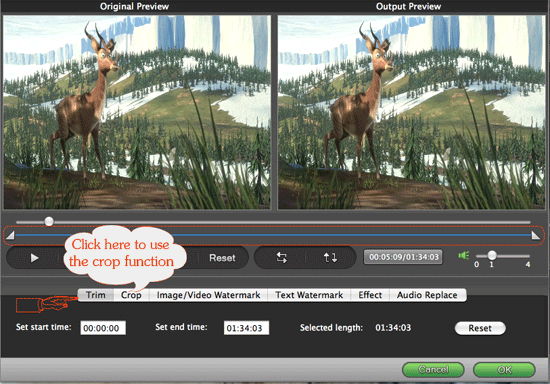
2."Trim" function is for you to select the clips you want to convert.
3. Cut off the black edges of the original movie video and watch in full screen on your iPod using the "Crop" function.
4. This software allows you to join several DVD chapters into one clips by using "Merge into one file".
Step Three:
Click “Total Video Converter”, you can see the following interface:
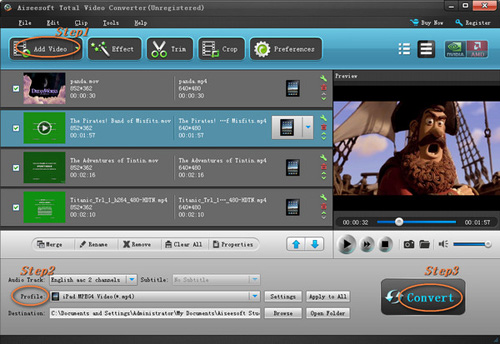
With it, you can convert video from one popular video format to another easily.
1. Click the "Add Files" button and add the video files you want to convert to the program.
2. Set output video format
Click "Profile" button to select the output format for your video. You can click the "Settings" button to to set parameters of your output video such as Frame Rate, Resolution and Video Bitrate, etc.
3. Click the “Start” button.
If you want to your own conversion path, you could click “Browse” button to specify a location on your computer to save the converted movie. If you want to open the output folder, you can just click “Open”.
Tips
Aiseesoft Total Video Converter also has functions of Trim, Crop, Snapshot and merge into one file.
Step Four:
Click “iPod to Computer Transfer”, you can see the following interface:
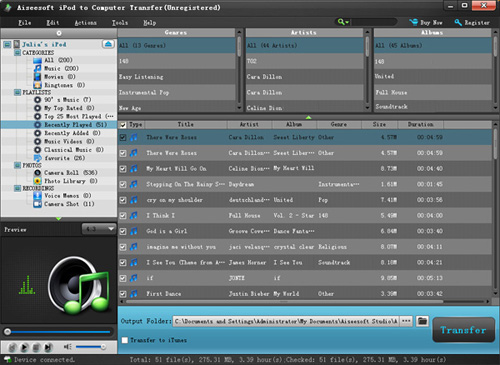
You can use it to backup iPod video/audio files to computer, you don’t need to worry about losing anything.
1. Connect your iPod to your computer
When you plug your iPod into your computer, Aiseesoft iPod to Computer Transfer can automatically load your iPod into it.
2. Choose files
Choose the songs, videos and other things that you want to backup at the top of the window
3. Start to transfer
The most important and the last thing you need to do are to click the “export to pc” button . After you click “export to pc” button a pop-up window will appear and with it you can choose where you place your iPod songs and videos. Few seconds later you will have your iPod songs, videos and other things on your computer.
Tips
1. To make your backup in a good order, you can click “Track Filter” button
2. For the beginner of iPod you can know the generation and name of your iPod from Aiseesoft iPod to Computer Transfer. And you can also know how many spaces have used and how many left in your iPod.
Mac use: Aiseesoft DVD Converter for Mac
Total Video Converter
iPhone Ringtone Maker
Best DVD Ripper
One: Do you still not to know how to rip DVD to the formats supported by your portable devices so you can enjoy DVD movies anywhere and at any time?
Two: Do you still not to know how to convert video from one popular video format to another?
Three: Do you still not to know how to backup things on your ipod to pc?
Now, it’s time to get rid of the problem. A professional Aiseesoft
DVD Converter Suite can help you solve all the problems.
DVD Converter Suite is the perfect combination of Aiseesoft DVD Ripper, Aiseesoft Total Video Converter and Aiseesoft iPod to Computer Transfer. With it, your can enjoy your DVD/ videos on your portable devices at will!
You can take the following step-by-step instructions to start your conversion.
Step 0: Download and install Aiseesoft DVD Converter Suite.
After a short while, you can see the following interface:
On the interface, you can see three buttons: DVD Ripper, Total Video Converter and iPod to Copputer Transfer. I’ll introduce them one by one.
Step Two:
Click “DVD Ripper”, you can see the following interface:
Then you can use it to rip DVD to the formats supported by your portable devices.
1. Import DVD
Place the DVD into your DVD drive and click the “Load DVD” button to load DVD.
2. Set output format
Click "Profile" button to select the output format . You can click the "Settings" button to to set parameters of your output video such as Frame Rate, Resolution and Video Bitrate, etc.
3. Click the “Start” button.
If you want to your own conversion path, you could click “Browse” button to specify a location on your computer to save them. If you want to open the output folder, you can just click “Open”.
Tips
1. Click "Effect" to make special effect for your movie.
You can adjust Brightness, Contract, and Saturation of the movie, etc.
2."Trim" function is for you to select the clips you want to convert.
3. Cut off the black edges of the original movie video and watch in full screen on your iPod using the "Crop" function.
4. This software allows you to join several DVD chapters into one clips by using "Merge into one file".
Step Three:
Click “Total Video Converter”, you can see the following interface:
With it, you can convert video from one popular video format to another easily.
1. Click the "Add Files" button and add the video files you want to convert to the program.
2. Set output video format
Click "Profile" button to select the output format for your video. You can click the "Settings" button to to set parameters of your output video such as Frame Rate, Resolution and Video Bitrate, etc.
3. Click the “Start” button.
If you want to your own conversion path, you could click “Browse” button to specify a location on your computer to save the converted movie. If you want to open the output folder, you can just click “Open”.
Tips
Aiseesoft Total Video Converter also has functions of Trim, Crop, Snapshot and merge into one file.
Step Four:
Click “iPod to Computer Transfer”, you can see the following interface:
You can use it to backup iPod video/audio files to computer, you don’t need to worry about losing anything.
1. Connect your iPod to your computer
When you plug your iPod into your computer, Aiseesoft iPod to Computer Transfer can automatically load your iPod into it.
2. Choose files
Choose the songs, videos and other things that you want to backup at the top of the window
3. Start to transfer
The most important and the last thing you need to do are to click the “export to pc” button . After you click “export to pc” button a pop-up window will appear and with it you can choose where you place your iPod songs and videos. Few seconds later you will have your iPod songs, videos and other things on your computer.
Tips
1. To make your backup in a good order, you can click “Track Filter” button
2. For the beginner of iPod you can know the generation and name of your iPod from Aiseesoft iPod to Computer Transfer. And you can also know how many spaces have used and how many left in your iPod.
Mac use: Aiseesoft DVD Converter for Mac
Total Video Converter
iPhone Ringtone Maker
Best DVD Ripper