Help Please

paanbatta

Member
Apr 25, 2012
388
32
0
මචංලා කවුරුහරි දන්නවද TP link wireless adsl රවුරට්ස් දෙකක් bridge එකක් විදිහට කනෙක්ට් කරන්න.
ලොකු උදව්වක් මචං. (wireless router to router connect)

:confused::confused::confused:
 

Astromaze

Well-known member
  • Jun 9, 2013
    1,374
    208
    63
    අනන්තයේ
    With the bridge mode, we can connect 2 or more wireless routers/ LANs together via wireless, and we can also connect the TP-LINK wireless router to wireless access point by using the bridge mode.
    In order to connect them with bridge mode, all of the wireless routers must support this feature and configured to work on bridge mode.

    Part 1: Change the IP address

    All of TP-LINK routers use 192.168.1.1 as their default IP address, before connect them, you’d better change one of the addresses to another one to avoid IP address conflict. And please check and note the MAC address of the routers before you configure them.

    Step 1
    Open the web browser and type the IP address of the router (default is 192.168.1.1) into the address bar and then Press Enter.

    Step 2
    Type the username and password into the login page, the default username and password both are admin.

    Step 3
    Select Network->LAN on the left side, and then change the IP address from 192.168.1.1 to 192.168.1.2.


    Part 2: Connecting the routers with bridge mode

    Step 1
    Select Wireless->Wireless Settings on the left side, enter a SSID for the name of the wireless network and select a channel.

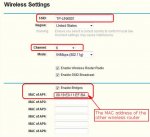
    Enable the option Enable Bridge, and type the MAC address of the other wireless router which you want to connect into the box shown as below. (You need to note the MAC address of the other router and type it into the box)


    Step 2
    Save and reboot the router.

    Step 3
    Connect your computer to the other wireless router, and repeat the Step 1 and step 2, after reboot both of the two routers, the wireless connection will be set up.

    Note:
    1 The channel and security on the routers must be the same in order to connect together.

    2 You can type different SSIDs in the routers to identify the wireless routers/networks for your wireless client.

    3 If you use one of the routers as a main router to connect to Internet and share the Internet connection, you’d better disable the DHCP server on the secondary router.
     

    Attachments

    • 200822901844960.jpg
      200822901844960.jpg
      30.6 KB · Views: 71
    • aa.jpg
      aa.jpg
      11.6 KB · Views: 68
    • Like
    Reactions: paanbatta

    paanbatta

    Member
    Apr 25, 2012
    388
    32
    0
    With the bridge mode, we can connect 2 or more wireless routers/ LANs together via wireless, and we can also connect the TP-LINK wireless router to wireless access point by using the bridge mode.
    In order to connect them with bridge mode, all of the wireless routers must support this feature and configured to work on bridge mode.

    Part 1: Change the IP address

    All of TP-LINK routers use 192.168.1.1 as their default IP address, before connect them, you’d better change one of the addresses to another one to avoid IP address conflict. And please check and note the MAC address of the routers before you configure them.

    Step 1
    Open the web browser and type the IP address of the router (default is 192.168.1.1) into the address bar and then Press Enter.

    Step 2
    Type the username and password into the login page, the default username and password both are admin.

    Step 3
    Select Network->LAN on the left side, and then change the IP address from 192.168.1.1 to 192.168.1.2.


    Part 2: Connecting the routers with bridge mode

    Step 1
    Select Wireless->Wireless Settings on the left side, enter a SSID for the name of the wireless network and select a channel.

    Enable the option Enable Bridge, and type the MAC address of the other wireless router which you want to connect into the box shown as below. (You need to note the MAC address of the other router and type it into the box)


    Step 2
    Save and reboot the router.

    Step 3
    Connect your computer to the other wireless router, and repeat the Step 1 and step 2, after reboot both of the two routers, the wireless connection will be set up.

    Note:
    1 The channel and security on the routers must be the same in order to connect together.

    2 You can type different SSIDs in the routers to identify the wireless routers/networks for your wireless client.

    3 If you use one of the routers as a main router to connect to Internet and share the Internet connection, you’d better disable the DHCP server on the secondary router.

    මචං DHCP සර්වර් මුකුත් වෙනස් කරන්න ඕනෙ නැතිද?

    impression.php