


Flip video camcorder is becoming more and more popular among people because of its convenient, fast and easy-to-use. It can help you catch every moment that around you and share them with your friends at home or on line. But Flip video Camcorder records video just only in .MP4 format, how to make it to other formats and understood by Windows Media Player, Windows Movie Maker, iPod, iPhone, PSP and other PMPs.
All you need is just a Flip Converter which can help you solve this problem. Aiseesoft Flip Converter is the best Flip Video Converter to convert Flip video created by the Flip family: Flip Ultra, Flip Ultra HD, Flip Mino and Flip Mino HD as Flip Mino HD files conversion tool. With this Flip Video Converter, you can convert Flip video to any other video/audio formats MOV, M4V, AVI, 3GP, FLV, HD video and AAC, MP3, OGG, WMA, etc audio formats for all the players.

Here is a simple guide for you to follow and you need a Flip Converter
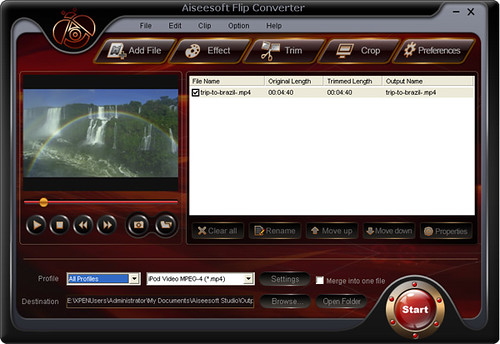
Step 1. Files importing
You can load your video by clicking “Add File” button or clicking “File” button, you can choose “add file” on a drop-down list. Or even drag the video and audio files into the file list window directly.
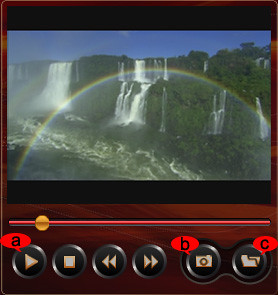
After importing the files, you can click button “a”to preview the video.
Tips: It allows you to capture your favorite pictures when you preview.
Click button “b” the current picture in the preview window will be captured and saved in the specified folder in the image type as you have set.
Click button “c” to open the snapshot folder to view the captured pictures
Step 2: Choose Your Output Profile and Settings
Profile: Select an output format for the selected file
Settings: Click “setting” to open the Settings windows:

Video Settings: Set video encoding settings by selecting an encoder, a resolution, a frame rate and video bitrate.
Audio Settings: Set audio encoding settings by selecting an encoder, a sample rate, channels and audio bitrate.
Tip 1: For Resolution setting, you can choose the pre-set Resolution from the right drop-down list. You can also directly input your own resolution as the form of "XXX*XXX".
Tip 2: You can customize the video and audio encoding settings and save them as your own profile. After you have chosen the encoding options, just click the “Save as...” button and name your profile, and then the profile will be saved in the User Defined list. You can use the customized profile next time by selecting it from the list.
Step 3: Video Editing

1: Effect:
Click “Effect” to open the edit window to adjust the video effects
You can adjust the “Brightness”, “Contrast”, “Saturation” and “Volume”.
2: Trim:
“Trim” function allows you to pick up any part of your video to convert. You can just convert a part of your video that you want.
There are three ways available:
Method 1: Enter the start time in the Start Time box and click OK, then enter the end time in the End Time box and click OK.
Method 2: Drag button below the Preview Windows to mark the beginning of your clip and drag it to mark the end of your clip during the preview.
Method 3: While playing video, click button to mark the beginning of your clip and mark the end of your clip during the preview.
Tips: Click the second button to preview the video frame by frame.
Click preview button to preview you trimmed clip.
After you set trim time, the length of the captured clip will be shown in the Select Length box for your reference.
3: Crop:
“Crop” means to choose a certain play area to convert.
Method 1: Crop by adjusting the crop frame. The crop frame is the yellow line around the movie video. There are eight small adjustment boxes on the crop frame. Each adjustment box allows you to crop the movie video from a different position. To crop your movie video, you can just move your mouse cursor to an adjustment box and drag the crop frame.
Method 2: Crop by setting the crop values. There are four crop values at the bottom of the window: Left, Top, Right and Bottom. You can set each value to crop your movie video, and the crop frame will move accordingly.
Step 4: Conversion
After finishing all the necessary settings and editing, you can click “Start” to begin the conversion.
If you are a Mac user, here also a Flip Converter for Mac.
All you need is just a Flip Converter which can help you solve this problem. Aiseesoft Flip Converter is the best Flip Video Converter to convert Flip video created by the Flip family: Flip Ultra, Flip Ultra HD, Flip Mino and Flip Mino HD as Flip Mino HD files conversion tool. With this Flip Video Converter, you can convert Flip video to any other video/audio formats MOV, M4V, AVI, 3GP, FLV, HD video and AAC, MP3, OGG, WMA, etc audio formats for all the players.
Here is a simple guide for you to follow and you need a Flip Converter
Step 1. Files importing
You can load your video by clicking “Add File” button or clicking “File” button, you can choose “add file” on a drop-down list. Or even drag the video and audio files into the file list window directly.
After importing the files, you can click button “a”to preview the video.
Tips: It allows you to capture your favorite pictures when you preview.
Click button “b” the current picture in the preview window will be captured and saved in the specified folder in the image type as you have set.
Click button “c” to open the snapshot folder to view the captured pictures
Step 2: Choose Your Output Profile and Settings
Profile: Select an output format for the selected file
Settings: Click “setting” to open the Settings windows:
Video Settings: Set video encoding settings by selecting an encoder, a resolution, a frame rate and video bitrate.
Audio Settings: Set audio encoding settings by selecting an encoder, a sample rate, channels and audio bitrate.
Tip 1: For Resolution setting, you can choose the pre-set Resolution from the right drop-down list. You can also directly input your own resolution as the form of "XXX*XXX".
Tip 2: You can customize the video and audio encoding settings and save them as your own profile. After you have chosen the encoding options, just click the “Save as...” button and name your profile, and then the profile will be saved in the User Defined list. You can use the customized profile next time by selecting it from the list.
Step 3: Video Editing

1: Effect:
Click “Effect” to open the edit window to adjust the video effects
You can adjust the “Brightness”, “Contrast”, “Saturation” and “Volume”.
2: Trim:
“Trim” function allows you to pick up any part of your video to convert. You can just convert a part of your video that you want.
There are three ways available:
Method 1: Enter the start time in the Start Time box and click OK, then enter the end time in the End Time box and click OK.
Method 2: Drag button below the Preview Windows to mark the beginning of your clip and drag it to mark the end of your clip during the preview.
Method 3: While playing video, click button to mark the beginning of your clip and mark the end of your clip during the preview.
Tips: Click the second button to preview the video frame by frame.
Click preview button to preview you trimmed clip.
After you set trim time, the length of the captured clip will be shown in the Select Length box for your reference.
3: Crop:
“Crop” means to choose a certain play area to convert.
Method 1: Crop by adjusting the crop frame. The crop frame is the yellow line around the movie video. There are eight small adjustment boxes on the crop frame. Each adjustment box allows you to crop the movie video from a different position. To crop your movie video, you can just move your mouse cursor to an adjustment box and drag the crop frame.
Method 2: Crop by setting the crop values. There are four crop values at the bottom of the window: Left, Top, Right and Bottom. You can set each value to crop your movie video, and the crop frame will move accordingly.
Step 4: Conversion
After finishing all the necessary settings and editing, you can click “Start” to begin the conversion.
If you are a Mac user, here also a Flip Converter for Mac.


