How to Enable Task manager & Regedit.exe HELP

Huzain

Active member
  • Oct 24, 2010
    453
    35
    28
    35
    Galle
    Machan.. mage PC eke Viras ekak awith task maneger n Regedit eka disable karala ?? passe mama C eka witharak Format kara .. PC eka nam speed eth Task manager n Regedit eka thama Disable... eka enable karaganna widiyak kiyannakoo..

    issara nam Enable task manager kiyala eka soft ekak mage laga thibuna.. dan eka miss wela ban.. thiyanawa nam podi sup ekak plzzz
     

    Sonique

    Well-known member
  • Oct 22, 2007
    25,140
    11,145
    113
    Forest
    XP walanun shape eke gpedit eka assata ringa gaththanun oka karanna thibba. Me windows 7 magula hariyanne na ewwata :( Mali ayya mokadda deela thiyenne :)
     

    MihiCherub

    Well-known member
  • Sep 14, 2009
    18,852
    1
    9,599
    113
    Gampaha
    Original Posted By
    ||~DxxCxxxx~||
    user_offline.gif

    Senior Member
    reputation_pos.gif


    Summary
    : Task manager can be disabled manually, but more commonly it's disabled by a virus. It's easy to re-enable once you're virus-free.

    My task manager has a "task manager has been disabled by the administrator" message. How did this happen and how can I correct this?


    Why: if you didn't do it yourself, the news isn't good.

    How to fix it: there are a couple of ways.
    Let's look at this more closely.
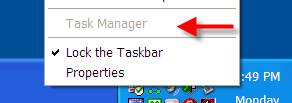
    The situation's pretty simple. If you right click on the clock in the Windows taskbar, the Task Manager item is grayed out:


    taskmanagergrey.png
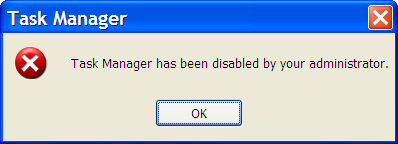
    Or, if you try to run taskmgr.exe manually, you get this message:
    taskmanagerpop.png


    So, how did this happen?


    As we'll see in a moment, there are settings you can access as an administrator that would allow you to disable and enable Task Manager in this way.

    You didn't do that, you say?


    Then a
    virus probably did.


    Disabling Task Manager is one way viruses try to make it harder for you to deal with their infections. Before proceeding any further, you should run a complete and up-to-date anti-virus scan of your machine. It's possible, perhaps even likely, that you've been infected.


    Once you come back virus-free, you can proceed with the fix.

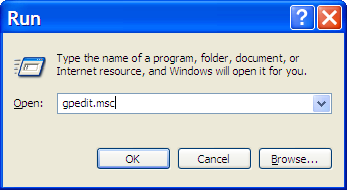
    If you have Windows XP Pro, there's a nifty user interface to directly edit the setting you want to repair. Click Start, then click Run and type in gpedit.msc:


    rungpeditmsc.png


    And press
    OK. This runs the Group Policy Editor.


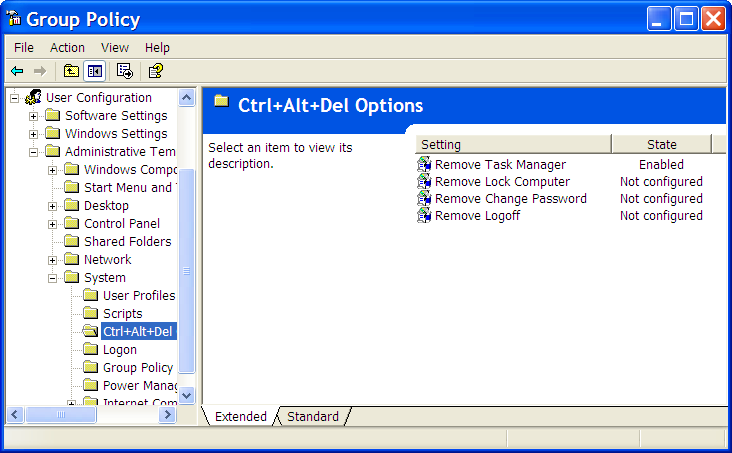
    Once in the Group Policy Editor, expand in turn:

    • User Configuration
    • Administrative Templates
    • System
    • Ctrl+Alt+Del Options
    You should see something much like this:


    gpeditcadoptions.png


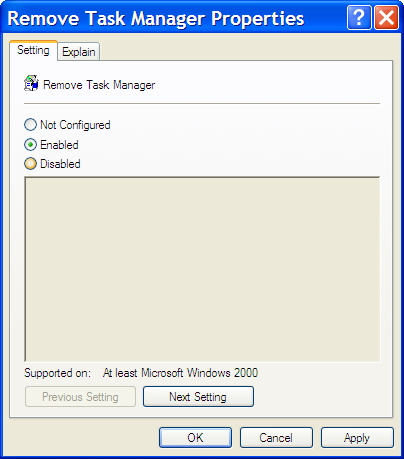
    Double click on
    Remove Task Manager to change its setting:


    gpeditremovetaskmanager.png


    It should be enough to click on
    Not Configured and then OK and Task Manager is available once again.
    If you don't have Windows XP Pro, then you'll need to edit the registry manually.


    Click
    Start, then click Run, type in regedit, and click on OK.


    Expand these registry keys in turn:

    • HKEY_CURRENT_USER
    • Software
    • Microsoft
    • Windows
    • CurrentVersion
    • Policies
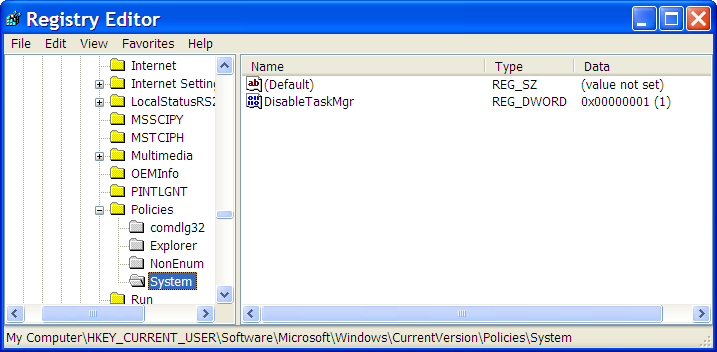
    • System
    You should see something similar to this:


    regdisabletaskmanager.png


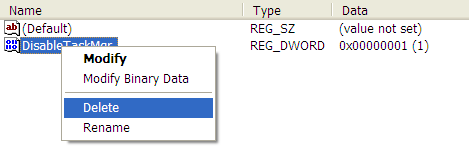
    Right Click on the
    DisableTaskMgr item:


    regdeletedisabletaaskmanager.png


    Click on
    Delete, confirm that you want to delete, and Task Manager should be available once again.


    One thing to note is that it's quite possible that if you're in an environment managed by a centralized policy, these settings may have no effect. Your IT administrator may set things up so as to disable task manager, and other things as well at the domain level. You'll need to ask them if this is the case.
     

    Huzain

    Active member
  • Oct 24, 2010
    453
    35
    28
    35
    Galle

    Huzain

    Active member
  • Oct 24, 2010
    453
    35
    28
    35
    Galle
    Original Posted By
    ||~DxxCxxxx~||
    user_offline.gif

    Senior Member
    reputation_pos.gif


    Summary
    : Task manager can be disabled manually, but more commonly it's disabled by a virus. It's easy to re-enable once you're virus-free.

    My task manager has a "task manager has been disabled by the administrator" message. How did this happen and how can I correct this?


    Why: if you didn't do it yourself, the news isn't good.

    How to fix it: there are a couple of ways.
    Let's look at this more closely.
    The situation's pretty simple. If you right click on the clock in the Windows taskbar, the Task Manager item is grayed out:


    taskmanagergrey.png
    Or, if you try to run taskmgr.exe manually, you get this message:
    taskmanagerpop.png


    So, how did this happen?


    As we'll see in a moment, there are settings you can access as an administrator that would allow you to disable and enable Task Manager in this way.

    You didn't do that, you say?


    Then a
    virus probably did.


    Disabling Task Manager is one way viruses try to make it harder for you to deal with their infections. Before proceeding any further, you should run a complete and up-to-date anti-virus scan of your machine. It's possible, perhaps even likely, that you've been infected.


    Once you come back virus-free, you can proceed with the fix.

    If you have Windows XP Pro, there's a nifty user interface to directly edit the setting you want to repair. Click Start, then click Run and type in gpedit.msc:


    rungpeditmsc.png


    And press
    OK. This runs the Group Policy Editor.


    Once in the Group Policy Editor, expand in turn:

    • User Configuration
    • Administrative Templates
    • System
    • Ctrl+Alt+Del Options
    You should see something much like this:


    gpeditcadoptions.png


    Double click on
    Remove Task Manager to change its setting:


    gpeditremovetaskmanager.png


    It should be enough to click on
    Not Configured and then OK and Task Manager is available once again.
    If you don't have Windows XP Pro, then you'll need to edit the registry manually.


    Click
    Start, then click Run, type in regedit, and click on OK.


    Expand these registry keys in turn:

    • HKEY_CURRENT_USER
    • Software
    • Microsoft
    • Windows
    • CurrentVersion
    • Policies
    • System
    You should see something similar to this:


    regdisabletaskmanager.png


    Right Click on the
    DisableTaskMgr item:


    regdeletedisabletaaskmanager.png


    Click on
    Delete, confirm that you want to delete, and Task Manager should be available once again.


    One thing to note is that it's quite possible that if you're in an environment managed by a centralized policy, these settings may have no effect. Your IT administrator may set things up so as to disable task manager, and other things as well at the domain level. You'll need to ask them if this is the case.

    Thanx machan.. bt meke 2nd step eka karanna baha machan coz REGEDIT ekath desable neh :(