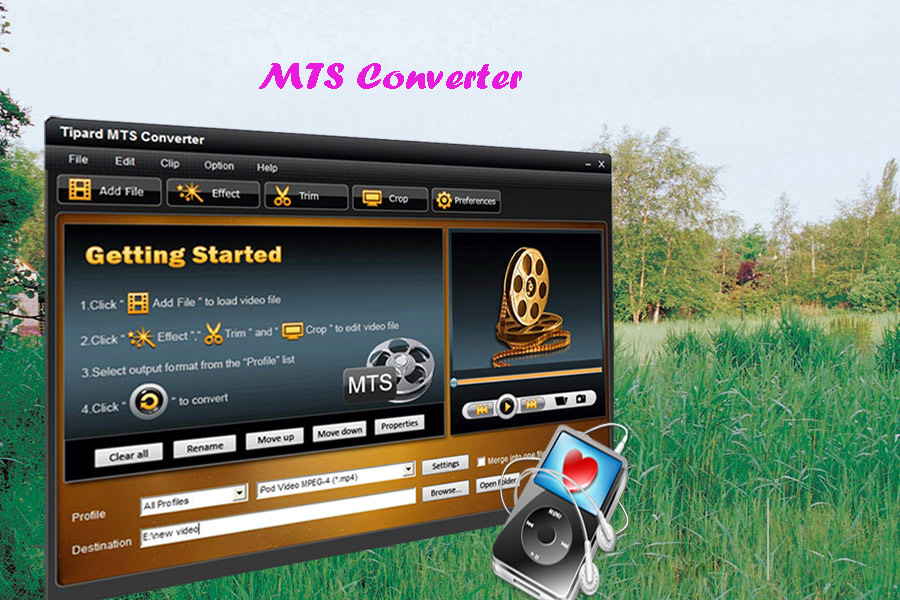
With the progress of modern digital technology, an increasing number of families have been tending to buy a camcorder like Sony, Panasonic, Canon HF 21. With it, they can record or shot some exciting concerts or speeches.

However, some people are puzzled about how to output these recording videos to their laptop and some media players such as iPod, iPhone, PSP, Final Cut, Zune, etc. It’s recognized that Pavtube MTS/M2TS Converter is a professional AVCHD MTS/M2ts Converter which enables users to put their camcorder videos to various players with ease.
Question:
First, what is AVCHD and MTS/M2TS video?
Second, how to put MTS/M2TS video to portable players?
Answer:
First, AVCHD is a prevailing format for recording and playback of high definition (HD) video derived from some digital camcorders, Canon and Panasonic in particular. And MTS/M2TS is a container file format for multiplexing audio, video and other streams. The M2TS container with filename extension MTS or m2ts is also used in AVCHD format, which is a high definition digital video camera recorder format.
Second, with the invention of Pavtube MTS/M2TS Converter, many users will no longer troubled by the problem about how to watch videos from their camcorder on their portable devices. For instance, some people try every means to transfer recording videos to iPhone, but in vain. Because MTS/M2TS is not common video formats and can only be played on some special players generally. I am also informed, from a certain answers platform, that some users download or purchase some AVCHD video decoders to realize their goals, but the result is still disappointed. Frankly, it is somewhat difficult to accomplish this task, for there are rarely portable players support MTS/M2TS, AVCHD video formats. Thus, you need a MTS/M2TS Converter to help you convert MTS/M2TS to other acceptable formats of some media players, including PSP, Apple TV, Zune, iPod, iPhone, Creative Zen, Xbox, Media Center, iMovie, and so forth.
The following is provided with easy and effective instructions:
Step one: transfer your AVCHD recording videos from camcorder to computer.
You can directly connect the camcorder via the USB connection. However, many camcorders are required to use IEEE 1394 Interface card, which is aslo called i-Link by Sony corporations, as well as Firewire by Apple. It can be used to capture recording videos from camcorders to computer with very fast speed.
Step two: Download a Pavtube MTS/M2TS Converter and launch it.
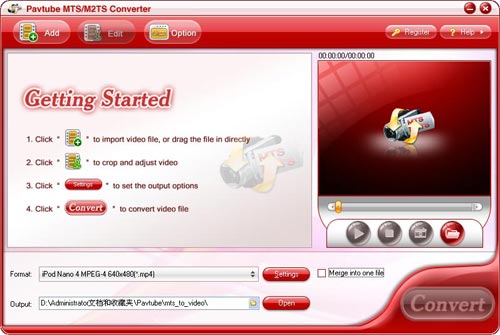
Step three: Add the MTS videos ( you can add several video files at a time) you want to convert, select output formats such as MP4, H.264, MP3, M4A, AAC supported by iPod, specify the output path to your local discs, preview videos in the right window, and start by clicking “convert” button.
Last, it will finish converting in a very short time.
Addition Information:
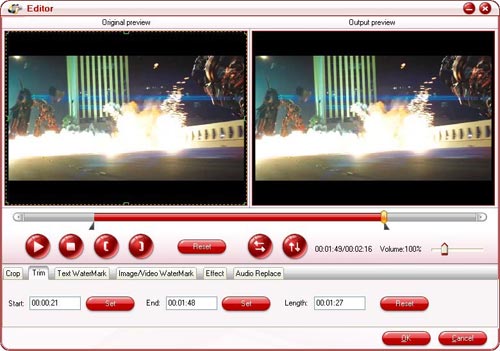
To make those output videos much better, this MTS/M2TS Converter is designed with editing capabilities similar to other special video editors like iMoive. So, before clicking”convert” button, you can make full use of its powerful editing features such as “special effects” adjusting, “PIP” effects setting, blackedges cutting, video fragments capturing, and so on. However, the output video will be a bit smaller than the original one owing to the restrictions of display resolution. If it happens, you should keep calm, for it is a normal phenomenon and it does not affect the video effects. More importantly, it can release too much loaded hard disk space so that your computer can run very fast.
Easily put converted MTS/M2TS video to mobile player and enjoy it
Finally, connect your portable player, iPod nano, for example, copy the converted AVCHD video to iTunes library, drag the video from iTunes to iPod so as to sync iTunes with iPod, then you can enjoy it with pleasure.

However, some people are puzzled about how to output these recording videos to their laptop and some media players such as iPod, iPhone, PSP, Final Cut, Zune, etc. It’s recognized that Pavtube MTS/M2TS Converter is a professional AVCHD MTS/M2ts Converter which enables users to put their camcorder videos to various players with ease.
Question:
First, what is AVCHD and MTS/M2TS video?
Second, how to put MTS/M2TS video to portable players?
Answer:
First, AVCHD is a prevailing format for recording and playback of high definition (HD) video derived from some digital camcorders, Canon and Panasonic in particular. And MTS/M2TS is a container file format for multiplexing audio, video and other streams. The M2TS container with filename extension MTS or m2ts is also used in AVCHD format, which is a high definition digital video camera recorder format.
Second, with the invention of Pavtube MTS/M2TS Converter, many users will no longer troubled by the problem about how to watch videos from their camcorder on their portable devices. For instance, some people try every means to transfer recording videos to iPhone, but in vain. Because MTS/M2TS is not common video formats and can only be played on some special players generally. I am also informed, from a certain answers platform, that some users download or purchase some AVCHD video decoders to realize their goals, but the result is still disappointed. Frankly, it is somewhat difficult to accomplish this task, for there are rarely portable players support MTS/M2TS, AVCHD video formats. Thus, you need a MTS/M2TS Converter to help you convert MTS/M2TS to other acceptable formats of some media players, including PSP, Apple TV, Zune, iPod, iPhone, Creative Zen, Xbox, Media Center, iMovie, and so forth.
The following is provided with easy and effective instructions:
Step one: transfer your AVCHD recording videos from camcorder to computer.
You can directly connect the camcorder via the USB connection. However, many camcorders are required to use IEEE 1394 Interface card, which is aslo called i-Link by Sony corporations, as well as Firewire by Apple. It can be used to capture recording videos from camcorders to computer with very fast speed.
Step two: Download a Pavtube MTS/M2TS Converter and launch it.
Step three: Add the MTS videos ( you can add several video files at a time) you want to convert, select output formats such as MP4, H.264, MP3, M4A, AAC supported by iPod, specify the output path to your local discs, preview videos in the right window, and start by clicking “convert” button.
Last, it will finish converting in a very short time.
Addition Information:
To make those output videos much better, this MTS/M2TS Converter is designed with editing capabilities similar to other special video editors like iMoive. So, before clicking”convert” button, you can make full use of its powerful editing features such as “special effects” adjusting, “PIP” effects setting, blackedges cutting, video fragments capturing, and so on. However, the output video will be a bit smaller than the original one owing to the restrictions of display resolution. If it happens, you should keep calm, for it is a normal phenomenon and it does not affect the video effects. More importantly, it can release too much loaded hard disk space so that your computer can run very fast.
Easily put converted MTS/M2TS video to mobile player and enjoy it
Finally, connect your portable player, iPod nano, for example, copy the converted AVCHD video to iTunes library, drag the video from iTunes to iPod so as to sync iTunes with iPod, then you can enjoy it with pleasure.