iPhone 4 has been released recently, but it still comes with small selection of default ringtones. It's not worth paying Apple $1 for a song and then paying $1 extra to "make" it to a 40 sec iPhone ringtone. Why not start DIY free iPhone 4g ringtones using iTunes 9.1.
iPhone ringtones are generally .m4r tracks 40 seconds or less in duration. Here this tutorial takes Mac for example, but the method goes the same way for Windows PC.
Here is the step by step guide how to make free ringtone for iPhone with iTunes 9.1 on Mac
Step 1. Go to "Preferences" in the iTunes menu at the top.
Step 2. Select the "General" tab, Select "Import" Settings.

step 3. Set AAC as the Import Encoder and make sure the bit rate is 128kbps.

Step 4. Find the song that you want to make into a ringtone. Listen to the song and find the part of it you want to use.
Step 5. Right click on the song and press "Get Info"

Step 6. Tab the "Option". Set the 'Start Time' and 'Stop Time' to the appropriate interval that you like the best - remember that the length can only be a maximum of 40 seconds. When you're done, hit OK.

Step 7. In the iTunes menu at the top, click "Advanced", then Create AAC Version from the drop-down menu.
Step 8. Wait for iTunes to convert your song. It will create a duplicate version.
Step 9. Right-click on that track and select "Show in Finder". Copy the song, and paste the song in the same folder so that a third version appears.
Rename the track on the desktop from "track name.m4a" to "track name.m4r". You will be prompted to confirm the change of extension from ".m4a" to ".m4r". Click "Use .m4r".
Step 10. Remove that track from iTunes library (right-click -> Delete).
Step 11. Double-click on the new .m4r file and it will be added into iTunes as a ringtone which can be synced to your iPhone 4.
NOTE: Remember to set the start and stop times of the original MP3 file back to the initial settings, if not the song will only play the designated 40 second loop.
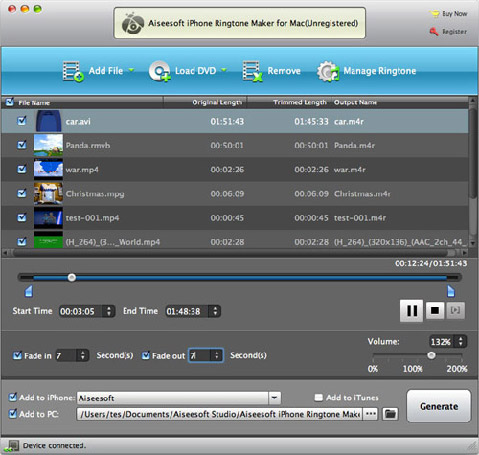
Create free iPhone 4 ringtones with all-in-one iPhone Ringtone Maker for Mac
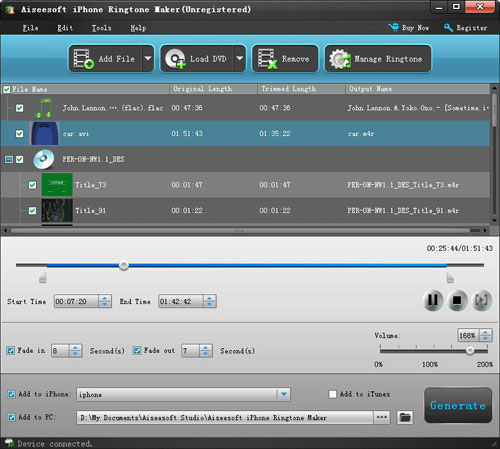
There are piles of 3rd party iPhone Ringtone Makers on Google. With them you can create your own ringtones from whatever music or video file.
The picked one here, the specific iPhone Ringtone Maker make it stand out from the rest of the crowd of iPhone Ringtone Makers available for MAC. Besides converting all the regular music formats like (.aac; .mp3; .m4a; .wma; .wav; .aiff; .ac3; .ogg; .ape etc) into iPhone ringtone .m4r, it can also extract background audio from video movie files (like .mp4; .wmv; .asf; .mpg; .3gp; .flv; .mov; avi; DVD.vob; h.264; HD.m2ts; .tp; .trp; .ts ) and then convert them into .m4r.
Free download iPhone Ringtone Maker for Mac
Have fun with your lovely iPhone 3gs, iPhone 3g and the fashion-leading iPhone 4!
Related articles:
Convert Video to iPhone 4 Ringtone on Mac
Convert Songs for iPhone 4 Ringtones on Mac
iPhone ringtones are generally .m4r tracks 40 seconds or less in duration. Here this tutorial takes Mac for example, but the method goes the same way for Windows PC.
Here is the step by step guide how to make free ringtone for iPhone with iTunes 9.1 on Mac
Step 1. Go to "Preferences" in the iTunes menu at the top.
Step 2. Select the "General" tab, Select "Import" Settings.

step 3. Set AAC as the Import Encoder and make sure the bit rate is 128kbps.

Step 4. Find the song that you want to make into a ringtone. Listen to the song and find the part of it you want to use.
Step 5. Right click on the song and press "Get Info"

Step 6. Tab the "Option". Set the 'Start Time' and 'Stop Time' to the appropriate interval that you like the best - remember that the length can only be a maximum of 40 seconds. When you're done, hit OK.

Step 7. In the iTunes menu at the top, click "Advanced", then Create AAC Version from the drop-down menu.
Step 8. Wait for iTunes to convert your song. It will create a duplicate version.
Step 9. Right-click on that track and select "Show in Finder". Copy the song, and paste the song in the same folder so that a third version appears.
Rename the track on the desktop from "track name.m4a" to "track name.m4r". You will be prompted to confirm the change of extension from ".m4a" to ".m4r". Click "Use .m4r".
Step 10. Remove that track from iTunes library (right-click -> Delete).
Step 11. Double-click on the new .m4r file and it will be added into iTunes as a ringtone which can be synced to your iPhone 4.
NOTE: Remember to set the start and stop times of the original MP3 file back to the initial settings, if not the song will only play the designated 40 second loop.
Create free iPhone 4 ringtones with all-in-one iPhone Ringtone Maker for Mac
There are piles of 3rd party iPhone Ringtone Makers on Google. With them you can create your own ringtones from whatever music or video file.
The picked one here, the specific iPhone Ringtone Maker make it stand out from the rest of the crowd of iPhone Ringtone Makers available for MAC. Besides converting all the regular music formats like (.aac; .mp3; .m4a; .wma; .wav; .aiff; .ac3; .ogg; .ape etc) into iPhone ringtone .m4r, it can also extract background audio from video movie files (like .mp4; .wmv; .asf; .mpg; .3gp; .flv; .mov; avi; DVD.vob; h.264; HD.m2ts; .tp; .trp; .ts ) and then convert them into .m4r.
Free download iPhone Ringtone Maker for Mac
Have fun with your lovely iPhone 3gs, iPhone 3g and the fashion-leading iPhone 4!
Related articles:
Convert Video to iPhone 4 Ringtone on Mac
Convert Songs for iPhone 4 Ringtones on Mac