


While iPod and iPhone are more and more popular among us, more and more people are agonizing to fully manage their iPod/iPhone, such as transfer iPod/iPhone files to PC, PC to iPod/iPhone, iPod/iPhone to iPod/iPhone and make iPhone Ringtone. Here I’d like to share one tool—iPod + iPhone Mate. With it, you could find that making a fully enjoyment of iPod and iPhone is so easy!
Preparation: Download and install 4Easysoft iPod + iPhone Mate
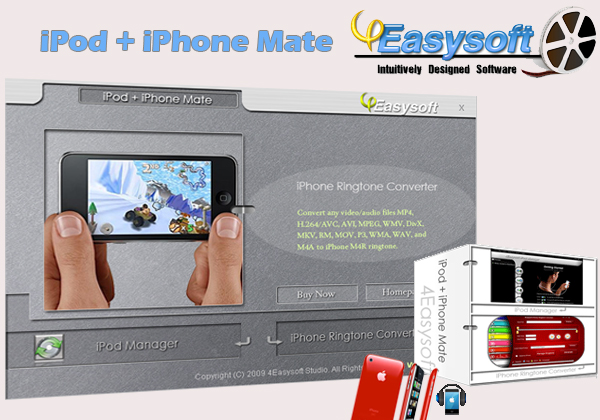
4Easysoft iPod + iPhone Mate which actually includes iPod Manager and iPhone Ringtone Converter is the powerful iPod iPhone software to transfer iPod iPhone files and make iPhone ringtone. Now let’s explore it:
Part 1: How to manage your iPod/iPhone
Step 1: Run this software and select “iPod Manager”.
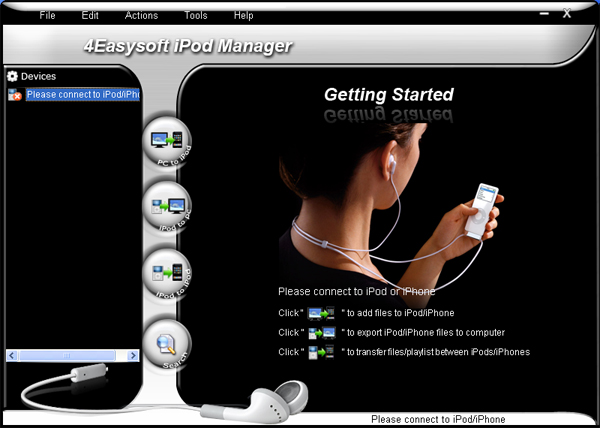
Step 2:Connect your iPod/iPhone to your computer via USB cable
Step 3: According your needs to select the the functions
a. If you want to import video/audio files to your iPod, click "PC to iPod" button, and then follow the instruction on it.
b. If you want to transfer iPod files to PC, click "iPod to PC" button, and then follow the instruction on it.
Tip: Click "Search" button to use "Track Filter" function to help you quickly browse your library by genre, artist and album.
c. If you want to transfer iPod to iPod, click "iPod to iPod" button, and then follow the instruction on it.
Step 3: After you have finished the above two steps, just follow the instructions on it to complete your demands.
So we can say, with it you can fully enjoy your iPod without other support!
Part 2: How to make iPhone Ringtone
Step 1: Run this software and select “iPhone Ringtone Converter”.
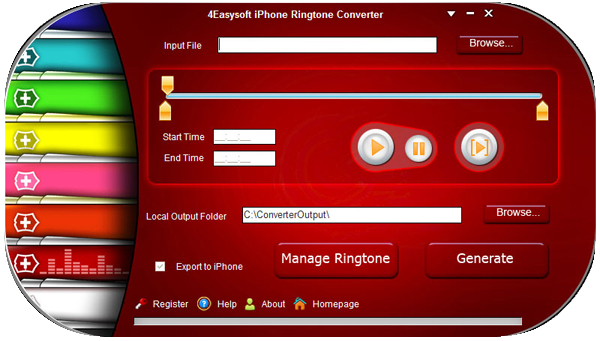
Step 2: Input source files
The source files can be any video and audio files, such as MP4, H.264/AVC, AVI, MPEG, WMV, MP3, WMA, WAV, etc.
Step 3: Pre-listen music and choose the clip
You can drag the slide bar to get music clip to convert, or type the start & end time in the corresponding text box directly.
Step 4: Set output destination
You can choose the output folder by clicking "Browse" button on the right side of the "Local Output File" label.
Step 5: Start the conversion
After all the settings are finished, click "Generate" button to start creating your own iPhone ringtone. During the creation, you can check the process by the progress bar at the bottom.
Related tools:
4Easysoft Total Video Converter:
This converter can help you convert among all mainstream video and audio formats and help you take videos easily on PSP, PS3, iPod, iPhone, Apple TV, Xbox or other digital devices.
4Easysoft AVI Converter:
This is an easy-to-use video converter which can convert mainstream video files to AVI format., such as MOV, WMV, ASF, 3GP, VOB, MPG/MPEG2, FLV (Flash Video) and HD video files to help you enjoy any video and movie on your Archos GMini402, iRiver PMP-100, Creative Zen, etc.
Preparation: Download and install 4Easysoft iPod + iPhone Mate
4Easysoft iPod + iPhone Mate which actually includes iPod Manager and iPhone Ringtone Converter is the powerful iPod iPhone software to transfer iPod iPhone files and make iPhone ringtone. Now let’s explore it:
Part 1: How to manage your iPod/iPhone
Step 1: Run this software and select “iPod Manager”.
Step 2:Connect your iPod/iPhone to your computer via USB cable
Step 3: According your needs to select the the functions
a. If you want to import video/audio files to your iPod, click "PC to iPod" button, and then follow the instruction on it.
b. If you want to transfer iPod files to PC, click "iPod to PC" button, and then follow the instruction on it.
Tip: Click "Search" button to use "Track Filter" function to help you quickly browse your library by genre, artist and album.
c. If you want to transfer iPod to iPod, click "iPod to iPod" button, and then follow the instruction on it.
Step 3: After you have finished the above two steps, just follow the instructions on it to complete your demands.
So we can say, with it you can fully enjoy your iPod without other support!
Part 2: How to make iPhone Ringtone
Step 1: Run this software and select “iPhone Ringtone Converter”.
Step 2: Input source files
The source files can be any video and audio files, such as MP4, H.264/AVC, AVI, MPEG, WMV, MP3, WMA, WAV, etc.
Step 3: Pre-listen music and choose the clip
You can drag the slide bar to get music clip to convert, or type the start & end time in the corresponding text box directly.
Step 4: Set output destination
You can choose the output folder by clicking "Browse" button on the right side of the "Local Output File" label.
Step 5: Start the conversion
After all the settings are finished, click "Generate" button to start creating your own iPhone ringtone. During the creation, you can check the process by the progress bar at the bottom.
Related tools:
4Easysoft Total Video Converter:
This converter can help you convert among all mainstream video and audio formats and help you take videos easily on PSP, PS3, iPod, iPhone, Apple TV, Xbox or other digital devices.
4Easysoft AVI Converter:
This is an easy-to-use video converter which can convert mainstream video files to AVI format., such as MOV, WMV, ASF, 3GP, VOB, MPG/MPEG2, FLV (Flash Video) and HD video files to help you enjoy any video and movie on your Archos GMini402, iRiver PMP-100, Creative Zen, etc.


