machine eke softwres mukuth weda naa :(

great ace

Well-known member
  • May 1, 2010
    3,417
    991
    113
    hikkaduwa
    aaneee machanla mage machine eke softwares bagekata wadiya weda karanne naa dan :\ :( sinhalen type karana eka pawa weda karane naa,,,browsers mukuth ma weda naa,,,,eset inetrnt security dala thiyenne,,virus awlk nam nemei,,eye ree okkoma hodata weda kara,,ada thmai awla awe,,,dan players mukuthma weda karanneth naa,skype weda karanneth naa,,mam skype remove karala apahu damma,,ee weda karanneth naa :( :(,,anee help ekak denna puluwan kenek :( :(
     
    Last edited:
    Aug 2, 2009
    31,526
    1,506
    0
    Good bye machan
    වැඩ කරන්නෙ නෑ කියන්නෙ?
    අයිකන් එකක් උඩ ඩබල් ක්ලික් කලාම මොනාද වෙන්නෙ?
    එරර් මැසේජ් එකක් එනවද?
     

    great ace

    Well-known member
  • May 1, 2010
    3,417
    991
    113
    hikkaduwa
    පැටියා;13430374 said:
    වැඩ කරන්නෙ නෑ කියන්නෙ?
    අයිකන් එකක් උඩ ඩබල් ක්ලික් කලාම මොනාද වෙන්නෙ?
    එරර් මැසේජ් එකක් එනවද?

    ow machan,,,this progrm need to close kiyala watenawa :(
     

    madura199

    Well-known member
  • May 6, 2012
    1,992
    334
    83
    mama hithanne virus awlak kiyala.....nettan ithin fomat korala win 7dapan....mam danna win xp thiyena machine ekakatath ohomama una...
     

    KPZ

    Well-known member
  • Apr 15, 2011
    17,331
    1,622
    113
    where I wanna be
    mage windows 7 machan thiyenne :\
    To use System Restore

    Before you start System Restore, save any open files and close all programs. System Restore will restart your PC.


    1. Open System Restore by clicking the Start button
      4f6cbd09-148c-4dd8-b1f2-48f232a2fd33_818.jpg
      . In the search box, type System Restore, and then, in the list of results, click System Restore.
      18abb370-ac1e-4b6b-b663-e028a75bf05b_48.jpg
      If you're prompted for an administrator password or confirmation, type the password or provide confirmation.
    2. Follow the steps in the wizard to choose a restore point and restore your computer.
      For more information, see System Restore: frequently asked questions.


    55e6d542-0b53-4a5f-ab70-9ce8734e2bde_0.jpg

    OR
    ---------------------------------------------------------------------------------------------------------------------------------------
    To Do a System Restore in Windows 7 using System Protection
    NOTE: Be sure to temporarily disable your antivirus program first to prevent it from possibly preventing you from doing a system restore.
    1. Open the Start Menu, type rstrui.exe in the search box, and press Enter.
    A) Go to step 5.
    OR

    2. Open the Start Menu.
    A) Click on All Programs, Accessories, System Tools, and System Restore. (see screenshot below)

    B) Go to step 5.
    OR

    3. Open the Control Panel (icons view).
    A) Click on the Recovery icon.

    B) Click on the Open System Restore button. (see screenshot below)

    C) Go to step 6 or 7 below.
    OR

    4. Open the Start Menu.
    A) Right click on the Computer button and click on Properties.

    B) Click on the System Protection link. (see screenshot below)

    C) Close the System window. (see screenshot above)

    D) Continue on to step 5.
    5. Click on the System Restore button. (see screenshot below)

    6. If You Have Not Done a System Restore Before
    A) Click on the Next button. (see screenshot below)

    B) Go to step 8.
    7. If You Have Done a System Restore Before
    A) Select (dot) Choose a different restore point, and click on the Next buton. (see screenshot below)
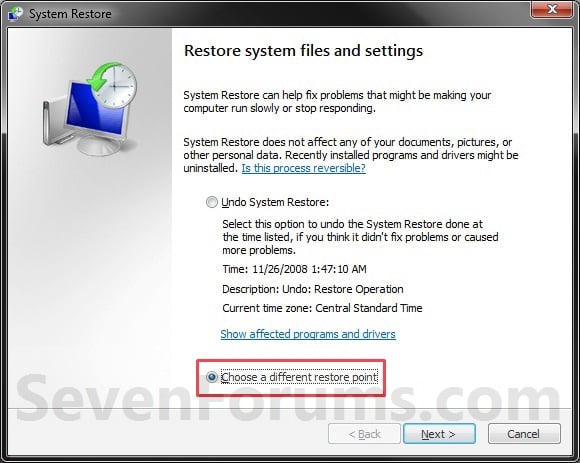
    8. Select (click on) a listed restore point that you want to restore the drives that were included in the restore point back to how they were when the restore point was created. (see screenshot below)
    NOTE: Check the Show other restore points box to see any restore points (older) that may not be listed here.
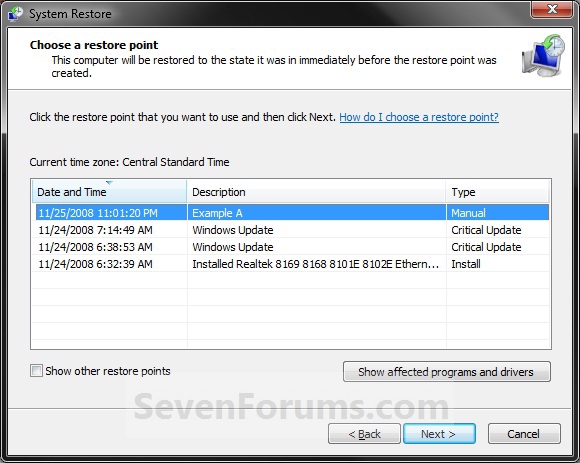
    9. To Show Affected Programs and Drivers
    NOTE: This will show you a list of programs and drivers that will be deleted and restored by the selected restore point.
    A) Click on the Show affected programs and drivers button. (See screenshot above)

    B) When done reviewing, click on the Close button. (see screenshot below)

    10. Click on the Next button. (see screenshot below step 8)
    NOTE: Make sure that the restore point you want is still selected (highlighted).

    11. Click on the Finish button. (see screenshot below)
    NOTE: The listed drives here will be restored back to how they were for the selected restore point.

    12. Click on Yes to confirm. (see screenshot below)
    WARNING: This will immediately restart your computer to finish the system restore.

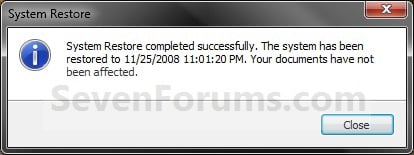
    13. After the computer has restarted, click on the Close button. (see screenshot below)
     

    great ace

    Well-known member
  • May 1, 2010
    3,417
    991
    113
    hikkaduwa
    To use System Restore

    Before you start System Restore, save any open files and close all programs. System Restore will restart your PC.


    1. Open System Restore by clicking the Start button
      4f6cbd09-148c-4dd8-b1f2-48f232a2fd33_818.jpg
      . In the search box, type System Restore, and then, in the list of results, click System Restore.
      18abb370-ac1e-4b6b-b663-e028a75bf05b_48.jpg
      If you're prompted for an administrator password or confirmation, type the password or provide confirmation.
    2. Follow the steps in the wizard to choose a restore point and restore your computer.
      For more information, see System Restore: frequently asked questions.


    55e6d542-0b53-4a5f-ab70-9ce8734e2bde_0.jpg

    OR
    ---------------------------------------------------------------------------------------------------------------------------------------
    To Do a System Restore in Windows 7 using System Protection
    NOTE: Be sure to temporarily disable your antivirus program first to prevent it from possibly preventing you from doing a system restore.
    1. Open the Start Menu, type rstrui.exe in the search box, and press Enter.
    A) Go to step 5.
    OR

    2. Open the Start Menu.
    A) Click on All Programs, Accessories, System Tools, and System Restore. (see screenshot below)

    B) Go to step 5.
    OR

    3. Open the Control Panel (icons view).
    A) Click on the Recovery icon.

    B) Click on the Open System Restore button. (see screenshot below)

    C) Go to step 6 or 7 below.
    OR

    4. Open the Start Menu.
    A) Right click on the Computer button and click on Properties.

    B) Click on the System Protection link. (see screenshot below)

    C) Close the System window. (see screenshot above)

    D) Continue on to step 5.
    5. Click on the System Restore button. (see screenshot below)

    6. If You Have Not Done a System Restore Before
    A) Click on the Next button. (see screenshot below)

    B) Go to step 8.
    7. If You Have Done a System Restore Before
    A) Select (dot) Choose a different restore point, and click on the Next buton. (see screenshot below)

    8. Select (click on) a listed restore point that you want to restore the drives that were included in the restore point back to how they were when the restore point was created. (see screenshot below)
    NOTE: Check the Show other restore points box to see any restore points (older) that may not be listed here.

    9. To Show Affected Programs and Drivers
    NOTE: This will show you a list of programs and drivers that will be deleted and restored by the selected restore point.
    A) Click on the Show affected programs and drivers button. (See screenshot above)

    B) When done reviewing, click on the Close button. (see screenshot below)

    10. Click on the Next button. (see screenshot below step 8)
    NOTE: Make sure that the restore point you want is still selected (highlighted).

    11. Click on the Finish button. (see screenshot below)
    NOTE: The listed drives here will be restored back to how they were for the selected restore point.

    12. Click on Yes to confirm. (see screenshot below)
    WARNING: This will immediately restart your computer to finish the system restore.

    13. After the computer has restarted, click on the Close button. (see screenshot below)


    Thaankzzz machannn,,,mam karala balannamm...Thankzz again machan :)