Photoshop help needed

dushan90

Active member
  • Jan 22, 2008
    811
    50
    28
    Diagon Alley
    Machan mekai scene eka. Mage gawa thiyenawa images 500k vithara eka eka dimensions walin. Mata one canvas size eke vadima value ekak thiyena eke gaanatama anikath hadanna.

    E kiyanne 789x456px thiyena image ekaka canvas size eka 789x789 hadanna/ 456x789px thiyena image ekak unoth ethakotath 789x789 karanna.

    image 500ye dimensions 500k thiyenne.

    Therunada manda?
     

    shammaxxy

    Well-known member
  • May 21, 2011
    1,330
    346
    83
    image tab ekata gihin eke athi canvas size kiyala... eken wenas karapan. ubata ekin ekata wenas karanna wenawa!!! :O
     

    kokatuwaa

    Active member
  • Oct 6, 2013
    603
    53
    28
    Kalutara
    meka simple case ekak ban. :)

    Machan download a photoshop action file from here.

    https://www.dropbox.com/s/4yn3lsw7h3izax8/script-odd-dimention-to-square-canvas.jsx

    Or you can copy below code to a new text editor and save it as .jsx file.

    This is the code.


    var savedRuler= app.preferences.rulerUnits;
    app.preferences.rulerUnits = Units.PIXELS;
    var w = app.activeDocument.width;
    var h = app.activeDocument.height;
    if(w>h) app.activeDocument.resizeCanvas (w, w, AnchorPosition.MIDDLECENTER); if(w<h) app.activeDocument.resizeCanvas (h, h, AnchorPosition.MIDDLECENTER);
    //if w==h already square
    app.preferences.rulerUnits = savedRuler;


    2. Save this script file on a separate folder on your computer.
    Step 2

    How to record a Photoshop action


    Now lets see, how to record photoshop action with above script.


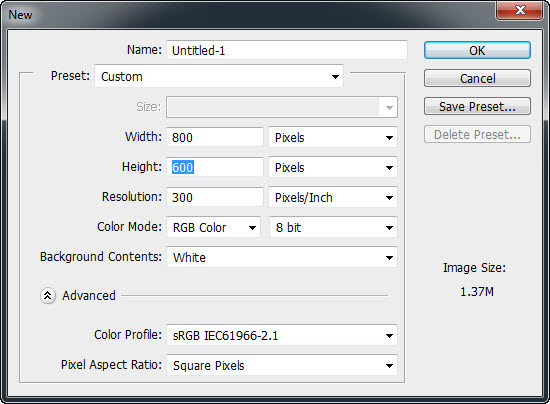
    1. Open Photoshop and create a new document and save it. I created a new document in 800x600 size.


    2. Now open Photoshop action panel, Windows - Actions


    3. Now you need to create a "Set". Every action must belong to a "Set" which is a folder containing one or more actions. You can do this by clicking fly-out menu, and selecting "New Set".


    4. Give a meaningful name on the pop-up window.


    5. Now this set willl appear at the bottom of the action palette. With your action set selected, click on the new action button at the bottom of the action palette.


    6. In the pop-up window, give the new action name. If you would like you can set a Function Key as well. (Shortcut). and click "Record".


    7. Ok, Now we have started Recording. You can see "Red color" recording button is active. It means, now photoshop will record every things we do here untill we click stop button.


    8. Ok, Now these are the steps I needed for my action steps.
    - Unlock background the layer. (double clicking on the background layer)
    - Load the action script file
    - Save


    so, lets do this.


    Ok first double click on the background layer, and it will unlock. You can see that action will be recorded.
    in to this..
    You can see its recording that step under "my-custom-actions" set.


    Now we need to load the script file which we saved earliar.


    Step 3

    - How to load a Script File

    1. Go to File - Scripts - Browse and locate the script file and load it.


    and, Once you Load it, You'll see the photoshop has resized the image.


    In my case, my new canvas size has become 800x800.


    2. Now,most importantly We need to Save the file.
    Go to File- Save and save it.
    (Remember, this save location will be the location for any file you are applying this action. )


    You'll be able to see "Save" step also saving a step on the action set.


    Actually, I added a close step to the action set.
    I clicked on the last save step and Press "Record" button again. and then Close the image.


    Now Click on the Stop button which is beside on the Record button.


    Ok Cool, Now we have a action, that we can apply to any image.
    You can test this by opening any image and putting action to it.


    I've opened this image from sample picture folder from windows 7.


    Now selection the "Odd-image-resize" action from the action pallet and click on the "Play" button.
    You'll see image get resized and saved on the above same location.


    Ok, so we are done.
    If you like, you can add this action to any single image. Or you can do a batch process.


    Step 4

    How to batch process a folder with selection Photoshop action

    1. Put all the pictures which need to process to a single folder.


    2. Now go to File--> Automate --> Batch


    3. On the batch window, Select your custome set. and then the Action as "odd-image-resize".


    then, Source as "Folder" and click Choose button and select your folder.


    Set the Destination as "Folder" , and create a new folder, I created a new folder as "export" inside same folder and selected it.


    Once you press OK, You'll see all the pictures are opening, and get applied actions and saving.


    So, One thing went wrong..with the saving path.
    as I checked , they were not in the export folder.. :D


    but in our earlier folder which I save my document.
    So, actually you can go to action pallete and double click on the save step, and change the save location.

     
    Last edited:
    • Like
    Reactions: dushan90