

Latest ads
-
 ඕනම රටකට සෙට් වෙන CV එකක්
- ErMurazor
- Updated:
-
 Hambantota 7 Acres Beachfront Land For Sell DownSouth , PerPerch Price 420 000
- 1024 Digital
- Updated:
-
 Baseus PI LITE INDOOR CAMERA
- ErMurazor
- Updated:
-
Colombo Hard Disk For Sale
- mazza
- Updated:
-
 land for sale
- justasking
- Updated:
You are using an out of date browser. It may not display this or other websites correctly.
You should upgrade or use an alternative browser.
You should upgrade or use an alternative browser.


PYTHON FOR DATA SCIENCE AND MACHINELEARNING OFFICIAL THREAD - PART 02HTML:
HOW TO INSTALL PYTHON
1. ON WINDOWS - ANACONDA
මෙම Tutorialය කොටස් තුනකට බෙදී ඇත. පළමු කොටස Anaconda ස්ථාපනය(install) කරයි. දෙවන කොටස ඔබේ ස්ථාපනය පරීක්ෂා කර බලන්න(Testing your installation on - Make sure conda works and Correcting Path Issues). අවසාන වශයෙන්, මෙම Tutorialයේ අවසන් කොටස පැකේජ ස්ථාපනය කිරීම(Installing packages) හා Environment Managmentය. සෑම විටම ඔබට තිබෙන ප්රශ්න මෙහි කොටාගෙන යන්න. මම Use කරන්නේ Mac OS හින්දා මට ඇත්තටම Windows Installation Troubleshoot කරන්න ටිකක් විතර අමාරුයි But I'll ask my colleagues and get back to you as soon as possible for sure.
1).Download and install Anaconda (windows version) from

1.
Click Here
to Download Anaconda for Windows.
ඔබගේ අවශ්යතා අනුව Python 2 හෝ Python 3 Version තෝරන්න. එය Installation Process ekata nam බලපාන්නේ නැත. But I Recomment you to choose Python 3
2.Select the default options when prompted during the installation of Anaconda.

3. ඔබ Installation Processය අවසන් වූ පසුව Anaconda Prompt විවෘත කරන්න. ඔබට Jupyter (IPython) Notebook භාවිතා කළ හැකි බව දැකීමට පහත දැක්වෙන Code eka ඇතුල් කරන්න.
---------
Code>: jupyter notebook
---------
I'll make things easier for you: First Create a folder named 'Python_Tutorial' in Desktop
Then by using cd desktop command in CMD, Go to that folder then type jupyter notebook so you can start Jupyter Notebook from that location. පල්ලෙහා Image එකේ තියෙන්නේ Drive E එකේ එයා හදපු Folders අතුලට ගිහින් එයා Jupyter Notebook එක Run කරපු විදිහ.:)
PS: ඒ සීන් එක තේරුනේ නැතිනම් අයේ අහන්න මම එකක් දාල පෙන්නන්නම් කොහොමහරි.

4.ස්ථාපන ක්රියාවලියේදී ඔබ add Anaconda to path argument තහවුරු නොකළේ නම්, ඔබගේ environment variables සඳහා python සහ conda එකතු කිරීමට සිදු වනු ඇත. ඔබ විසින් command prompt විවෘත කළහොත් (not anaconda promp) පහත සඳහන් messages show unoth, Enviroment Variables setup kiriima kara යුතු බව ඔබta danaganna puluwan.

Messages like this mean you havent added python or conda to your path yet. In the next step, we will fix this
5. මෙම පියවරේදී ඔබගේ Path eka වෙත python සහ conda add කිරීම සඳහා විකල්ප(Options) දෙකක් ලබා දෙයි (1 විකල්පයක් පමණක් තෝරන්න).
**** If you don’t know where your conda and/or python is, you type the following commands into your anaconda prompt***

5.1) Option 1:
You can manually modify your environment variables. I'm sure you can find bunch of videos related to modifying environment variables and you would've definetly done it in Java.
5.2) Option 2:
You can add Python and Conda to your path by using the setx command in your command prompt.

6. වත්මන් current command prompt වසා දමා නව එකක් විවෘත කරන්න. Path safe දැයි බැලීමට python සහ conda ටයිප් කරන්න. ඉවරයි!
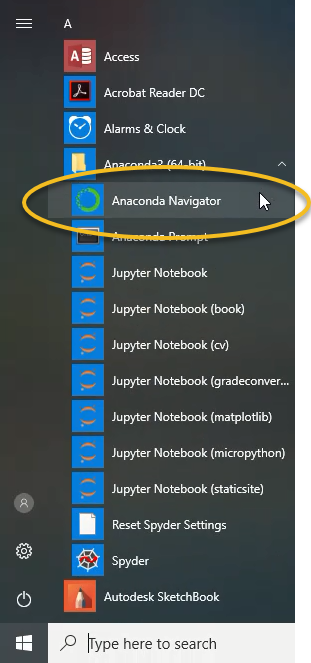
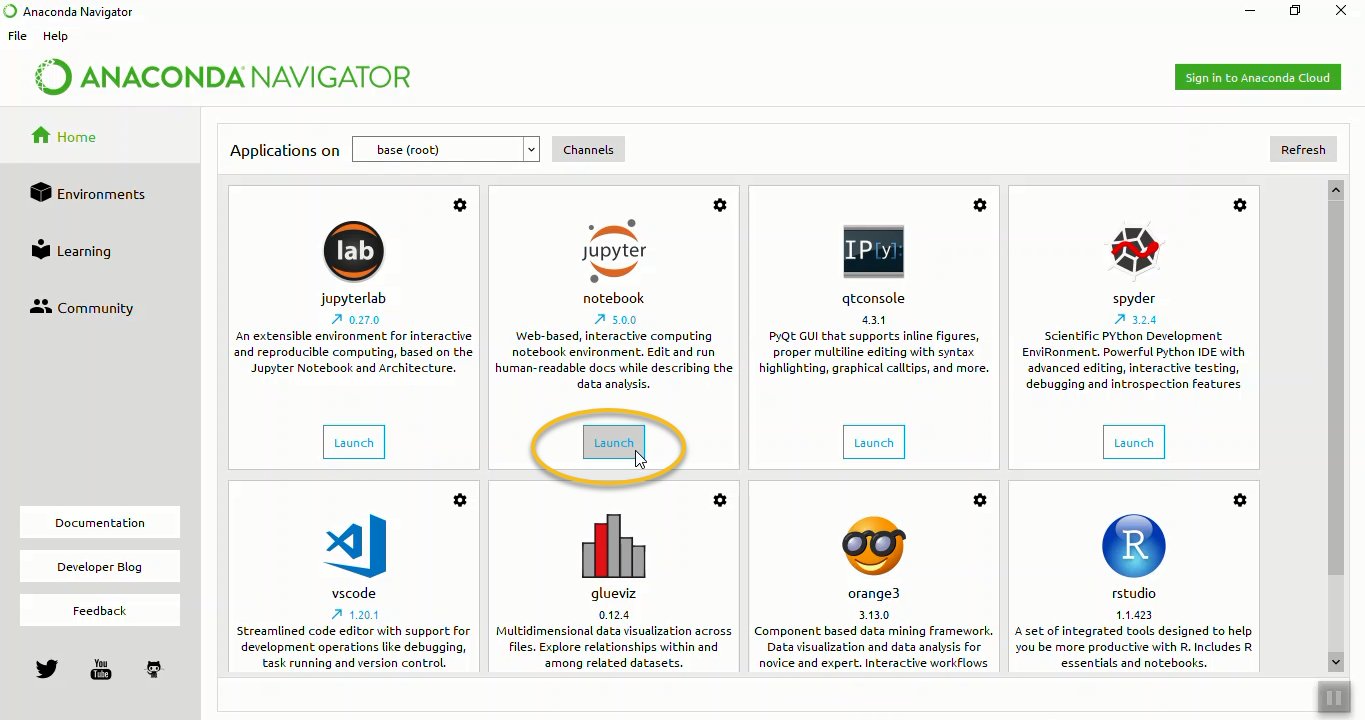
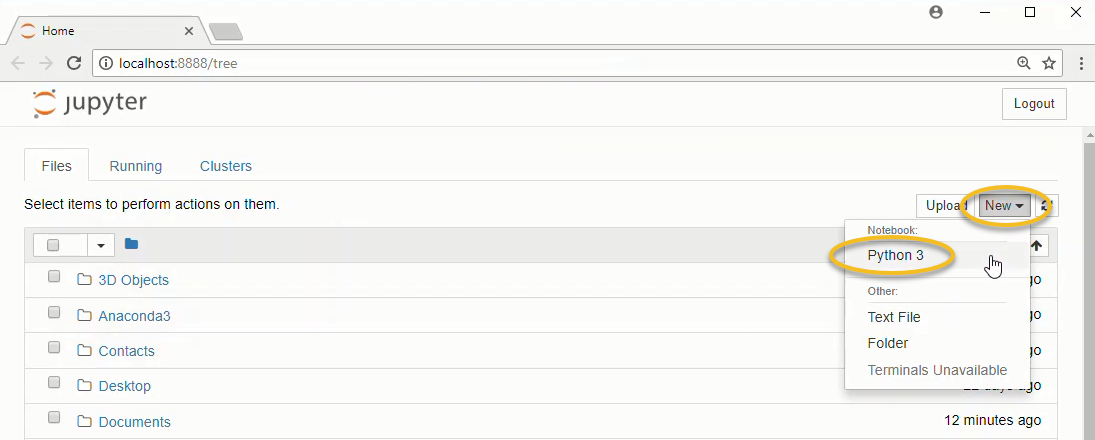
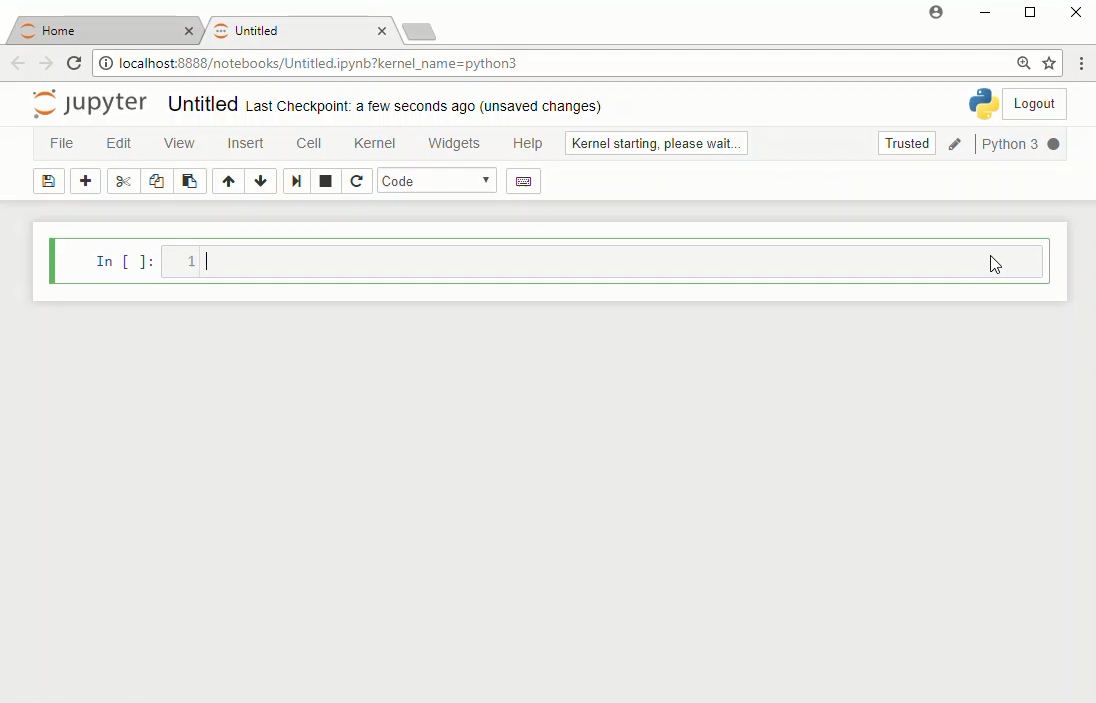
2. ON MAC - ANACONDA
Next Tutorial එකේ Mac OS එකට Anaconda Install කරන හැටි කියලා දෙන්නම්. එ අතර තුර මෙකර බම්ප් එකක් දාගෙන යන්න, තියෙන ප්රශ්නත් සියල්ලම මේ නූලේම දාගෙන යන්න..

Okkomala Jupyter Notebook eka run karaganna puluwan una nam puluwan una kiyala comment ekak dagena yanna. Thank You!


bump


මචන් වඩේනම් නියමයි..පොඩි යෝජනවක් කරන්නම්..එකම ත්රෙඩ් එකේ නැතුව වෙන වෙන ත්රෙඩ් ඕපන් කලොත් ගොඩක් ලේසි බලන කෙනෙක්ට...එතකොට ඒකට අදලා ප්රශ්නෙ ඒ ත්රෙඩ් එකේ...එහම උනාම ලේසි නේ???
නවත්තන්ඩ එපා..දිගටම කරන්ඩ...
Me wade hariyanne nethi nisa part II eka wenama thread ekaka damma machan

Me wade hariyanne nethi nisa part II eka wenama thread ekaka damma machan
එලම නියමයි මචන් 


Supiri bro... Mama personally godak asa language eka Python kiyne. eth Data scientist gana kisim idea ekak naa.. mama meka iwara wenakm complete kranna godak asawen balan innwa.. Jaya wewa..


Elaa thanks. Ubalage suggestions and prashna and mona wage ewada cover karanna ona kiyana eka gena me thread eka dagena palayannn.
http://www.elakiri.com/forum/showthread.php?t=1922886
http://www.elakiri.com/forum/showthread.php?t=1922886
Similar threads

- Replies
- 21
- Views
- 1K

- Replies
- 10
- Views
- 1K


- Replies
- 6
- Views
- 459
