Tips & Tricks Collection of DC

Oct 26, 2008
6,219
8
0
Cyberspace
How to Search *Live* Security Cameras Worldwide from Google!

Google%20search%20home.png


Find net cams with the following searches in google:

Code:
inurl:"ViewerFrame?Mode="
Code:
intitle:"WJ-NT104 Main Page"
Code:
inurl:netw_tcp.shtml
Code:
intitle:"supervisioncam protocol"
Just copy paste in the lines given above and in the search results page click any u wish!
 
Oct 26, 2008
6,219
8
0
Cyberspace
What is the Registry?

windows_registry.jpg


The Registry is a database used to store settings and options for the 32 bit versions of Microsoft Windows including Windows 95, 98, ME and NT/2000. It contains information and settings for all the hardware, software, users, and preferences of the PC. Whenever a user makes changes to a Control Panel settings, or File Associations, System Policies, or installed software, the changes are reflected and stored in the Registry.

The physical files that make up the registry are stored differently depending on your version of Windows; under Windows 95 & 98 it is contained in two hidden files in your Windows directory, called USER.DAT and SYSTEM.DAT, for Windows Me there is an additional CLASSES.DAT file, while under Windows NT/2000 the files are contained seperately in the %SystemRoot%\System32\Config directory. You can not edit these files directly, you must use a tool commonly known as a "Registry Editor" to make any changes (using registry editors will be discussed later in the article).

The Structure of The Registry

The Registry has a hierarchal structure, although it looks complicated the structure is similar to the directory structure on your hard disk, with Regedit being similar to Windows Explorer.

Each main branch (denoted by a folder icon in the Registry Editor, see left) is called a Hive, and Hives contains Keys. Each key can contain other keys (sometimes referred to as sub-keys), as well as Values. The values contain the actual information stored in the Registry. There are three types of values; String, Binary, and DWORD - the use of these depends upon the context.

There are six main branches, each containing a specific portion of the information stored in the Registry. They are as follows:


* HKEY_CLASSES_ROOT - This branch contains all of your file association mappings to support the drag-and-drop feature, OLE information, Windows shortcuts, and core aspects of the Windows user interface.

* HKEY_CURRENT_USER - This branch links to the section of HKEY_USERS appropriate for the user currently logged onto the PC and contains information such as logon names, desktop settings, and Start menu settings.

* HKEY_LOCAL_MACHINE - This branch contains computer specific information about the type of hardware, software, and other preferences on a given PC, this information is used for all users who log onto this computer.

* HKEY_USERS - This branch contains individual preferences for each user of the computer, each user is represented by a SID sub-key located under the main branch.

* HKEY_CURRENT_CONFIG - This branch links to the section of HKEY_LOCAL_MACHINE appropriate for the current hardware configuration.

* HKEY_DYN_DATA - This branch points to the part of HKEY_LOCAL_MACHINE, for use with the Plug-&-Play features of Windows, this section is dymanic and will change as devices are added and removed from the system.

Each registry value is stored as one of five main data types:

* REG_BINARY - This type stores the value as raw binary data. Most hardware component information is stored as binary data, and can be displayed in an editor in hexadecimal format.

* REG_DWORD - This type represents the data by a four byte number and is commonly used for boolean values, such as "0" is disabled and "1" is enabled. Additionally many parameters for device driver and services are this type, and can be displayed in REGEDT32 in binary, hexadecimal and decimal format, or in REGEDIT in hexadecimal and decimal format.

* REG_EXPAND_SZ - This type is an expandable data string that is string containing a variable to be replaced when called by an application. For example, for the following value, the string "%SystemRoot%" will replaced by the actual location of the directory containing the Windows NT system files. (This type is only available using an advanced registry editor such as REGEDT32)

* REG_MULTI_SZ - This type is a multiple string used to represent values that contain lists or multiple values, each entry is separated by a NULL character. (This type is only available using an advanced registry editor such as REGEDT32)

* REG_SZ - This type is a standard string, used to represent human readable text values.

Other data types not available through the standard registry editors include:

* REG_DWORD_LITTLE_ENDIAN - A 32-bit number in little-endian format.
* REG_DWORD_BIG_ENDIAN - A 32-bit number in big-endian format.
* REG_LINK - A Unicode symbolic link. Used internally; applications should not use this type.
* REG_NONE - No defined value type.
* REG_QWORD - A 64-bit number.
* REG_QWORD_LITTLE_ENDIAN - A 64-bit number in little-endian format.
* REG_RESOURCE_LIST - A device-driver resource list.

Editing The Registry

The Registry Editor (REGEDIT.EXE) is included with most version of Windows (although you won't find it on the Start Menu) it enables you to view, search and edit the data within the Registry. There are several methods for starting the Registry Editor, the simplest is to click on the Start button, then select Run, and in the Open box type "regedit", and if the Registry Editor is installed it should now open and look like the image below.

An alternative Registry Editor (REGEDT32.EXE) is available for use with Windows NT/2000, it includes some additional features not found in the standard version, including; the ability to view and modify security permissions, and being able to create and modify the extended string values REG_EXPAND_SZ & REG_MULTI_SZ.

Create a Shortcut to Regedit
This can be done by simply right-clicking on a blank area of your desktop, selecting New, then Shortcut, then in the Command line box enter "regedit.exe" and click Next, enter a friendly name (e.g. 'Registry Editor') then click Finish and now you can double click on the new icon to launch the Registry Editor.

Using Regedit to modify your Registry
Once you have started the Regedit you will notice that on the left side there is a tree with folders, and on the right the contents (values) of the currently selected folder.

Like Windows explorer, to expand a certain branch (see the structure of the registry section), click on the plus sign [+] to the left of any folder, or just double-click on the folder. To display the contents of a key (folder), just click the desired key, and look at the values listed on the right side. You can add a new key or value by selecting New from the Edit menu, or by right-clicking your mouse. And you can rename any value and almost any key with the same method used to rename files; right-click on an object and click rename, or click on it twice (slowly), or just press F2 on the keyboard. Lastly, you can delete a key or value by clicking on it, and pressing Delete on the keyboard, or by right-clicking on it, and choosing Delete.

Note: it is always a good idea to backup your registry before making any changes to it. It can be intimidating to a new user, and there is always the possibility of changing or deleting a critical setting causing you to have to reinstall the whole operating system. It's much better to be safe than sorry!

Importing and Exporting Registry Settings

A great feature of the Registry Editor is it's ability to import and export registry settings to a text file, this text file, identified by the .REG extension, can then be saved or shared with other people to easily modify local registry settings. You can see the layout of these text files by simply exporting a key to a file and opening it in Notepad, to do this using the Registry Editor select a key, then from the "Registry" menu choose "Export Registry File...", choose a filename and save. If you open this file in notepad you will see a file similar to the example below:

Quote:

REGEDIT4

[HKEY_LOCAL_MACHINE\SYSTEM\Setup]
"SetupType"=dword:00000000
"CmdLine"="setup -newsetup"
"SystemPrefix"=hex:c5,0b,00,00,00,40,36,02

The layout is quite simple, REGEDIT4 indicated the file type and version, [HKEY_LOCAL_MACHINE\SYSTEM\Setup] indicated the key the values are from, "SetupType"=dword:00000000 are the values themselves the portion after the "=" will vary depending on the type of value they are; DWORD, String or Binary.

So by simply editing this file to make the changes you want, it can then be easily distributed and all that need to be done is to double-click, or choose "Import" from the Registry menu, for the settings to be added to the system Registry.

Deleting keys or values using a REG file
It is also possible to delete keys and values using REG files. To delete a key start by using the same format as the the REG file above, but place a "-" symbol in front of the key name you want to delete. For example to delete the [HKEY_LOCAL_MACHINE\SYSTEM\Setup] key the reg file would look like this:

Quote:

REGEDIT4

[-HKEY_LOCAL_MACHINE\SYSTEM\Setup]

The format used to delete individual values is similar, but instead of a minus sign in front of the whole key, place it after the equal sign of the value. For example, to delete the value "SetupType" the file would look like:

Quote:

REGEDIT4

[HKEY_LOCAL_MACHINE\SYSTEM\Setup]
"SetupType"=-

Use this feature with care, as deleting the wrong key or value could cause major problems within the registry, so remember to always make a backup first.

Regedit Command Line Options
Regedit has a number of command line options to help automate it's use in either batch files or from the command prompt. Listed below are some of the options, please note the some of the functions are operating system specific.

* regedit.exe [options] [filename] [regpath]
* [filename] Import .reg file into the registry
* /s [filename] Silent import, i.e. hide confirmation box when importing files
* /e [filename] [regpath] Export the registry to [filename] starting at [regpath]
e.g. regedit /e file.reg HKEY_USERS\.DEFAULT
* /L:system Specify the location of the system.dat to use
* /R:user Specify the location of the user.dat to use
* /C [filename] Compress (Windows 98)
* /D [regpath] Delete the specified key (Windows 98)

Maintaining the Registry

How can you backup and restore the Registry?

Windows 95
Microsoft included a utility on the Windows 95 CD-ROM that lets you create backups of the Registry on your computer. The Microsoft Configuration Backup program, CFGBACK.EXE, can be found in the \Other\Misc\Cfgback directory on the Windows 95 CD-ROM. This utility lets you create up to nine different backup copies of the Registry, which it stores, with the extension RBK, in your \Windows directory. If your system is set up for multiple users, CFGBACK.EXE won't back up the USER.DAT file.

After you have backed up your Registry, you can copy the RBK file onto a floppy disk for safekeeping. However, to restore from a backup, the RBK file must reside in the \Windows directory. Windows 95 stores the backups in compressed form, which you can then restore only by using the CFGBACK.EXE utility.

Windows 98
Microsoft Windows 98 automatically creates a backup copy of the registry every time Windows starts, in addition to this you can manually create a backup using the Registry Checker utility by running SCANREGW.EXE from Start | Run menu.

What to do if you get a Corrupted Registry
Windows 95, 98 and NT all have a simple registry backup mechanism that is quite reliable, although you should never simply rely on it, remember to always make a backup first!

Windows 95
In the Windows directory there are several hidden files, four of these will be SYSTEM.DAT & USER.DAT, your current registry, and SYSTEM.DA0 & USER.DA0, a backup of your registry. Windows 9x has a nice reature in that every time it appears to start successfully it will copy the registry over these backup files, so just in case something goes wrong can can restore it to a known good state. To restore the registry follow these instruction:


  1. * Click the Start button, and then click Shut Down.
    * Click Restart The Computer In MS-DOS Mode, then click Yes.
    * Change to your Windows directory. For example, if your Windows directory is c:\windows, you would type the following:

    cd c:\windows

    * Type the following commands, pressing ENTER after each one. (Note that SYSTEM.DA0 and USER.DA0 contain the number zero.)

    attrib -h -r -s system.dat
    attrib -h -r -s system.da0
    copy system.da0 system.dat
    attrib -h -r -s user.dat
    attrib -h -r -s user.da0
    copy user.da0 user.dat

    * Restart your computer.
    Following this procedure will restore your registry to its state when you last successfully started your computer.

    If all else fails, there is a file on your hard disk named SYSTEM.1ST that was created when Windows 95 was first successfully installed. If necessary you could also change the file attributes of this file from read-only and hidden to archive to copy the file to C:\WINDOWS\SYSTEM.DAT.

    Windows NT
    On Windows NT you can use either the "Last Known Good" option or RDISK to restore to registry to a stable working configuration.

    How can I clean out old data from the Registry?
    Although it's possible to manually go through the Registry and delete unwanted entries, Microsoft provides a tool to automate the process, the program is called RegClean. RegClean analyzes Windows Registry keys stored in a common location in the Windows Registry. It finds keys that contain erroneous values, it removes them from the Windows Registry after having recording those entries in the Undo.Reg file.
 
Oct 26, 2008
6,219
8
0
Cyberspace
Reset Or Change Administrator Password On Windows XP

Give_Computer_name_and_administrator_password.png


Here’s a quick and easy way to change your administrator password on Windows XP.

1. Place your Windows XP CD in your cd-rom and start your computer (it’s assumed here that your XP CD is bootable as it should be - and that you have your bios set to boot from CD)

2. Keep your eye on the screen messages for booting to your CD Typically, it will be Press any key to boot from CD

3. Once you get in, the first screen will indicate that Setup is inspecting your system and loading files.

4. When you get to the Welcome to Setup screen, press ENTER to Setup Windows now

5. The Licensing Agreement comes next - Press F8 to accept it.

6. The next screen is the Setup screen which gives you the option to do a Repair.
It should read something like If one of the following Windows XP installations is damaged, Setup can try to repair it
Use the up and down arrow keys to select your XP installation (if you only have one, it should already be selected) and press R to begin the Repair process.

7. Let the Repair run. Setup will now check your disks and then start copying files which can take several minutes.

8. Shortly after the Copying Files stage, you will be required to reboot. (this will happen automatically you will see a progress bar stating “Your computer will reboot in 15 seconds

9. During the reboot, do not make the mistake of pressing any key to boot from the CD again! Setup will resume automatically with the standard billboard screens and you will notice Installing Windows is highlighted.

10. Keep your eye on the lower left hand side of the screen and when you see the Installing Devices progress bar, press SHIFT + F10. This is the security hole! A command console will now open up giving you the potential for wide access to your system.

11. At the prompt, type NUSRMGR.CPL and press Enter. Voila! You have just gained graphical access to your User Accounts in the Control Panel.

12. Now simply pick the account you need to change and remove or change your password as you prefer. If you want to log on without having to enter your new password, you can type control userpasswords2 at the prompt and choose to log on without being asked for password. After you have made your changes close the windows, exit the command box and continue on with the Repair (have your Product key handy).

13. Once the Repair is done, you will be able to log on with your new password (or without a password if you chose not to use one or if you chose not to be asked for a password). Your programs and personalized settings should remain intact.
 
Oct 26, 2008
6,219
8
0
Cyberspace
How to Speed up the Menu Show Delay Time in Vista

vista-start-menu.png


This will show you how to change the amount of time it takes for a menu to pop, fade, or slide open when you run the pointer over it and hover. You can speed it up or slow it down to what you want it to do.

This will only apply these changes to the user account that is currently logged on, not all user accounts.

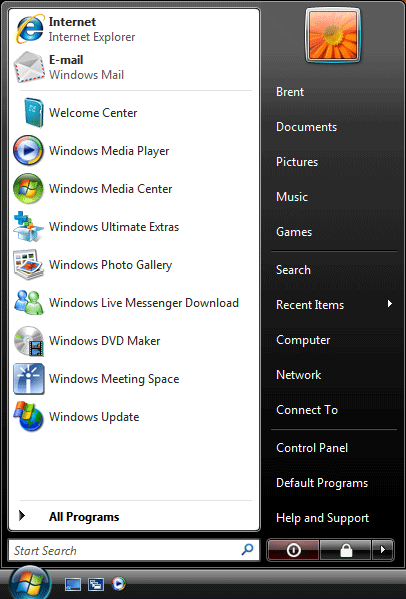
1. Open the Start Menu.

2. In the white line (Start Search) area, type regedit and press Enter.

3. If prompted, click on Continue in the UAC prompt.

4. In regedit, go to HKEY_CURRENT_USER\Control Panel\Desktop

5. In the right pane, right click MenuShowDelay (REG_SZ) and click on Modify.

6. Type in a number between 0 to 4000 (400 is default, I use 1) for how many milliseconds you want the Menu to wait before it opens.

Note: The lower the number, the faster the response time. If you use an entry of 0, there is no menu display delay. However it is not recommended to use 0 though since the menus may be hard to navigate through at that speed.

7. Click on OK to apply.

8. Close regedit.

9. Logoff and logon, or restart the computer to apply the changes.

Note: Now, open a Menu and see how much faster it responds.
 

alinaboom

Member
Jun 19, 2009
45
0
0
USA
Tips Tricks Collection of DC

I dont know what the hell is wrong, but I cant get a picture on here for nothing. And yes I signed up for photo bucket. Im hoping to get my computer savy daughter to help me later I feel so freggin stupid right now Sorry for offtop: order tamiflu paypal
 
Oct 26, 2008
6,219
8
0
Cyberspace
How to Increase your HDD Speed

rlfd5z.jpg


To speed up your hard disk speed we need to configure a special buffer in the computer's memory in order to enable it to better deal with interrupts made from the disk.

This tip is only recommended if you have 256MB RAM or higher.

Follow these steps:

Run SYSEDIT.EXE from the Run command.

Expand the system.ini file window.

Scroll down almost to the end of the file till you find a line called [386enh].

Press Enter to make one blank line, and in that line type

Irq14=4096

Note: This line IS CASE SENSITIVE!!!

Click on the File menu, then choose Save.

Close SYSEDIT and reboot your computer.

Done. Speed improvement will be noticed after the computer reboots.

Update: The most speed improvement is visible with IDE drives, however there are reports that this tweak also does good for SCSI disks. In any case, it won't harm your system, so why not try it yourself and let me know what you find.
 
Oct 26, 2008
6,219
8
0
Cyberspace
How to convert an IEEE 1394 Device to a Dynamic Disk Drive in Windows XP

2lthuko.jpg


This tweak allows you to convert an Institute of Electrical and Electronics Engineers, Inc. (IEEE) 1394 (FireWire) disk drive to a dynamic disk drive.

Open your registry and find the key below.

Create a new DWORD value, or modify the existing value called 'EnableDynamicConversionFor1394' using the settings below.

Exit your registry, you may need to restart or log out of Windows for the change to take effect.

Note: Do not convert IEEE 1394 disk drives to dynamic disk drives if they are going to be moved to other hosts. This setting must only be used for drives that remain with a single host.

Note: Dynamic disks are not supported on portable computers or Microsoft Windows XP Home Edition.

Code:
Settings: 
System Key: [HKEY_LOCAL_MACHINE\System\CurrentControlSet\Services\Dmadmin\Parameters]
Name: EnableDynamicConversionFor1394
Type: REG_DWORD (DWORD Value)
Value: (0 = default, 1 = enabled)
 

chamiba

Junior member
  • Jun 16, 2007
    124
    8
    18
    Google%20search%20home.png


    Find net cams with the following searches in google:

    Code:
    inurl:"ViewerFrame?Mode="
    Code:
    intitle:"WJ-NT104 Main Page"
    Code:
    inurl:netw_tcp.shtml
    Code:
    intitle:"supervisioncam protocol"
    Just copy paste in the lines given above and in the search results page click any u wish!

    online webcam IP eken balanda berida?
     
    Oct 26, 2008
    6,219
    8
    0
    Cyberspace
    How to Setup Event Viewer to Send a Email Notification in Vista

    sg011d.gif


    This will show you how to setup Event Viewer to send you a email notification for when a specific Log Event occurs. This can save you a lot of time and keep you informed of the specific Log Events you choose instead of manually checking them.

    Here's How:

    Note: Repeat for each log event you want an email for.

    1. Open the Control Panel (Classic View) and click on the Administrative Tools icon.

    2. Click on Event Viewer.
    A) Go to step 3.
    OR

    1. Open the Start Menu.

    2. In the white line (Start Search) area, type eventvwr and press Enter.

    3. If prompted, click on the Continue button in the UAC prompt.

    4. In the left pane, click on the log's name that you want to send an E-mail notification. (See screenshot below step 6)

    5. In the middle pane, click on the type of Event for that log's name that you want an E-mail on.

    6. Click on Attach Task To This Event... (See circled in red below)

    swa0yf.jpg


    7. Now fill in the Information. (See screenshot below)

    8. Click on the Next button.

    106fp77.jpg


    9. Click on the Next button in the When a Specific Event is Logged window.

    10. Dot Send an E-mail. (See circled in red below)

    11. Click on the Next button.

    1zx9pj7.jpg


    12. Fill out all the E-mail information for where you want the E-mail to go. The SMTP server is the same as in your Windows Mail E-mail account. (See screenshot below)

    13. Click on the Next button.

    145d1180862635-event-viewer-email-notification-step-4.jpg


    14. Proof read and make sure everything is correct. If not, click on the Back button and make your changes. (See screenshot below)

    15. Click on the Finish button when done.

    9arcow.jpg


    16. Close Event Viewer
    Note: This new task will now be created and added to Task Scheduler.

    17. To Delete this E-mail Notification Task -A) Go into Task Scheduler (in Administrative Tools) and right click on this task and click on Delete
     
    Oct 26, 2008
    6,219
    8
    0
    Cyberspace
    How to make a System Folder

    2lm11dh.jpg


    Make a system folders, which cannot be removed by others except you

    Can You make folders with caption 'CON' 'COM1' etc.
    If NO then follow these Steps-

    1.Open Command Prompt OR Start 'RUN' And Type 'CMD'
    2.Now in Command Prompt type 'MKDIR\\.\C:\CON'
    3.This will create a folder named 'CON' C:\ drive.
    4.You can replace 'CON' in step 2 with any name and 'c:' with any location you want !!!!!
     
    Oct 26, 2008
    6,219
    8
    0
    Cyberspace
    How to Troubleshoot a Computer

    troubleshootandrepair.jpg


    Before calling technical service and paying for "help," take a look at your computer yourself. A little common sense may help you solve simple hardware and software problems.

    Steps:
    1. Restart the computer. Many software problems will correct themselves when you do.
    2. Check your cables. Keyboard not working? Make sure it's plugged in. Mouse not responding? Make sure it's plugged in.
    3. Check the electric power. Plug a lamp into the same power outlet that's connected to your computer to make sure the outlet is working.
    4. Make sure the computer and monitor are plugged in.
    5. Disconnect peripheral devices (such as a printer or external Zip disk) and restart the computer.
    6. Listen for unusual sounds. Is the cooling fan running? Is the hard drive making noises?
    7. Look inside the computer for wires that aren't plugged in all the way or other faulty connections.
    8. Start the computer from an external start-up disk, such as the system software CD that came with your computer.

    Tips:
    If you do decide to call technical support, write down the exact problem and what you were doing when it occurred. Also note any error messages. Try to replicate the problem if you can.
    Be as specific as possible when talking to the support person. Example: "Whenever I try to start up my Mac, I see an icon with a little question mark. With my iMac CD, though, the computer boots normally."
    Computers tend to crash or hang when their hard disks become too full. Free up space by deleting unnecessary files and emptying the Trash or Recycle Bin.

    Warnings:

    Don't zap yourself or your RAM. When working inside the computer, turn the power off but leave the electrical cord plugged into the surge suppressor. Ground yourself by touching the casing of the power supply before touching any of the computer's circuits.

    Tips from eHow Users:

    Most computer problems are very easy to repair and most of the time no
    technician is required.
    What you need is to use your head and think.
    Often when a computer does not work, it's caused very often by the user itself that does not understand how it works.
    Take a cup of coffee or hot cocoa, sit down and relax...It will help to find a solution.
     
    Oct 26, 2008
    6,219
    8
    0
    Cyberspace
    Network Hacking

    Network Hacking is generally means gathering information about domain by using tools like Telnet, NslookUp, Ping, Tracert, Netstat, etc.
    It also includes OS Fingerprinting, Port Scaning and Port Surfing using various tools.

    Ping :- Ping is part of ICMP (Internet Control Message Protocol) which is used to troubleshoot TCP/IP networks. So, Ping is basically a command that allows you to check whether the host is alive or not.
    To ping a particular host the syntax is (at command prompt)--

    c:/>ping hostname.com

    example:- c:/>ping www. google.com

    ping.gif


    Various attributes used with 'Ping' command and their usage can be viewed by just typing c:/>ping at the command prompt.

    Netstat :- It displays protocol statistics and current TCP/IP network connections. i.e. local address, remote address, port number, etc.
    It's syntax is (at command prompt)--

    c:/>netstat -n

    9766wg.gif


    Telnet :- Telnet is a program which runs on TCP/IP. Using it we can connect to the remote computer on particular port. When connected it grabs the daemon running on that port.
    The basic syntax of Telnet is (at command prompt)--

    c:/>telnet hostname.com


    By default telnet connects to port 23 of remote computer.
    So, the complete syntax is-

    c:/>telnet www. hostname.com port


    example:- c:/>telnet www. yahoo.com 21 or c:/>telnet 192.168.0.5 21


    Tracert :- It is used to trace out the route taken by the certain information i.e. data packets from source to destination.
    It's syntax is (at command prompt)--

    c:/>tracert www. hostname.com


    example:- c:/>tracert www. insecure.in

    tracert.gif


    Here "* * * Request timed out." indicates that firewall installed on that system block the request and hence we can't obtain it's IP address.

    various attributes used with tracert command and their usage can be viewed by just typing c:/>tracert at the command prompt.

    The information obtained by using tracert command can be further used to find out exact operating system running on target system.
     

    Denhamfool

    Member
    Aug 29, 2009
    1
    0
    0
    Bro...i read ur article on how to increase the adsl speed....
    i'm sure it works..bt recently a virus attacked my pc...it mainly attacked IE......so ur method to increase bandwith speed isn't working since my internet explorer is corrupted......so iz there a wy to solve this problem????? and how can i remove internet explorer completely 4rm my pc???? i tried add or remove programmes but yet it wn't go awy it keeps on cumn ...i thnk the virus is still out there hidden...i'm reluctant to format my pc...so cn u tell me how i cn remove ie completely???
     
    Oct 26, 2008
    6,219
    8
    0
    Cyberspace
    Bro...i read ur article on how to increase the adsl speed....
    i'm sure it works..bt recently a virus attacked my pc...it mainly attacked IE......so ur method to increase bandwith speed isn't working since my internet explorer is corrupted......so iz there a wy to solve this problem????? and how can i remove internet explorer completely 4rm my pc???? i tried add or remove programmes but yet it wn't go awy it keeps on cumn ...i thnk the virus is still out there hidden...i'm reluctant to format my pc...so cn u tell me how i cn remove ie completely???

    Most of the virus are hidden so it is very hard to find. Best thing to do is install a very good anti virus software and keep updating before happening such cases.

    I beleive still you have a shot. so find a good anti virus and install to ur computer. Hopefully that sill solve your problems. The one you are using now is suck...:no: (i'm using McAfee Enterprise 8.7i)

    Brother you didn't mentioned which OS you are using? Still there is no 100% working method to uninstall your IE bcoz IE is part of the OS :(
     
    Oct 26, 2008
    6,219
    8
    0
    Cyberspace
    Track USB Drive Users

    l000036605b115d.jpg


    How I can track users who used my USB drive after giving someone and get the usernames of the accounts where the pendrive was used. It can achieve this feat either by using Trojans or a combination of Batch and Autorun files. However,you must advise users to not to format the pendrive in order for this to work.The second option of Batch files was easy and less suspicious.So Here is how to made it possible to get the usernames when the pendrive was plugged into the PC.


    Create an autorun.inf file on the root of your flash drive/Pendrive with the following contents:
    [autorun]
    open=username.bat
    action=Open folder to view files

    Now, create a batch file called username.bat with the following contents:
    @echo off
    echo %username%>>users.dat
    date /t>>users.dat
    time /t>>users.dat
    start "Explorer" %SystemRoot%\explorer.exe


    48700982.jpg


    NOTE :
    The Last Line of the code is optional which will open the explorer in a new window.


    Save both file and you are good to go. Now whenever a user plugs your pendrive into their PC,it will display an autoplay option indicating that they have to click on the icon to open the drive to view its contents. A small DOS window will flash for a moment and then disappear.Now If you go into the root of the drive, you will find a new file called users.dat which will record the user names of all the users who have accessed your drive by clicking on the icon. You can open the DAT file using notepad and view its contents.

    However..This is not a fool proof method as some geeks disable the autoplay option (or disable writing to USB drives) ,or they just bypass it by pressing RISHT SHIFT key when the pendrive is connected and hence their name will not be recorded or they can delete the users.dat file. But that said,it will work fine nevertheless

    NOTE 2 :
    Umm..I think the above code is way too easy and harmless.
     
    Oct 26, 2008
    6,219
    8
    0
    Cyberspace
    Switching Attacks from a Hacker

    istockphoto4694076compu.jpg


    The point of that thread is to enlite the lack of security implementation and consideration for ethernet swithing based network!

    Many guys think that using private VLAN will secure there system, and I believe it is unpartially false. But it is time to wake up to real !!!

    A layer2 attack is hard to achieve from the outside world but a man inside can do disastrous malicious attacks, so the main message is watch your logs and tune your IDS to detect such attacks!

    After a good threat leaded few days ago by brandon64_99 Hacking VLANs/Packet Stealth if felt I could write something about VLAN hacking!

    1. INTRODUCTION

    This memorandum aims to describe the list of security threats and counter measure that might be identified on an 802.1q ethernet switch based network.
    Switch based network are layer 2 networks, this lead to an inside network attack risk.

    For the guys who are still using LANE over ATM networks these attacks are achievable as well!!!

    2. BASICS LAYER 2 KNOWN ATTACKS

    Attacks described below are applicable to any ethernet switch based network and are based on common and basic switching functions.

    2.1 CAM OVERFLOW / MAC FLOODING


    2.1.1 Ethernet Switching Basics

    The main difference between HUB and switch is the forwarding of unicast packet. The switch learn about the frames transmitted through its ports and cache information about hosts connected to it.

    Information such as MAC addresses available on physical ports with their associated VLAN parameters are stored into the CAM table (Content Addressable Memory).

    Let take an example in a private VLAN; 3 hosts A, B & C are connected to 3 differents switched ports. When host A send data to host B through port 1, the switch learn that host A is located on port 1 and cache it into the CAM. If host B never sent a packet, the switch is not able to locate host B and will flood the packet originated by A to all VLAN ports.

    When B is replying to A on port 2, the switch learn that host B is located on port 2 and cache it into the CAM. The packet is forwarded to host A on port 1 and host C will not receive that packet.

    Next time A sent a packet to host B, it will be exclusively forwarded to port 2 and host C will know nothing about it.

    2.1.2 CAM Overflow Attack

    Because memory is not unlimited, the CAM table has a fixed size. This fact allows the switch to be exploited for sniffing purposes. On some switches, it is possible to bombard the switch with bogus MAC address data. The switch, not knowing how to handle the excess data, will 'fail open'. That is, it will revert to a hub and will broadcast all network frames to all ports.

    In 1999, the MACOF tool (MAC OverFlow) had been created for that purpose. It is capable to generate about 155000 ethernet packets per minute with randomized MAC source. As an example CISCO catalyst CAM table size is 131 052 entries.
    At this point, one of the more generic network sniffers will work to spy the VLAN segment, the attacker is also able to drive a DoS attack by sending data floods broadcasted over the VLAN slowing down drastically the switch and hosts performances.

    It is interesting to note that the CAM is common to all VLAN therefore there are all compromised, if an attacker as access to only one VLAN he will be able to sniff only that one but may DoS the whole network. Therefore this attack compromise confidentiality and user services on a ethernet switch.

    2.1.3 Attack Mitigation

    1. Some switches allow to limit the number of MAC addresses learn through a port. If host are directly connected to the switch this function will surely protect the system by limiting the number to a single. In that case the attacker will DoS himself by driving such an attack. If a hub is connected to the switch all users using that very hub may be DoSed.

    2. Most switches implement port security functions based on static MAC adresses. But this procedure is very heavy as a management point of view. Even more is users are mobile in the network.

    2.2 ARP SPOOFING

    2.2.1 Principe

    One of the basic operations of the Ethernet protocol revolves around ARP (Address Resolution Protocol) requests and replies. In general, when Node A wants to communicate with Node C on the network, it sends an ARP request. Node C will send an ARP reply which will include the MAC address. Even in a switched environment, this initial ARP request is sent in a broadcast manner.

    It is possible for Node B to craft and send an unsolicited, fake ARP reply to Node A. This fake ARP reply will specify that Node B has the MAC address of Node C. Node A will unwittingly send the traffic to Node B since it professes to have the intended MAC address.

    Some available tools are specialized for sending fake ARP replies to classes of machines (i.e., NFS servers, HTTP servers, etc). One such tool is dsniff and it works well to sniff for specific types of traffic. Other tools listen for the general ARP request and send the fake ARP reply at that time.

    The parasite program falls into this category and it serves well to sniff the entire network. For this type of attack to work, we need the ability to forward on the frames we receive to their intended host. This is most commonly achieved through some type of IP forwarding, either at the kernel or application level.

    2.2.2 ARP Spoofing for Sniffing Purposes

    An attacker may compromise the confidentiality of IP connections transmitted on the VLAN he is connected to by sniffing data transfer avoiding been detected. As an example the ethernet target spoofed may be the gateway (e.g. routeur).

    The attacker spoof the routeur MAC address by either sending a gratuitous ARP saying that packet to the outside world should be forwarded to the attacker MAC address. Note that IP duplication may alert the administrator but ARP request transmitted by a router are very few because the ARP caching time for such device may be huge (e.g. 8 hours for default CISCO router configuration)

    Then all packets originated by a local victim is forwarded to the attacker machine. In order to be undetectable the attacker shall re forward those packet to the real routeur otherwise the outside world connectivity is denied.

    The attacker machine behaves like a proxy and provides a half-duplex sniffer for the whole VLAN segment.

    In the case of the attacker is willing to sniff a specific host in a full-duplex manner he can use exactly the same technique for spoofing the victim, therefore data exchange from outside world to the victim may be sniffed in both directions.

    2.2.3 ARP Spoofing for Anonymity and DOS Purposes


    ARP spoofing may be use in a different way in order to receive data to a victim usurping its addresses.

    If the victim is a host then the attacker will be able to appear like the victim and receive data such as e-mail or database resulting in Denial of Service for the victim, a lack of confidentiality and anonymity for the attacker (because he is usurping the victim network characteristics).

    In order to avoid IP address duplication between the attacker machine and the victim, the victim host may be DoSed.

    If the victim is the routeur; outside connectivity will be denied for the whole VLAN segment.

    2.2.4 Attach Mitigation

    There is no real solution to mitigate that attack but it can be detected thanks to Intrusion Detection System (IDS).

    2.3 MAC DUPLICATING

    It's not difficult to imagine that, since all frames on the network are routed based on their MAC address, that the ability to impersonate another host would work to our advantage. That's just what MAC duplicating does. You reconfigure Node B to have the same MAC address as the machine whose traffic you're trying to sniff. This is easy to do.

    This differs from ARP Spoofing because, in ARP Spoofing, we are 'confusing' the host by poisoning it's ARP cache. In a MAC Duplicating attack, we actually confuse the switch itself into thinking two ports have the same MAC address.

    2.4 VLAN HOPPING ATTACK

    2.4.1 Principe

    This attack highly depends on platform implementation. The idea is to send data from a user port with 802.1q encapsulation, please note that the port is not a trunk and should transmit only 802.3 or EthernetII frames.

    Doing that on a single switch whatever the VLAN ID used the frame will never be forwarded to destination. But in a multiple switch configuration a trunk implementation may be exploit. Trunk ports may be set implicitly to a VLAN_ID (CISCO default native VLAN for trunk is VLAN 1). Therefore when a user port send a packet to a destination located into a distant switch and that very packet is encapsulated into 802.1q format with the native VLAN ID, it will be forwarded to the distant switch.

    In order to achieve this attack:
    - the attacker shall know what the victim MAC address and VLAN.
    - the attacker must belongs to the trunk native VLAN
    - The packet need a double encapsulation to reach the victim, the first one is based on the native VLAN the second on the victim VLAN.

    Thanks to that attack a unidirectional malicious stream may be generated to the victim from the attacker. It is a blind attack similar to IP spoofing attack.

    2.4.2 Attack Mitigation

    The trunk native VLAN must be identified and other port than trunk port shall be removed from that one.

    3. ADVANCED LAYER 2 KNOWN ATTACKS

    3.1 SPANNING TREE ATTACK

    3.1.1 Principe

    The goal of this attack is to sniff traffic on the backbone but interesting hosts located on distant switches and have static ARP entries to prevent against ARP spoofing attack.

    The STP (Spanning Tree Protocol) attack idea is to fool a network composed by several ethernet switches by force all switches to forward packets to the attacker machine.

    In order to do that the Attacker sends a BPDU packet advertising a priority zero bridge (root bridge) to the switch he is connected to. Therefore traffic that should normally go through a distant link are transmitted across the attacker local switch. Then thanks to the CAM overflow attack he may sniff distant data (cf. figure).

    3.1.2 Attach Mitigation

    Spanning tree functions must be disabled on all user interfaces but maintained for Network to Network Interfaces to avoid loop.

    3.2 VIRTUAL TRUNK PROTOCOL ATTACK

    3.2.1 Principe

    VTP is a protocol used to distribute VLAN configuration among switches aver trunk port, if an attacker becomes a trunk port he could use that protocol to configure at will the whole network. For instance he might send VTP messages faking to be a VTP server with no with no VLAN configured, as a result all VLAN configured with VTP will be deleted across the entire VTP domain. That's a huge DoS attack.

    3.2.2 Attack Mitigation
    Don't use VTP!

    3.3 VMPS ATTACK

    3.3.1 Principe

    The aim of VLAN Management Policy Server is to assign dynamically VLAN basing on MAC address, IP address or HTTP authentication (URT). VMPS is centralizing host information in a database which is downloaded to servers via TFTP. VMPS uses VLAN Query Protocol (VQP) for client/server exchanges which is unauthenticated and runs over UDP.

    All VMPS traffic is in clear text, unauthenticated and over UDP, therefore that protocol may be easily misused for hijacking purposes.

    3.3.2 Attack Mitigation

    VMPS traffic shall be transmitted on a Out Of Band basis (user traffic separate network) or not used.

    3.4 DHCP STARVATION ATTACK

    3.4.1 Principe

    Using the MAC overflow attack an attacker is able to DoS the network by requesting all of the available DHCP adresses.

    3.4.2 Attack Mitigation

    Same counter measure than for MAC overflow attack.

    3.5 DHCP ROGUE ATTACK


    3.5.1 Principe

    The attacker could turn its machine to a rogue DHCP server and provide address to the VLAN clients. DHCP server assigns IP address as well as default gateway address and DNS address. Therefore, the attacker may force all traffic to go through its own machine (by assigning the default gateway as its own address) for sniffing purpose.

    3.5.2 Attack Mitigation

    There is no real mitigation known. RFC 3118 "Authentication for DHCP messages " should help but is not widely implemented by DHCP servers.