crossover linux is a commercial application. It needs licenses.What About

We Can Use All Directx Dlls..Pluging..

Latest ads
-
 Colombo YEYE 3 in 1 Instant Coffee Mix 50 Sachet
- Romeshka
- Updated:
-
 Colombo Red Hat Certified System Administrator (RHCSA) - RHEL 10
- Sanjeewani95
- Updated:
-
 NURSING , CAREGIVER , HOTEL & BEAUTY COURSES
- IVA Para Medical Campus
- Updated:
-
 Handmade Character Soft Toys Peppa Pig Family
- anil1961
- Updated:
-
Video Content Creator
- pramukag
- Updated:
You are using an out of date browser. It may not display this or other websites correctly.
You should upgrade or use an alternative browser.
You should upgrade or use an alternative browser.


REP
How to install DirectX in Linux using Wine
Written by Tom Wickline
Monday, 18 January 2010 03:57
Would you like to play the latest and greatest Windows games? Sure. In Linux? Sure. Now comes the tricky question, how exactly do you do that? Linux uses OpenGL, whereas most Windows games rely on DirectX. No problem. That's what Wine is made for.
I've mentioned Wine in my Linux gaming mega howto, as one of the tools that allow you to run Windows games in Linux, for whatever reason you may want to do so. The results may vary and may not be perfect, but you can still manage a handsome array of games easily.
What prompted me to try running one of the Windows heavyweight games on Linux was the pure simple hardware limitation. The game in question was Tropico 3, a fabulous dictatorship simulation with some pretty hefty requirements, including 2GB of RAM and at least 256MB Nvidia 6600GT card. As it turns out, my two older Athlons both running Windows and equipped with Nvidia 6600GT and 7600GT cards were not exactly tailored for this game. But if you recall, I've just recently bought myself a shiny new laptop, with the powerful Nvidia 9600GS card with 512MB VRAM. So I figured, what the hell, it's worth a try.
What I did was install DirectX 9.0c in Linux using Wine and then installed Tropico 3. Lo and behold, it works, beautifully. I can play the game with details set to high without any problems or glitches, everything runs smoothly and even the sound quality is great.
In this article, you will learn how to install DirectX using Wine. It's not simple, but it's not difficult either. And then, the world's your oyster. I hope you will enjoy this guide, plus you get a few dandy Tropico 3 screenshots. A full review will come later.
Follow me.
Install Wine
This is simple. Just open the package manager and install the software.
Configure DirectX libraries
This is the most complicated step of all. But do not worry, you get everything, step by step.
Launch Wine configuration. You can either do it via the Application menu in your distro, Wine > Configure Wine or by running winecfg from the command line. Once the main menu opens, click on the Libraries tab.

This tab allows you to specify the behavior of different DLLs and override the possible defaults. To get DirectX running, you will need a long list of DLLs listed. The first step is to click on the New override dropdown box icon and expand the list. Search for the d3d8 DLL. Once found, click Add.

It will be added to the Existing overrides list like this: d3d8 (builtin,native).
This is not what we need. Therefore, you must select the DLL in the list and click Edit. Then, change the configuration to builtin only.
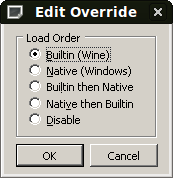
There's a very long list of DLLs and specifying them manually would be a torture. Luckily, you can hack the Wine registry directly and add the desired overrides as a list into the file, without going through the manual process of specifying each one using the GUI.
To edit the registry, open the file in text editor (e.g. gedit):
gedit ~/.wine/user.reg
In the file, look for the section labeled DllOverrides:

In this section, you can copy & paste the entire list of DLL overrides required. You can find the entire list in this great article. Copy the entire selection, save the file and exit. The next time you launch Wine configuration, the overrides will be loaded.
Eventually, you'll see something like this:

This is the first step. Now, we need to setup some core files.
Setup core files
These files may or may not be required, but it does not hurt to have them anyway. The two files in question are mscoree.dll and streamci.dll. The first is a module containing .NET Framework functions, the second is a library used to install streaming hardware devices.
You can copy these files from your Windows installations, if you have some, or download them from the web. A good online source that offers these file is DLL-files.com.
Download the two files and copy them to the Wine system32 folder.
cp mscoree.dll ~/.wine/drive_c/windows/system32/
cp streamci.dll ~/.wine/drive_c/windows/system32/
The next step is to download the DirectX 9.0c redistributable package.
Download DirectX 9.0c
You need the redistributable package, because the installation won't handle the online installer well. Once the file is downloaded, run the executable with Wine.
wine directx_9c_redist.exe
This will start a wizard, which will ask you to accept the license and extract the files to a folder. Choose any folder and extract the files there.

Install DirectX 9.0c
Navigate to the folder and run the actual DirectX setup:
wine dxsetup.exe

The installer should complete without any problems. It will ask you to reboot, but you do not need to do that.
Test DirectX 9.0c
Now, let's test. Go to the system32 folder (inside the .wine folder) and run dxdiag.exe.
wine ~/.wine/drive_c/windows/system32/dxdiag.exe
If everything went as it should, you should have DirectX setup and enabled. You can ignore most of the device and driver information, since we're doing a rather decent hack here.

Setup Direct Music
If you also want to have enhanced sound effects and whatnot, you will need another driver. The file in question is called gm.dls and you can find it listed on several websites, available for download. Again, use discretion when downloading files like this. Make sure they are digitally signed by Microsoft, with the proper size and hash value. Likewise, checking these files against Jotti or VirusTotal may not hurt.
You can find the file here (direct download). Copy the file to system32/drivers:
cp gm.dls ~/.wine/drive_c/windows/system32/drivers/
After doing this, rerun dxdiag and check the Music tab.
Setup additional files
Your games may also require additional DLLs that are not found above. You will discover this only after installing them and running them, which is the step below. If you have already found online references that mention additional DLLs are needed for your games, then you can install them before trying the game, saving yourself time.
For example, Tropico 3 requires d3dx9_41.dll, without which the game start will fail. The above subset includes only d3dx9_24.dll and d3dx9_36.dll, but not the latest one. No worries, head to DLL-files.com and download the missing item(s).
Install and test your games!
Time to try your games. In my case, Tropico 3 installed without any problems, followed by the 1.04 patch, which solves lots of issues in the original game. Starting the game without the d3dx9_41.dll resulted in a failure, but once I copied the missing item into the system32 folder, everything worked fine.
The game runs smoothly even on high level - considering the hacks we just did, this is impressive. The sound quality is great. The game is stable. It's really a pleasure. A real blast!


What more, you can make things faster even more!
Tweaks
Wine prints lots of debugging messages to the console, slowing things down a bit. You can definitely improve the performance by prepending a Wine debug environment variable to the wine command line, allowing yourself even more Frames Per Second (FPS) in your games.
Just run the game executable like this:
WINEDEBUG=-all wine
Example:
WINEDEBUG=-all wine Tropico3.exe
How to install DirectX in Linux using Wine
Written by Tom Wickline
Monday, 18 January 2010 03:57
Would you like to play the latest and greatest Windows games? Sure. In Linux? Sure. Now comes the tricky question, how exactly do you do that? Linux uses OpenGL, whereas most Windows games rely on DirectX. No problem. That's what Wine is made for.
I've mentioned Wine in my Linux gaming mega howto, as one of the tools that allow you to run Windows games in Linux, for whatever reason you may want to do so. The results may vary and may not be perfect, but you can still manage a handsome array of games easily.
What prompted me to try running one of the Windows heavyweight games on Linux was the pure simple hardware limitation. The game in question was Tropico 3, a fabulous dictatorship simulation with some pretty hefty requirements, including 2GB of RAM and at least 256MB Nvidia 6600GT card. As it turns out, my two older Athlons both running Windows and equipped with Nvidia 6600GT and 7600GT cards were not exactly tailored for this game. But if you recall, I've just recently bought myself a shiny new laptop, with the powerful Nvidia 9600GS card with 512MB VRAM. So I figured, what the hell, it's worth a try.
What I did was install DirectX 9.0c in Linux using Wine and then installed Tropico 3. Lo and behold, it works, beautifully. I can play the game with details set to high without any problems or glitches, everything runs smoothly and even the sound quality is great.
In this article, you will learn how to install DirectX using Wine. It's not simple, but it's not difficult either. And then, the world's your oyster. I hope you will enjoy this guide, plus you get a few dandy Tropico 3 screenshots. A full review will come later.
Follow me.
Install Wine
This is simple. Just open the package manager and install the software.
Configure DirectX libraries
This is the most complicated step of all. But do not worry, you get everything, step by step.
Launch Wine configuration. You can either do it via the Application menu in your distro, Wine > Configure Wine or by running winecfg from the command line. Once the main menu opens, click on the Libraries tab.

This tab allows you to specify the behavior of different DLLs and override the possible defaults. To get DirectX running, you will need a long list of DLLs listed. The first step is to click on the New override dropdown box icon and expand the list. Search for the d3d8 DLL. Once found, click Add.

It will be added to the Existing overrides list like this: d3d8 (builtin,native).
This is not what we need. Therefore, you must select the DLL in the list and click Edit. Then, change the configuration to builtin only.
There's a very long list of DLLs and specifying them manually would be a torture. Luckily, you can hack the Wine registry directly and add the desired overrides as a list into the file, without going through the manual process of specifying each one using the GUI.
To edit the registry, open the file in text editor (e.g. gedit):
gedit ~/.wine/user.reg
In the file, look for the section labeled DllOverrides:

In this section, you can copy & paste the entire list of DLL overrides required. You can find the entire list in this great article. Copy the entire selection, save the file and exit. The next time you launch Wine configuration, the overrides will be loaded.
Eventually, you'll see something like this:

This is the first step. Now, we need to setup some core files.
Setup core files
These files may or may not be required, but it does not hurt to have them anyway. The two files in question are mscoree.dll and streamci.dll. The first is a module containing .NET Framework functions, the second is a library used to install streaming hardware devices.
You can copy these files from your Windows installations, if you have some, or download them from the web. A good online source that offers these file is DLL-files.com.
Download the two files and copy them to the Wine system32 folder.
cp mscoree.dll ~/.wine/drive_c/windows/system32/
cp streamci.dll ~/.wine/drive_c/windows/system32/
The next step is to download the DirectX 9.0c redistributable package.
Download DirectX 9.0c
You need the redistributable package, because the installation won't handle the online installer well. Once the file is downloaded, run the executable with Wine.
wine directx_9c_redist.exe
This will start a wizard, which will ask you to accept the license and extract the files to a folder. Choose any folder and extract the files there.

Install DirectX 9.0c
Navigate to the folder and run the actual DirectX setup:
wine dxsetup.exe

The installer should complete without any problems. It will ask you to reboot, but you do not need to do that.
Test DirectX 9.0c
Now, let's test. Go to the system32 folder (inside the .wine folder) and run dxdiag.exe.
wine ~/.wine/drive_c/windows/system32/dxdiag.exe
If everything went as it should, you should have DirectX setup and enabled. You can ignore most of the device and driver information, since we're doing a rather decent hack here.

Setup Direct Music
If you also want to have enhanced sound effects and whatnot, you will need another driver. The file in question is called gm.dls and you can find it listed on several websites, available for download. Again, use discretion when downloading files like this. Make sure they are digitally signed by Microsoft, with the proper size and hash value. Likewise, checking these files against Jotti or VirusTotal may not hurt.
You can find the file here (direct download). Copy the file to system32/drivers:
cp gm.dls ~/.wine/drive_c/windows/system32/drivers/
After doing this, rerun dxdiag and check the Music tab.
Setup additional files
Your games may also require additional DLLs that are not found above. You will discover this only after installing them and running them, which is the step below. If you have already found online references that mention additional DLLs are needed for your games, then you can install them before trying the game, saving yourself time.
For example, Tropico 3 requires d3dx9_41.dll, without which the game start will fail. The above subset includes only d3dx9_24.dll and d3dx9_36.dll, but not the latest one. No worries, head to DLL-files.com and download the missing item(s).
Install and test your games!
Time to try your games. In my case, Tropico 3 installed without any problems, followed by the 1.04 patch, which solves lots of issues in the original game. Starting the game without the d3dx9_41.dll resulted in a failure, but once I copied the missing item into the system32 folder, everything worked fine.
The game runs smoothly even on high level - considering the hacks we just did, this is impressive. The sound quality is great. The game is stable. It's really a pleasure. A real blast!


What more, you can make things faster even more!
Tweaks
Wine prints lots of debugging messages to the console, slowing things down a bit. You can definitely improve the performance by prepending a Wine debug environment variable to the wine command line, allowing yourself even more Frames Per Second (FPS) in your games.
Just run the game executable like this:
WINEDEBUG=-all wine
Example:
WINEDEBUG=-all wine Tropico3.exe
Last edited:


REP
Ai Hamoma Linux Windows Karanna Yanne...
Ai Hamoma Linux Windows Karanna Yanne...

Thanxhttp://hacktolive.org/wiki/Hacktolive.org
Meken ubuntu download karagain. wena mokuth software danna ona na okoma tiynwa,(VLC,skype,Chrome......etc..)

Mata 2 problems thiyenawa
Sinhala unicode & key board lay out eka gena kiyala dunnata thanks!
Sinhala unicode & key board lay out eka gena kiyala dunnata thanks!
Last edited:

mata danaganna one linux server ekak install karana widiha ...mula sitama..
thawa file server mail server php mysql wage dewal install kara ganna widihat kiyala denna hodada
thawa file server mail server php mysql wage dewal install kara ganna widihat kiyala denna hodada
Thanks
Thank you very much. Nice work. Keep going
Thank you very much. Nice work. Keep going
see my blog entry : http://www.elakiri.com/forum/blog.php?b=17329
Two more
Mage OS eka Kubuntu 10.10
1) Mage net book eka asus eepc 1005HA
http://liliputing.com/2009/06/asus-eee-pc-1005ha-review.html
eeke touch pad eka oona welaawata off karaganna widihak ne. off kara gattot on karaganna mouse ekakma oone.
Wikalpayak nedda?
2) ASP & Visual Studio run karaganna widihak nedda?
Mage OS eka Kubuntu 10.10
1) Mage net book eka asus eepc 1005HA
http://liliputing.com/2009/06/asus-eee-pc-1005ha-review.html
eeke touch pad eka oona welaawata off karaganna widihak ne. off kara gattot on karaganna mouse ekakma oone.
Wikalpayak nedda?
2) ASP & Visual Studio run karaganna widihak nedda?

REP
Page 9n..Balanna
Ubntu 1 windows softwares run karanna puluwanda? Kohomda? Ona game 1k play karanna puluwanda?
Page 9n..Balanna
REP
Run this In terminal
....................................
1.sudo gedit /etc/acpi/asus-touchpad.sh
2.Meka Past Karanna
#!/bin/sh
[ -f /usr/share/acpi-support/state-funcs ] || exit 0
. /usr/share/acpi-support/power-funcs
getXconsole
DEVICE_ID=`xinput -list | grep -i touchpad | grep id= | sed 's/.*id=\([0-9]*\).*/\1/' `
if xinput -list-props $DEVICE_ID | grep "Device Enabled" | grep "1$" > /dev/null
then
xinput set-int-prop $DEVICE_ID "Device Enabled" 8 0
else
xinput set-int-prop $DEVICE_ID "Device Enabled" 8 1
fi
3.sudo gedit /usr/share/acpi-support/power-funcs
4.mekat delet karanna
if [ x"$user" != x"" ]; then
userhome=`getent passwd $user | cut -d: -f6`
export XAUTHORITY=$userhome/.Xauthority
else
export XAUTHORITY=""
fi
5.meka past karanna..
export XAUTHORITY=`ps a | grep -v grep | grep X | sed -n 's/.*-auth \(.*\)/\1/p' | cut -f 1 -d ' '`
Ok...Dan wadakaranawa...
ASP...Vb.net Ewa wadakaarnna.... itawada hoda languages linux wala tiyanawa..php..jsp..perl..python..ewa hodata wada..C..Ewa tama puluwan.ASP Apache haranam Wada Karanawa..Server Ekak widihata..
Mage OS eka Kubuntu 10.10
1) Mage net book eka asus eepc 1005HA
http://liliputing.com/2009/06/asus-eee-pc-1005ha-review.html
eeke touch pad eka oona welaawata off karaganna widihak ne. off kara gattot on karaganna mouse ekakma oone.
Wikalpayak nedda?
2) ASP & Visual Studio run karaganna widihak nedda?
Run this In terminal
....................................
1.sudo gedit /etc/acpi/asus-touchpad.sh
2.Meka Past Karanna
#!/bin/sh
[ -f /usr/share/acpi-support/state-funcs ] || exit 0
. /usr/share/acpi-support/power-funcs
getXconsole
DEVICE_ID=`xinput -list | grep -i touchpad | grep id= | sed 's/.*id=\([0-9]*\).*/\1/' `
if xinput -list-props $DEVICE_ID | grep "Device Enabled" | grep "1$" > /dev/null
then
xinput set-int-prop $DEVICE_ID "Device Enabled" 8 0
else
xinput set-int-prop $DEVICE_ID "Device Enabled" 8 1
fi
3.sudo gedit /usr/share/acpi-support/power-funcs
4.mekat delet karanna
if [ x"$user" != x"" ]; then
userhome=`getent passwd $user | cut -d: -f6`
export XAUTHORITY=$userhome/.Xauthority
else
export XAUTHORITY=""
fi
5.meka past karanna..
export XAUTHORITY=`ps a | grep -v grep | grep X | sed -n 's/.*-auth \(.*\)/\1/p' | cut -f 1 -d ' '`
Ok...Dan wadakaranawa...
ASP...Vb.net Ewa wadakaarnna.... itawada hoda languages linux wala tiyanawa..php..jsp..perl..python..ewa hodata wada..C..Ewa tama puluwan.ASP Apache haranam Wada Karanawa..Server Ekak widihata..
Last edited:
use windows for that.Mata ASP weda kara ganna oone
ASP and Visual Studio are windows only development platforms.

Thank you very much
 Mama danne ne oya mokawat..
Mama danne ne oya mokawat..use windows for that.
ASP and Visual Studio are windows only development platforms.

මොන ලබ්බටද දන්නෙ නැති ඒව කරන්න යන්නෙ ?
Similar threads

- Replies
- 0
- Views
- 150


