

Latest ads
-
 Your Brand, Our Creativity!
- RanaDerana On-line
- Updated:
-
 Toyota Vitz scp10 For Sale
- Lakmal Bandara
- Updated:
-
 Kandy Welcome all my all new pet shop Bark.lk
- dilumrane
- Updated:
-
 Windows RDP Only Rs.500 a month
- Blogerwiki
- Updated:
-
V2ray VPN for Tunneling
- hu KANNA
- Updated:
You are using an out of date browser. It may not display this or other websites correctly.
You should upgrade or use an alternative browser.
You should upgrade or use an alternative browser.

To use the snipping tool, click the Windows logo then click “Snipping Tool”:

The tool’s window should open, click “New” to start snipping a portion of the screen:

Once you clicked the New snip button, the Snipping tool’s window will go away so you can be free to mark the screen with the rectangular cursor. There are four types of snips that you can choose from:
1. Free-form Snip. Draw an irregular line, such as a circle or a triangle, around an object.
2. Rectangular Snip. Draw a precise line by dragging the cursor around an object to form a rectangle.
3. Window Snip. Select a window, such as a browser window or dialog box, that you want to capture.
4. Full-screen Snip. Capture the entire screen when you select this type of snip.
Mark the portion of the screen that you want to capture. Once you are done marking, you should see captured screen appear on the snipping tool’s window. In the example below I captured Windows 7’s taskbar:
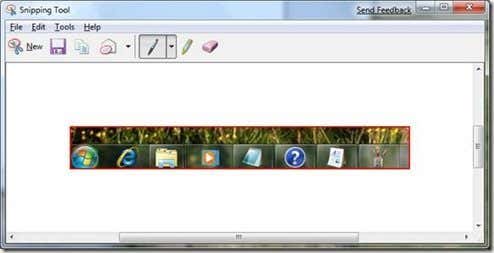
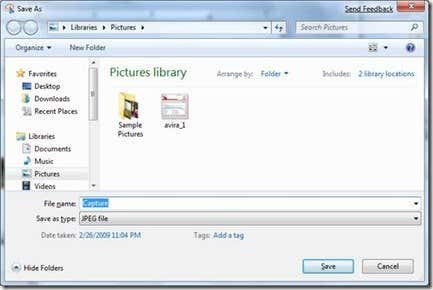
You can add highlights and brushstrokes on this window. Once you are done, click “Save As” to save the file as an image. By default it is saved as type PNG, change to a simpler format like JPEG to save space. If you need better quality though, PNG is a better choice.

The tool’s window should open, click “New” to start snipping a portion of the screen:

Once you clicked the New snip button, the Snipping tool’s window will go away so you can be free to mark the screen with the rectangular cursor. There are four types of snips that you can choose from:
1. Free-form Snip. Draw an irregular line, such as a circle or a triangle, around an object.
2. Rectangular Snip. Draw a precise line by dragging the cursor around an object to form a rectangle.
3. Window Snip. Select a window, such as a browser window or dialog box, that you want to capture.
4. Full-screen Snip. Capture the entire screen when you select this type of snip.
Mark the portion of the screen that you want to capture. Once you are done marking, you should see captured screen appear on the snipping tool’s window. In the example below I captured Windows 7’s taskbar:
You can add highlights and brushstrokes on this window. Once you are done, click “Save As” to save the file as an image. By default it is saved as type PNG, change to a simpler format like JPEG to save space. If you need better quality though, PNG is a better choice.
Use Snipping Tool to capture screen shots
Use Snipping Tool to capture screen shots
You can use Snipping Tool to capture a screen shot, or snip, of any object on your screen, and then annotate, save, or share the image. Simply use a mouse or tablet pen to capture any of the following types of snips:
** Free-form Snip. Draw an irregular line, such as a circle or a triangle, around an object.
** Rectangular Snip. Draw a precise line by dragging the cursor around an object to form a rectangle.
** Window Snip. Select a window, such as a browser window or dialog box, that you want to capture.
** Full-screen Snip. Capture the entire screen when you select this type of snip.
After you capture a snip, it's automatically copied to the mark-up window, where you can annotate, save, or share the snip.

Note
When Snipping Tool is open, a white overlay appears on your screen until you capture a snip. To turn off the overlay, open Snipping Tool, and then click Options. In the Snipping Tool Options dialog box, clear the Show screen overlay when Snipping Tool is active check box, and then click OK.
Use Snipping Tool to capture screen shots
You can use Snipping Tool to capture a screen shot, or snip, of any object on your screen, and then annotate, save, or share the image. Simply use a mouse or tablet pen to capture any of the following types of snips:
** Free-form Snip. Draw an irregular line, such as a circle or a triangle, around an object.
** Rectangular Snip. Draw a precise line by dragging the cursor around an object to form a rectangle.
** Window Snip. Select a window, such as a browser window or dialog box, that you want to capture.
** Full-screen Snip. Capture the entire screen when you select this type of snip.
After you capture a snip, it's automatically copied to the mark-up window, where you can annotate, save, or share the snip.

Note
When Snipping Tool is open, a white overlay appears on your screen until you capture a snip. To turn off the overlay, open Snipping Tool, and then click Options. In the Snipping Tool Options dialog box, clear the Show screen overlay when Snipping Tool is active check box, and then click OK.
hemal ayya,
mage windows 7 ultimate thiyenne Eke "snipping tool" eka tiyenawaa...
Eth mEka mage yaluwekge laptop 1k "windows 7 home basic" tiyenne.. "snipping tool" eka naeh.. download karaganna widihak nedda...?
mage windows 7 ultimate thiyenne Eke "snipping tool" eka tiyenawaa...
Eth mEka mage yaluwekge laptop 1k "windows 7 home basic" tiyenne.. "snipping tool" eka naeh..
download karaganna widihak nedda...?
hemal ayya,
mage windows 7 ultimate thiyenne Eke "snipping tool" eka tiyenawaa...
Eth mEka mage yaluwekge laptop 1k "windows 7 home basic" tiyenne.. "snipping tool" eka naeh..
poddak inna dennam :d


* Click on Start button, and go to Control Panel.
* Click on Programs link.
* Click on Turn Windows features on or off link. If User Account Control pops up for confirmation, click on Continue button.
Scroll down the list of features in Windows Features dialog window, tick the check box for Tablet-PC Optional Components to enable and show the Snipping Tool

* Click on Programs link.
* Click on Turn Windows features on or off link. If User Account Control pops up for confirmation, click on Continue button.
Scroll down the list of features in Windows Features dialog window, tick the check box for Tablet-PC Optional Components to enable and show the Snipping Tool


* Click on Start button, and go to Control Panel.
* Click on Programs link.
* Click on Turn Windows features on or off link. If User Account Control pops up for confirmation, click on Continue button.
Scroll down the list of features in Windows Features dialog window, tick the check box for Tablet-PC Optional Components to enable and show the Snipping Tool
hafoi..

etana Tablet-PC Optional Components kiyalaa option ekak nathooo...
Oka vista ekE karana widiha nEda..?


ane sorry bro...mama mewa danne ne neh..
thousand times sorry..election kale mehema unama maye chanda kapenawa..
thousand times sorry..election kale mehema unama maye chanda kapenawa..
hafoi..
etana Tablet-PC Optional Components kiyalaa option ekak nathooo...
Oka vista ekE karana widiha nEda..?
nehe mama mage PC eken test karala demme.mageth thiyenne w7
balamu thawa paarak try karalaaa..nehe mama mage PC eken test karala demme.mageth thiyenne w7


