

Latest ads
-
 Cinnamoroll Soft Toy – Cute & Cuddly Plush
- anil1961
- Updated:
-
 Google Pixel 9 Pro
- vgp
- Updated:
-
Jobreceive.com for sale
- Blogerwiki
- Updated:
-
 Post Your Vehicle for Sale — FREE! - https://libro.lk
- Kalu_Puth
- Updated:
You are using an out of date browser. It may not display this or other websites correctly.
You should upgrade or use an alternative browser.
You should upgrade or use an alternative browser.

ape bodime ekektath oye seen eka wela pora shop ekakata deela factory unlock karagaththa anthimata wena mukuth karaganna baruwa

machan iPhone 3G ekak. firmware update una. ethakota sim lock una ban mokada karanne?????
dan phone aeka monawage condition aekeda thiyenne
i can help you

dan phone aeka monawage condition aekeda thiyenne
i can help you
emergency calls ganna puluwan. itune ekata connect wenna kiyala udin ibbek wetila thiyeanwa


Hadaganna bari unada ? waren Team Viewer ... Hadala dennm
ane palayan ban team viewer


ios 7 iphone 4 ekata danna puluwanda ban ?
btw BUMP
yep ... tikak vithra slow wenawa machn
Step One
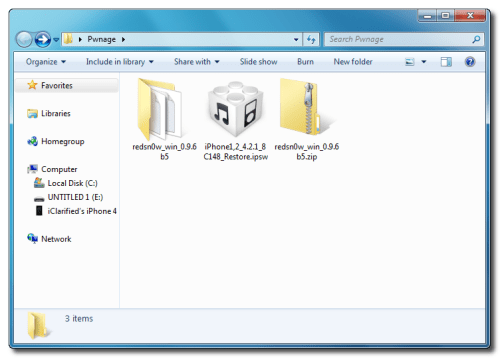
Create a folder on your desktop called Pwnage
Download RedSn0w from here and place it in the Pwnage folder. Likewise, download the latest 4.2.1 firmware from below and place it in the same folder.
4.2.1 (3G): iPhone1,2_4.2.1_8C148_Restore.ipsw
Extract the redsn0w executable from the RedSn0w zip file into the same folder.
Step Two
Connect your iPhone to the computer and launch iTunes.

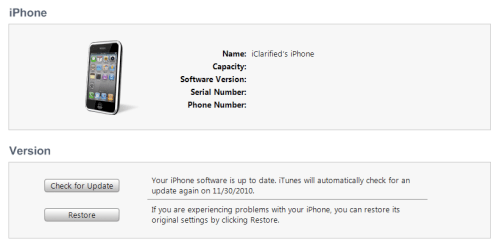
Select your iPhone from the list of devices on the left. Now hold down Shift and click the Restore button. Restore is preferred as it won't create any wasted space on your iPhone.
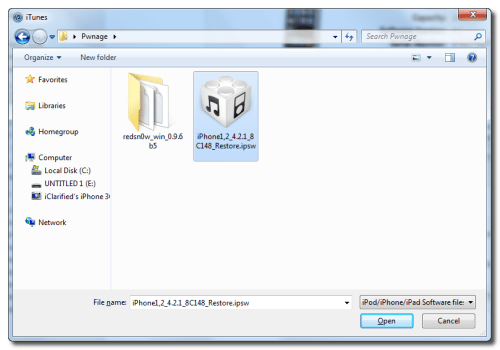
Navigate to the Pwnage folder on your desktop and select the 4.2.1 firmware ipsw. Click the Choose button to continue.
Step Three
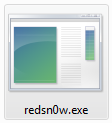
Once iTunes has finished updating your iPhone to the desired firmware open the Pwnage folder on your desktop and launch the redsn0w application from the redsn0w folder we extracted earlier.
Step Four
Once RedSn0w opens click the Browse button
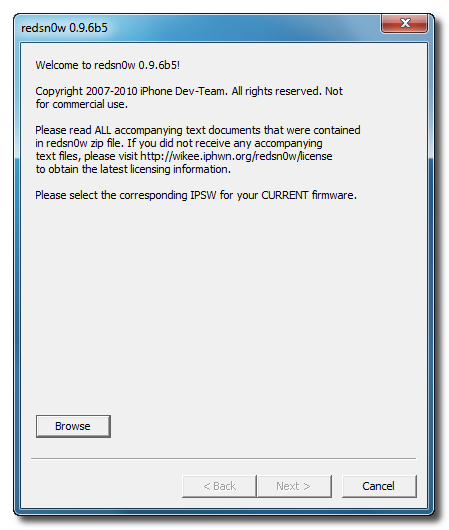
Step Five
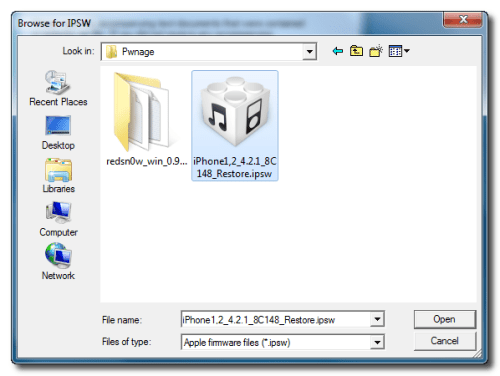
Select the 4.2.1 firmware ipsw we placed in the Pwnage folder on our desktop then click Open.
Step Six
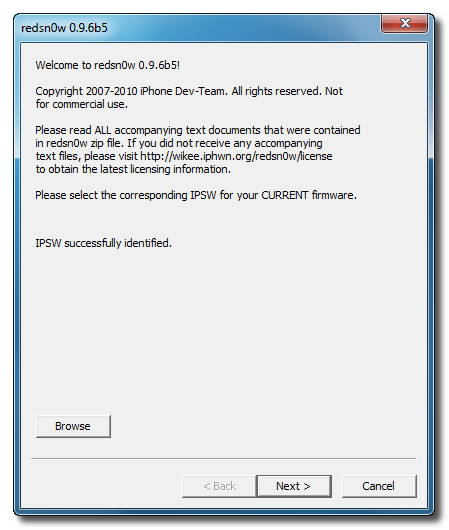
Once the firmware has been verified click the Next button to continue.
Step Seven
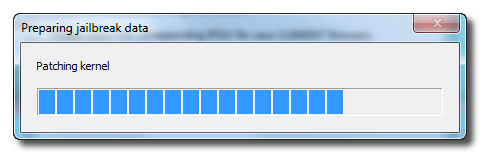
RedSn0w will now prepare the jailbreak data
Step Eight
From this window you can select the jailbreak options you would like.
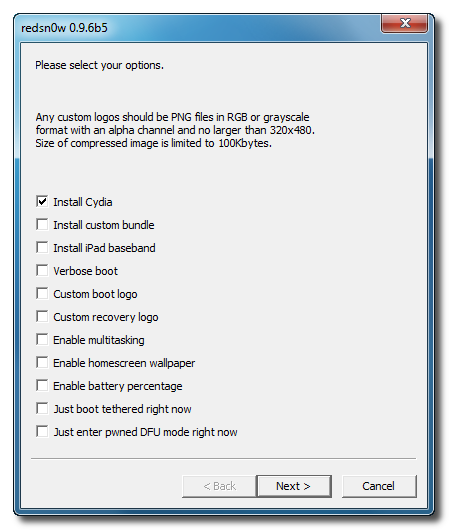
Verbose boot displays detailed information on boot of your device and is generally only needed by developers and advanced users.
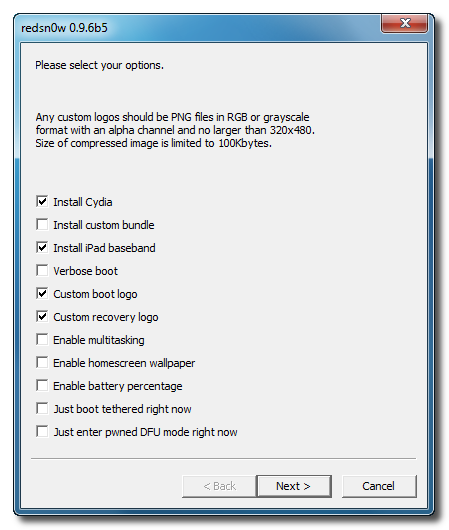
Make sure Cydia is selected. For this tutorial we will also select Custom boot logo and Custom recovery logo.
When you click to select each custom logo option a dialog window will appear asking you to select the image. Locate the image you would like to use then press the Open button.
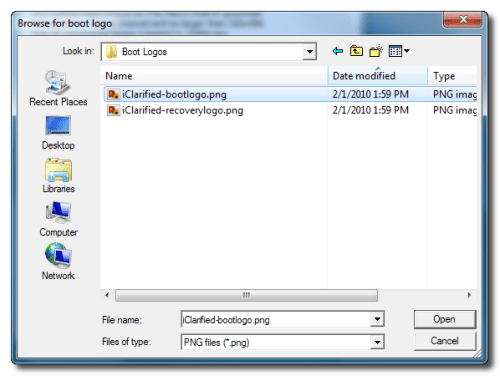
*Remember the rules for boot logos are: RGB or Grayscale format with Alpha channel and dimension below 320x480. If you would like to use the iClarified ones they can be found here: Boot Logo, Recovery Logo
Notice that RedSn0w can Enable multitasking, Enable homescreen wallpaper, and Enable battery percentage. If you do not need multitasking we would recommend deselecting it as it makes your iPhone 3G run very slow.
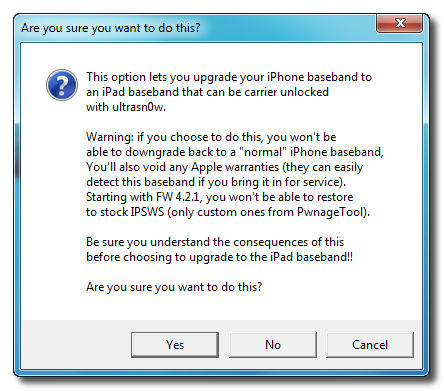
If you read the warning above and you would like to update your baseband to the 06.15 iPad version for unlock then check Install iPad Baseband. Click Yes when prompted to confirm your decision.
Click the Next button to continue
Step Nine
Please plug your iPhone into the computer and make sure its OFF then click the Next button
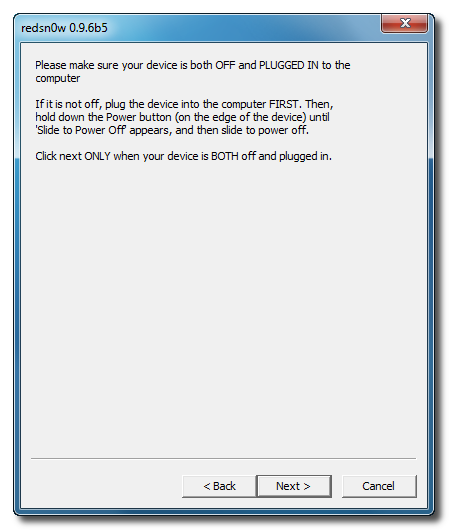
Step Ten
RedSn0w will now guide you through the steps to get into DFU mode. You can find more help with DFU mode here
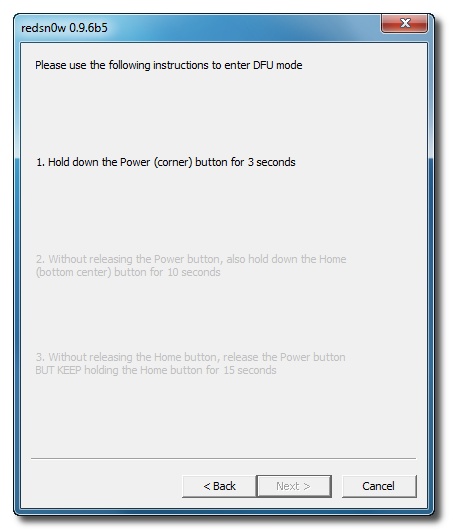
Hold down both the Home button and the Power button for 10 seconds.
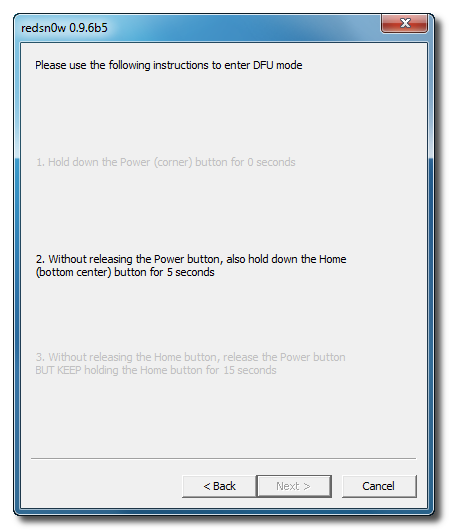
Release the Power button and continue holding the Home button until RedSn0w detects the device.
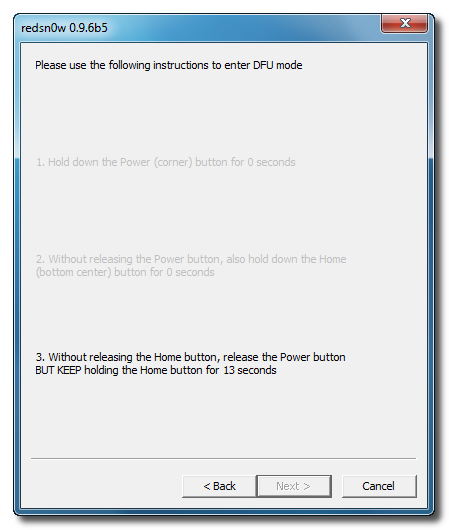
Step Eleven
RedSn0w will now downloaded the iPad baseband if needed and your iPhone will reboot
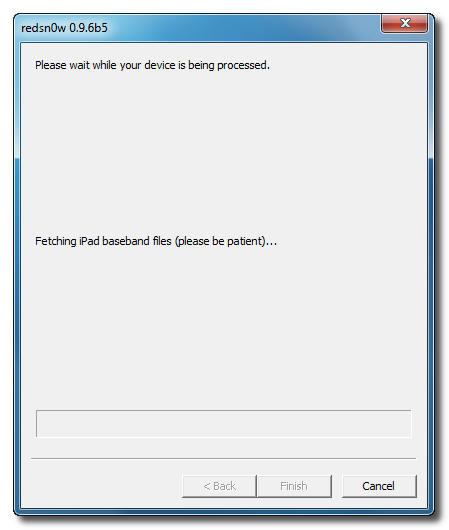
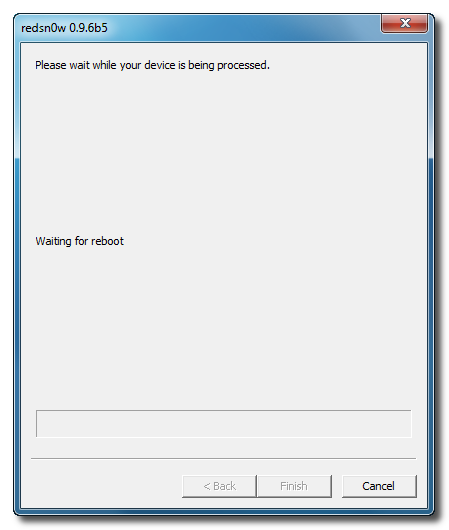
Step Twelve
RedSn0w will then begin uploading the new RAM Disk and Kernel.
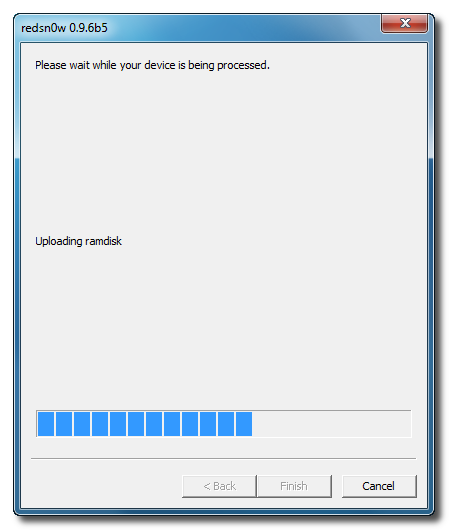
Step Thirteen
Once this is complete you will be notified that RedSn0w is done. Click the Finish button. When your iPhone finishes rebooting (5 minutes or so) it will be jailbroken with Cydia on the SpringBoard.
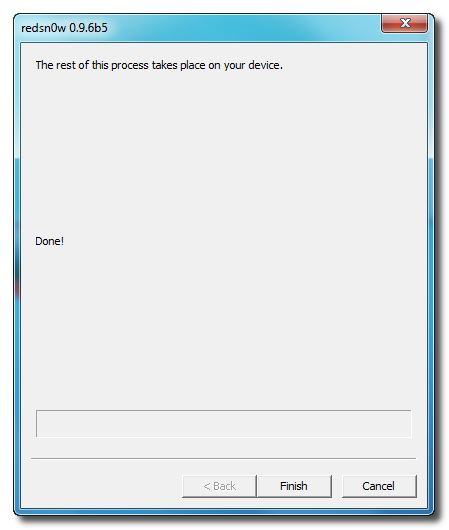
Create a folder on your desktop called Pwnage
Download RedSn0w from here and place it in the Pwnage folder. Likewise, download the latest 4.2.1 firmware from below and place it in the same folder.
4.2.1 (3G): iPhone1,2_4.2.1_8C148_Restore.ipsw
Extract the redsn0w executable from the RedSn0w zip file into the same folder.

Step Two
Connect your iPhone to the computer and launch iTunes.

Select your iPhone from the list of devices on the left. Now hold down Shift and click the Restore button. Restore is preferred as it won't create any wasted space on your iPhone.

Navigate to the Pwnage folder on your desktop and select the 4.2.1 firmware ipsw. Click the Choose button to continue.

Step Three
Once iTunes has finished updating your iPhone to the desired firmware open the Pwnage folder on your desktop and launch the redsn0w application from the redsn0w folder we extracted earlier.

Step Four
Once RedSn0w opens click the Browse button

Step Five
Select the 4.2.1 firmware ipsw we placed in the Pwnage folder on our desktop then click Open.

Step Six
Once the firmware has been verified click the Next button to continue.

Step Seven
RedSn0w will now prepare the jailbreak data

Step Eight
From this window you can select the jailbreak options you would like.

Verbose boot displays detailed information on boot of your device and is generally only needed by developers and advanced users.
Make sure Cydia is selected. For this tutorial we will also select Custom boot logo and Custom recovery logo.
When you click to select each custom logo option a dialog window will appear asking you to select the image. Locate the image you would like to use then press the Open button.

*Remember the rules for boot logos are: RGB or Grayscale format with Alpha channel and dimension below 320x480. If you would like to use the iClarified ones they can be found here: Boot Logo, Recovery Logo
Notice that RedSn0w can Enable multitasking, Enable homescreen wallpaper, and Enable battery percentage. If you do not need multitasking we would recommend deselecting it as it makes your iPhone 3G run very slow.
If you read the warning above and you would like to update your baseband to the 06.15 iPad version for unlock then check Install iPad Baseband. Click Yes when prompted to confirm your decision.

Click the Next button to continue

Step Nine
Please plug your iPhone into the computer and make sure its OFF then click the Next button

Step Ten
RedSn0w will now guide you through the steps to get into DFU mode. You can find more help with DFU mode here

Hold down both the Home button and the Power button for 10 seconds.

Release the Power button and continue holding the Home button until RedSn0w detects the device.

Step Eleven
RedSn0w will now downloaded the iPad baseband if needed and your iPhone will reboot


Step Twelve
RedSn0w will then begin uploading the new RAM Disk and Kernel.

Step Thirteen
Once this is complete you will be notified that RedSn0w is done. Click the Finish button. When your iPhone finishes rebooting (5 minutes or so) it will be jailbroken with Cydia on the SpringBoard.

yep ... tikak vithra slow wenawa machn
uba hithana widiyata ios 6 tiyannada nattan ios 7 dannada?
airdrop iphone 4 ekata support da machan?
uba hithana widiyata ios 6 tiyannada nattan ios 7 dannada?
airdrop iphone 4 ekata support da machan?
AirDrop Support na machn ... 7 eke Oke Official Full eka 18th enne , eka apuwama daganna , Beta dagththma ubta epa wei


Step One
Create a folder on your desktop called Pwnage
Download RedSn0w from here and place it in the Pwnage folder. Likewise, download the latest 4.2.1 firmware from below and place it in the same folder.
4.2.1 (3G): iPhone1,2_4.2.1_8C148_Restore.ipsw
Extract the redsn0w executable from the RedSn0w zip file into the same folder.
Step Two
Connect your iPhone to the computer and launch iTunes.
Select your iPhone from the list of devices on the left. Now hold down Shift and click the Restore button. Restore is preferred as it won't create any wasted space on your iPhone.
Navigate to the Pwnage folder on your desktop and select the 4.2.1 firmware ipsw. Click the Choose button to continue.
Step Three
Once iTunes has finished updating your iPhone to the desired firmware open the Pwnage folder on your desktop and launch the redsn0w application from the redsn0w folder we extracted earlier.
Step Four
Once RedSn0w opens click the Browse button
Step Five
Select the 4.2.1 firmware ipsw we placed in the Pwnage folder on our desktop then click Open.
Step Six
Once the firmware has been verified click the Next button to continue.
Step Seven
RedSn0w will now prepare the jailbreak data
Step Eight
From this window you can select the jailbreak options you would like.
Verbose boot displays detailed information on boot of your device and is generally only needed by developers and advanced users.
Make sure Cydia is selected. For this tutorial we will also select Custom boot logo and Custom recovery logo.
When you click to select each custom logo option a dialog window will appear asking you to select the image. Locate the image you would like to use then press the Open button.
*Remember the rules for boot logos are: RGB or Grayscale format with Alpha channel and dimension below 320x480. If you would like to use the iClarified ones they can be found here: Boot Logo, Recovery Logo
Notice that RedSn0w can Enable multitasking, Enable homescreen wallpaper, and Enable battery percentage. If you do not need multitasking we would recommend deselecting it as it makes your iPhone 3G run very slow.
If you read the warning above and you would like to update your baseband to the 06.15 iPad version for unlock then check Install iPad Baseband. Click Yes when prompted to confirm your decision.
Click the Next button to continue
Step Nine
Please plug your iPhone into the computer and make sure its OFF then click the Next button
Step Ten
RedSn0w will now guide you through the steps to get into DFU mode. You can find more help with DFU mode here
Hold down both the Home button and the Power button for 10 seconds.
Release the Power button and continue holding the Home button until RedSn0w detects the device.
Step Eleven
RedSn0w will now downloaded the iPad baseband if needed and your iPhone will reboot
Step Twelve
RedSn0w will then begin uploading the new RAM Disk and Kernel.
Step Thirteen
Once this is complete you will be notified that RedSn0w is done. Click the Finish button. When your iPhone finishes rebooting (5 minutes or so) it will be jailbroken with Cydia on the SpringBoard.
Where Is the Unlocking part ? lol
is it Missing ?
With WIFI
Then Open the Cydia app ... and add the Source like this http://repo666.ultrasn0w.com Done
How To add a new source to Cydia
1) Open Cydia
2) Manage
3) Sources
5) Edit
6) Add
7) Type the URL and tap Add Source
the Next thing ... Search the Ultrasnow and install it,
ur phone unlocked ,..........,.,.,.,.,.,.,.,.,.,.
Last edited:
Factory Unlock Nam Menna BUWA .. Contact karagnin machn


