itunes uses proxy same in internet explorer
Use High Anonymous Proxy..
iTunes for Windows: can't access the Internet if proxy settings are incorrect
Products Affected
iTunes 7 for Windows, iTunes 8 for Windows, iTunes 9 for Windows, Windows
Symptoms
If you have incorrect proxy settings, iTunes for Windows will give you an error message when it tries to connect to Internet content, such as the iTunes Store, CD information (CDDB), or Internet radio stations.
Resolution
If you get such an error message in iTunes, check if other Internet applications, such as your web browser and email client, are able to connect. If they can't, you will need to do some general Internet troubleshooting first. If your web browser can connect to the Internet but iTunes can't, read on for some troubleshooting steps.
iTunes uses the web proxy settings from Internet Explorer when accessing Internet content. If your network uses an HTTP proxy, make sure that the settings are correct, or try disabling them.
To configure your web proxy settings, follow these steps:
- On the Start menu, click Control Panel.
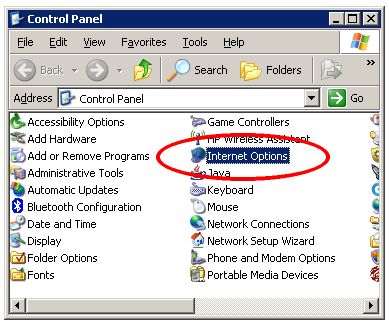
- In the Control Panel Home in Windows Vista, click Network and Internet and click Internet Options.
Alternately, in Control Panel in Windows XP and Classic View of Control Panel in Windows Vista, open Internet Options.
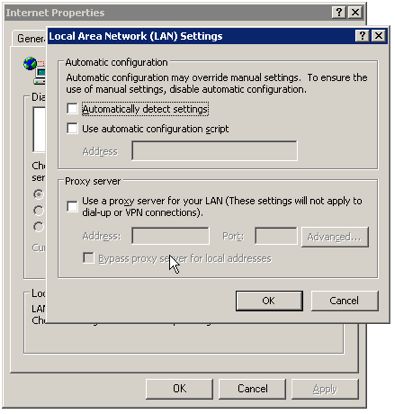
- In the resulting dialog, click the Connections tab, then click the LAN Settings button.
- In the Proxy Server section of the Local Area Network Settings window, verify that your proxy settings are correct. If they're not, correct them, then skip to step 5.
- If your settings are correct, try turning the proxy off for troubleshooting purposes. To do this, deselect the "Use a proxy server for your LAN" checkbox.
- Click OK in both the LAN Settings window and the Internet Options Window.
- In iTunes, try to access the iTunes Store or an Internet radio station.
Whether or not this resolves your issue, you should double-check your proxy settings with your local network administrator.