ඩොන්ගල් එකෙන් Video Calls ගන්න
[FONT="]
[/FONT][FONT="][/FONT]
[FONT="] [/FONT]
[FONT="]
[/FONT][FONT="][/FONT]
[FONT="] [/FONT]
[FONT="]
[/FONT][FONT="][/FONT]
[FONT="] [/FONT]
[FONT="]
[/FONT][FONT="][/FONT]
[FONT="] [/FONT]
[FONT="]
[/FONT][FONT="][/FONT]
[FONT="] [/FONT]
[FONT="]ඉස්සරලාම කියන්න ඕන මේ වැඩේ හරි යන්නේ[/FONT][FONT="] [/FONT][FONT="]Huwavi[/FONT][FONT="] [/FONT][FONT="]ඩොන්ගල්වලට විතරයි. ඩොන්ගල් එක [/FONT][FONT="]video calls [/FONT][FONT="]ගන්න හදාගන්න නම් ඩොන්ගල් සොෆ්ට්වෙයා එකේ ඒ කියන්නේ[/FONT][FONT="] [/FONT][FONT="]Mobole partner[/FONT][FONT="] [/FONT][FONT="]එකේ දැනටමත්[/FONT][FONT="] voice call [/FONT][FONT="]ගැනීමේ පහසුකම තියෙන්න ඕනි.ඒ පහසුකම තියන [/FONT][FONT="]Mobile partner [/FONT][FONT="]එක නැත්නම්[/FONT][FONT="] [/FONT][FONT="][FONT="][/FONT][/FONT][FONT="] ඒ සොෆ්ට්වෙයා එක අරගෙන ඉන්න.[/FONT]
Mobile Partner Supported Calling :
[FONT="][/FONT][FONT="][/FONT]
[FONT="][/FONT][FONT="][/FONT]
http://www.mediafire.com/?wp67fpi73k07g97
[FONT="][/FONT]
[FONT="][/FONT]
[FONT="]Password : [/FONT]haripara
[FONT="]
[/FONT][FONT="]මෙන්න මෙහෙමයි වැඩේ වෙන්නේ...හැමෝටම තේරෙන්න මම රූප සටහන් එක්ක පියවරෙන් පියවර කියලා දෙන්නම්.[/FONT][FONT="]
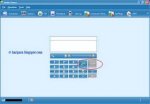
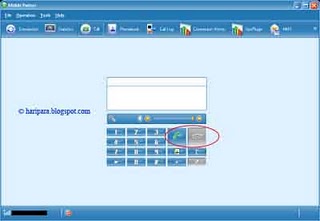
1.[/FONT][FONT="]මම හිතන්නම් දැනට ඔයාලා ගාව තියන [/FONT][FONT="]Mobile partner [/FONT][FONT="]එක මේ වගේ කියලා... පේනවානේ ඒකෙන් [/FONT][FONT="]video call [/FONT][FONT="]ගන්න බෑ.[/FONT][FONT="][/FONT]
[/FONT][FONT="]මෙන්න මෙහෙමයි වැඩේ වෙන්නේ...හැමෝටම තේරෙන්න මම රූප සටහන් එක්ක පියවරෙන් පියවර කියලා දෙන්නම්.[/FONT][FONT="]
1.[/FONT][FONT="]මම හිතන්නම් දැනට ඔයාලා ගාව තියන [/FONT][FONT="]Mobile partner [/FONT][FONT="]එක මේ වගේ කියලා... පේනවානේ ඒකෙන් [/FONT][FONT="]video call [/FONT][FONT="]ගන්න බෑ.[/FONT][FONT="][/FONT]

[/FONT][FONT="][/FONT]
[FONT="] [/FONT]
[FONT="]2.[/FONT][FONT="]ඔබේ පරිගණකයේ [/FONT][FONT="]Mobile partner [/FONT][FONT="]එක රන් වෙනවා නම් ඒක [/FONT][FONT="]close [/FONT][FONT="]කරන්න (මෙය ඉතා වැදගත්)[/FONT][FONT="]
3.[/FONT][FONT="]ඉන්පසු ඔබේ පරිගණකයේ [/FONT][FONT="]Mobile partner [/FONT][FONT="]ඉන්ස්ටෝල් වෙලා තියන තැනට යන්න.ගිහින්[/FONT][FONT="] [/FONT][FONT="]SysSetting.xml[/FONT][FONT="] [/FONT][FONT="]කියන ෆයිල් එක හොයාගන්න. [/FONT][FONT="]Ex : C:\Program Files\Mobile Partner\SysSetting.xml.[/FONT]
3.[/FONT][FONT="]ඉන්පසු ඔබේ පරිගණකයේ [/FONT][FONT="]Mobile partner [/FONT][FONT="]ඉන්ස්ටෝල් වෙලා තියන තැනට යන්න.ගිහින්[/FONT][FONT="] [/FONT][FONT="]SysSetting.xml[/FONT][FONT="] [/FONT][FONT="]කියන ෆයිල් එක හොයාගන්න. [/FONT][FONT="]Ex : C:\Program Files\Mobile Partner\SysSetting.xml.[/FONT]
[FONT="] 4.[/FONT][FONT="]දැන් මේ ෆයිල් එක එඩිට් කරන්න ඕනි.ඒ නිසා කෝකටත් මේ ෆයිල් එකේ කොපියක් වෙන තැනකට අරන් තියාගන්න.ඊට පස්සේ[/FONT][FONT="] [/FONT][FONT="]original file[/FONT][FONT="] [/FONT][FONT="]එක ([/FONT][FONT="]C:\Program Files\Mobile Partner\SysSetting.xml) note pad [/FONT][FONT="]එක බාවිතා කරලා [/FONT][FONT="]open [/FONT][FONT="]කරගන්න.[/FONT][FONT="]
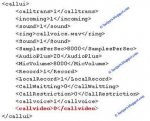
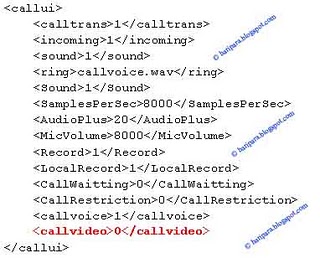
5.[/FONT][FONT="]එහෙම [/FONT][FONT="]open [/FONT][FONT="]කරගෙන මෙන්න මේ කොටස තියන තැන හොයාගන්න.[/FONT][FONT="][/FONT]
5.[/FONT][FONT="]එහෙම [/FONT][FONT="]open [/FONT][FONT="]කරගෙන මෙන්න මේ කොටස තියන තැන හොයාගන්න.[/FONT][FONT="][/FONT]

[/FONT][FONT="][/FONT]
[FONT="] [/FONT]
[FONT="]6.[/FONT][FONT="]එතකොට ඔයාලාට දැකගන්න පුලුවන්[/FONT][FONT="] [/FONT][FONT="]call video[/FONT][FONT="] [/FONT][FONT="]කියන තැන[/FONT][FONT="] [/FONT][FONT="]0[/FONT][FONT="] [/FONT][FONT="]ටයිප් වෙලා තියනවා.අන්න ඒ[/FONT][FONT="] [/FONT][FONT="]0[/FONT][FONT="] [/FONT][FONT="]මකලා[/FONT][FONT="],[/FONT][FONT="]එතන[/FONT][FONT="] [/FONT][FONT="]1[/FONT][FONT="] [/FONT][FONT="]ටයිප් කරලා ෆයිල් එක[/FONT][FONT="] [/FONT][FONT="]save[/FONT][FONT="] [/FONT][FONT="]කරලා [/FONT][FONT="]close [/FONT][FONT="]කරන්න.[/FONT][FONT="]
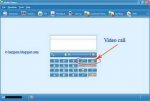
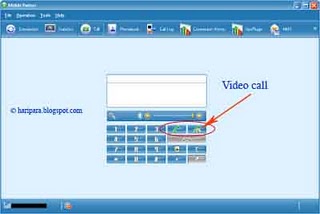
7.[/FONT][FONT="]ඊට පස්සේ [/FONT][FONT="]Mbile partner [/FONT][FONT="]එක [/FONT][FONT="]open [/FONT][FONT="]කරන්න.එතකොට මෙන්න මේ වගේ [/FONT][FONT="]video call [/FONT][FONT="]ගන්න බට්න් එකක් එක්ක දැක ගන්න පුලුවන්.[/FONT][FONT="][/FONT]
7.[/FONT][FONT="]ඊට පස්සේ [/FONT][FONT="]Mbile partner [/FONT][FONT="]එක [/FONT][FONT="]open [/FONT][FONT="]කරන්න.එතකොට මෙන්න මේ වගේ [/FONT][FONT="]video call [/FONT][FONT="]ගන්න බට්න් එකක් එක්ක දැක ගන්න පුලුවන්.[/FONT][FONT="][/FONT]

[/FONT][FONT="][/FONT]
[FONT="] [/FONT]
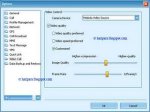
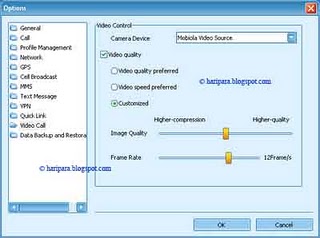
[FONT="]8.[/FONT][FONT="]දැන් [/FONT][FONT="]video calls [/FONT][FONT="]ගන්න පහසුකම ඔයාලාට ලැබිලා තියනවා.ඔයාලාගේ [/FONT][FONT="]web cam [/FONT][FONT="]එක[/FONT][FONT="] [/FONT][FONT="]හරියට තෝරාගෙන එකේ [/FONT][FONT="]settings [/FONT][FONT="]කැමති විදිහකට හදාගන්න[/FONT][FONT="],[/FONT][FONT="]මෙතනට ගිහින්[/FONT][FONT="] Tools>>Options>>Video Call.[/FONT]

[/FONT][FONT="][/FONT]
[FONT="] [/FONT]
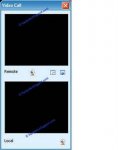
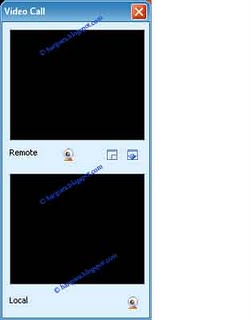
[FONT="]9.[/FONT][FONT="]ඊට පස්සේ ඔයාට [/FONT][FONT="]video call [/FONT][FONT="]එක ගන්න ඕන අංකය ටයිප් කරලා අර අලුතින් ආව [/FONT][FONT="]video call [/FONT][FONT="]ගන්න බට්න් එක ක්ලික් කරන්න.එතකොට මෙන්න මේ වගේ[/FONT][FONT="] [/FONT][FONT="]window[/FONT][FONT="] [/FONT][FONT="]එකක් ඔපන් වෙනවා.ඒකෙන් ඔයාවයි.[/FONT][FONT="]video [/FONT][FONT="]ඇමතුමට සම්බන්ධ වෙලා ඉන්න අනිත් කෙනාවයි බ්ලාගන්න පුලුවන්  [/FONT][FONT="][/FONT]
[/FONT][FONT="][/FONT]
[/FONT][FONT="][/FONT]
[FONT="] [/FONT]
[FONT="]10.[/FONT][FONT="]දැන් වැඩේ අහවරයි.ඔයාලාට ඔන කෙනෙක්ට දැන් ඩොන්ගල් එකෙන්ම [/FONT][FONT="]video calls [/FONT][FONT="]ගන්න පුලුවන්.[/FONT][FONT="]
* [/FONT][FONT="]මතක තියාගන්න.ඩොන්ගල් එකෙන් ඉන්ටර්නෙට් එකට සම්බන්ධ වෙලා ඉන්නකොට මේ පහසුකම වැඩකරන්නේ නැහැ.ඒ වගේම [/FONT][FONT="]video call [/FONT][FONT="]එකක් ගන්න නම්[/FONT][FONT="] [/FONT][FONT="]wcdma.hsdpa,hspa[/FONT][FONT="] [/FONT][FONT="]කියන සිග්නල් වර්ග [/FONT][FONT="]3 [/FONT][FONT="]න් එකක් තියෙන්න ඕනි.[/FONT][FONT="]
[/FONT][FONT="]කොහොමද වැඩේ හොදයි නේද [/FONT][FONT="]? [/FONT][FONT="][/FONT][FONT="]එහෙනම් වැඩේ කරලා බලන්නකො.මේ ලිපිය කියවලා කමෙන්ට් එකක් දාලම[/FONT][FONT="] [/FONT][FONT="]යන්න.මොනවා හරි ගැටළුවක් තිබුනොත් ඒකත් අහන්න.එහෙනම් මම ගියා... [/FONT]
* [/FONT][FONT="]මතක තියාගන්න.ඩොන්ගල් එකෙන් ඉන්ටර්නෙට් එකට සම්බන්ධ වෙලා ඉන්නකොට මේ පහසුකම වැඩකරන්නේ නැහැ.ඒ වගේම [/FONT][FONT="]video call [/FONT][FONT="]එකක් ගන්න නම්[/FONT][FONT="] [/FONT][FONT="]wcdma.hsdpa,hspa[/FONT][FONT="] [/FONT][FONT="]කියන සිග්නල් වර්ග [/FONT][FONT="]3 [/FONT][FONT="]න් එකක් තියෙන්න ඕනි.[/FONT][FONT="]
[/FONT][FONT="]කොහොමද වැඩේ හොදයි නේද [/FONT][FONT="]?
[/FONT][FONT="][/FONT][FONT="]එහෙනම් වැඩේ කරලා බලන්නකො.මේ ලිපිය කියවලා කමෙන්ට් එකක් දාලම[/FONT][FONT="] [/FONT][FONT="]යන්න.මොනවා හරි ගැටළුවක් තිබුනොත් ඒකත් අහන්න.එහෙනම් මම ගියා... [/FONT]
Source : http://haripara.blogspot.com/
[FONT="][/FONT][FONT="][/FONT]
[FONT="][/FONT][FONT="][/FONT]