Printer - Share

chanaka chana

Well-known member
  • Jan 26, 2009
    7,632
    749
    113
    Colombo
    මචන්ලා දන්න කෙනෙක් උදවිවක් දෙන්නකො.
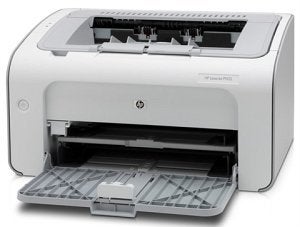
    BimgP1102.jpg


    මේ වර්ගයේ Printer එකක් share කරලා තියෙන්නෙ. මගේ PC එකට තමයි USB එක Connect කරලා තියෙන්නෙ. ප්‍ර්ශණය තමයි හැමදාම අනිත් Users ලට ප්‍රිර්න්ටර් එක connect කර ගන්න වෙනවා. ඇයි එහෙම වෙන්නෙ. එක පාරක් කරාම එක එහෙම්ම තියා ගන්න විදියක් නැද්ද ? හැමදාම network ඇවිත් මගේ PC එක Click කරලා yashan\administrator / user Pass දිලා Printer එක connet කර ගන්න වෙනවා. උදවි මචන්ලා..
     

    amith077

    Active member
  • Oct 13, 2007
    328
    112
    43
    Kegalle - Malabe
    mehema karapan,
    okkoma machine domain ekakada thiyenne?
    ehemanam password illana welawata yata thiyene remember my pass kiyana check box eka select karala ok karapan
    ethakota hari, habai meka admin account eken log wela thamai karanna one
     

    coolkasun

    Well-known member
  • Sep 1, 2008
    21,253
    2,450
    113
    37
    Before sharing your printer, you have to set up File and printer sharing. Here's how to set up File and printer sharing:
    1. Click on Start in the bottom left corner of your screen. A popup list will appear.
    2. Select Control Panel from the popup list. Type the word network in the search box.
    3. Click on Network and Sharing Center.
    4. Click on Change advanced shared settings, in the left pane.
    5. Click on the down arrow, which will expand the network profile.
    6. Select File and printer sharing and choose Turn on file and printer sharing.
    7. Click on Save changes.
    You're now ready to share your printer.
    1. Click on Start in the bottom left corner of your screen. A popup list will appear.
    2. Click on Devices and Printers, from the popup list.
    3. Right click the printer you want to share. A dropdown list will appear.
    4. Select Printer properties from the dropdown list.
    5. Click on the Sharing tab
    6. Select the Share this printer check box.
    In order for other people to connect to the printer, they just have to add the network printer that you just opened for sharing to their computers. Here's how to do this.
    1. Click on Start in the bottom left corner of your screen. A popup list will appear.
    2. Click on Devices and Printers from the popup list.
    3. Select Add a printer.
    4. Click on Add a network, wireless or Bluetooth printer.
    5. Click the shared printer.
    6. Click Next. Continue according to the instructions on the screen
    Code:
    http://windows.microsoft.com/en-US/windows7/Share-a-printer,framed
     

    chanaka chana

    Well-known member
  • Jan 26, 2009
    7,632
    749
    113
    Colombo
    Before sharing your printer, you have to set up File and printer sharing. Here's how to set up File and printer sharing:
    1. Click on Start in the bottom left corner of your screen. A popup list will appear.
    2. Select Control Panel from the popup list. Type the word network in the search box.
    3. Click on Network and Sharing Center.
    4. Click on Change advanced shared settings, in the left pane.
    5. Click on the down arrow, which will expand the network profile.
    6. Select File and printer sharing and choose Turn on file and printer sharing.
    7. Click on Save changes.
    You're now ready to share your printer.
    1. Click on Start in the bottom left corner of your screen. A popup list will appear.
    2. Click on Devices and Printers, from the popup list.
    3. Right click the printer you want to share. A dropdown list will appear.
    4. Select Printer properties from the dropdown list.
    5. Click on the Sharing tab
    6. Select the Share this printer check box.
    In order for other people to connect to the printer, they just have to add the network printer that you just opened for sharing to their computers. Here's how to do this.
    1. Click on Start in the bottom left corner of your screen. A popup list will appear.
    2. Click on Devices and Printers from the popup list.
    3. Select Add a printer.
    4. Click on Add a network, wireless or Bluetooth printer.
    5. Click the shared printer.
    6. Click Next. Continue according to the instructions on the screen
    Code:
    http://windows.microsoft.com/en-US/windows7/Share-a-printer,framed


    lokka printer eka network eke thiyenawa. share welath thiyenawa problem eka thamai hema dama PC eka off karama or restar karama apahu printer eka offline wenawa. apahu Printer ekak connect wela thiyena PC eke pass user dila log wela connect kara ganna wenawa. eka thamai thiyena problem eka bro.. please help me.