Tips & Tricks Collection of DC

Oct 26, 2008
6,219
8
0
Cyberspace
How to set up proxies in your browser

secure-proxy-content.gif


===================================
How to set up proxies in your browser,
(!!!!be anonymous and make the passes last longer...!!!!!!
===================================

In Internet Explorer

===================================
Click "Tools", then "Internet Options", the in the "connections" Tab, click the "LAN Setup" Button in the bottom. There is a "Proxy Servers", tick the "Use a proxy....." and then enter the proxy in the bigger textbox and the port (the part that comes after the ":") in the smaller textbox. Hit okay, and then go to
Code:
www.whatismyip.com
to see if the proxy is now your IP.
===================================

In OPERA

===================================
Click "Files", then "Preferences", then "Network", then click the button "Proxy Servers", tick "HTTP", fill in with the proxy:port, click okay and that's it! Don't forget to check with
Code:
www.whatismyip.com
===================================

In Firefox

===================================
Tools -> Options
Then click the General Icon
Then the "Connection Settings..." button
Then click the "manually configure proxies" radio button, and enter the proxy address and port in the HTTP Proxy area.
Don't forget to check with

Code:
www.whatismyip.com
===================================

To be clear: if I give you 255.255.255.255:8080, that means 255.255.255.255 is the proxy and 8080 is the port

To Optain Fresh and new proxies,u can alvays check Google...

Some more useful sites:
Code:
www.proxy4free.com
www.safeproxy.org
www.megaproxy.com
www.guardster.com
www.silenter.com
www.anonymizer.com
Happy Anonymous surfing!
 
Oct 26, 2008
6,219
8
0
Cyberspace
How to Access Your Folders from Your Taskbar


This is an easy way to get to the folders on your system without having to open a Windows Explorer Window every time you want to access files. I find it very useful to have this feature as it allows me to access my Folders and Drives immediately and saves me a lot of time.

01. Right Click an empty spot on your Taskbar (Between your Start Button and your System Tray).

02. Click Toolbars.

03. Click New Toolbar.

04. A Small Window will Open that allows you to pick the folder you wish to make a Toolbar. If you want to access your Desktop Without having to minimize all your windows. Just Pick Desktop. If you want to access ONLY your My Documents Folder, Select that. Any folder will work for this.

05. Click OK.

The New Tool bar will appear at the bottom of your screen next to your System Tray.

If you find this to be not useful, Repeat Steps 1 and 2 and then check click the Toolbar you created that has a check mark next to it. And it will disappear.
 
Oct 26, 2008
6,219
8
0
Cyberspace
How to Access Your Folders from Your Taskbar


This is an easy way to get to the folders on your system without having to open a Windows Explorer Window every time you want to access files. I find it very useful to have this feature as it allows me to access my Folders and Drives immediately and saves me a lot of time.

01. Right Click an empty spot on your Taskbar (Between your Start Button and your System Tray).

02. Click Toolbars.

03. Click New Toolbar.

04. A Small Window will Open that allows you to pick the folder you wish to make a Toolbar. If you want to access your Desktop Without having to minimize all your windows. Just Pick Desktop. If you want to access ONLY your My Documents Folder, Select that. Any folder will work for this.

05. Click OK.

The New Tool bar will appear at the bottom of your screen next to your System Tray.

If you find this to be not useful, Repeat Steps 1 and 2 and then check click the Toolbar you created that has a check mark next to it. And it will disappear.
 
Oct 26, 2008
6,219
8
0
Cyberspace
Modem Speed Tweak (Dial-Up)


Improve your Dial-Up Modem Performance. You can't assume that just because you connected at a speed like 50.kbps that you will stay there. Today's modems automatically fall back to a lower speed if the line noise is too high to maintain a faster connection, but sometimes they fall back too soon or too far.

01. Click Start
02. Setting
03. Control Panel
04. Printers and Other Hardware
05. Phone and Modem options
06. Modem
07. select ur modem
08. Properties
09. Advanced
10. Extra initialization commands:
11. type S36=7

This will force your modem to try to stay connected at high speeds in two different ways before dropping back to an a synchronous mode with auto speed buffering.
 
Oct 26, 2008
6,219
8
0
Cyberspace
Disabling Unnecessary Services


Services are programs that start up when your computer boots. They continue to run in the background while your PC is on, some services load automatically, some when a program is used. Some of these services are not needed by various users and can be safely disabled. But BE WARNED there are some of these services that MUST not be disabled. To get a good idea what can and can't be removed check out for a very detailed list. Remember, you can always turn the service back on if you find out that you need it in the future. Below is the procedure to turn off a service.
  • Click the start button.
  • Click on Control Panel.
  • Click on Administrative Tools.
  • Click Services.
  • Once the services window has loaded you are now able to turn off any unneeded services.
  • For instructional purposes we are going to turn off the Printer Spooler (Which isn't needed if you don't have a printer installed) service.
  • Find this service in the list and select it with the mouse.
  • Right click and select Properties.
  • Once the properties windows has loaded find the Start up type drop down box and select disable.
  • Then finally click ok and the next time the computer starts the service will no longer be loaded.

    Disabling+Unnecessary+Services.JPG
 
Oct 26, 2008
6,219
8
0
Cyberspace
How to Create a Boot Disk


This is quite simple.

01: Go into MY Computer.

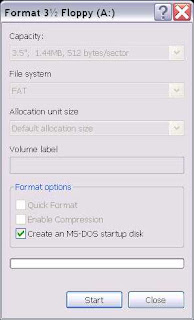
02: Have a floppy disk in your drive and then Right click on on the floppy drive and then click on Format.

03: You will be greeted with a number of options. The one you need to select is "Create an MS-DOS start up disk".

04: Click OK.

How+to+Create+a+Boot+Disk.jpg


Note: This requires up to 5 floppy disks and DOES NOT contain ANY CD-ROM drivers to boot from. A proper CD-ROM boot up disk is going to be release by Microsoft after the Windows XP public release. You can however use you old Windows Me start-up disk if you would prefer, as long as you have not upgraded to an NTFS drive.
 
Oct 26, 2008
6,219
8
0
Cyberspace
Make your own Icons


It's shockingly easy to create your own icons in Windows XP. Let's do it:

Click Start => All Programs => Accessories => Paint.
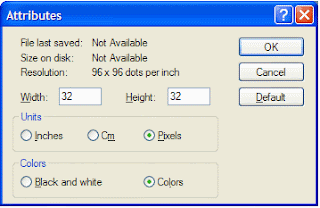
On the Image menu, click Attributes. Type 32 for both the Width and Height of the document, and make sure that Pixels is selected under Units. Click OK to create a new 32x32-pixel document: the size of an icon.

Now add type, color, or do whatever you'd like to your image. I like to shrink photos (headshots work best) to 32x32 and simply paste them into my Paint document. When you're finished, open the File menu and click Save As. Use the dialog box to choose where you want to save your file, then give it a name followed by ".ico" (without the quotes), and click Save. (The extension ".ico" tells Windows that it's an icon file.) You just created an icon! Now you can change any shortcut or folder to your own icon - just browse to it on your hard drive.

Make+ur+own+icons+-+2.gif
 
Oct 26, 2008
6,219
8
0
Cyberspace
Increase your ADSL 20%!

adsl.jpg


Windows XP uses 20% of your bandwidth !

Microsoft reserve 20% of your available bandwidth for their own purposes (suspect for updates and interrogating your machine etc..)

Here's how to get it back:

Click Start-->Run-->type "gpedit.msc" without the "

This opens the group policy editor. Then go to:

Local Computer Policy-->Computer Configuration-->Administrative Templates-->Network-->QOS Packet Scheduler-->Limit Reservable Bandwidth

Double click on Limit Reservable bandwidth. It will say it is not configured, but the truth is under the 'Explain' tab :

"By default, the Packet Scheduler limits the system to 20 percent of the bandwidth of a connection, but you can use this setting to override the default."

So the trick is to ENABLE reservable bandwidth, then set it to ZERO. This will allow the system to reserve nothing, rather than the default 20%.
Works on XP Pro and 2000.


Topic taken from PUZO forums, but I thought it was worth the post so here ya go. Oh BTW, this gpedit.msc is another great way to tweak pc without having to use outside tools. But be careful and read the information bars before you make any changes.
 
Oct 26, 2008
6,219
8
0
Cyberspace
Registry Disassembled

registry.jpg


The registry is a hierarchical database that contains virtually all information about your computer's configuration. Under previous version of Windows, those setting where contained in files like config.sys, autoexec.bat, win.ini, system.ini, control.ini and so on. From this you can understand how important the registry is. The structure of the registry is similar to the ini files structure, but it goes beyond the concept of ini files because it offers a hierarchical structure, similar to the folders and files on hard disk. In fact the procedure to get to the elements of the registry is similar to the way to get to folders and files.
In this section I would be examing the Win95\98 registry only although NT is quite similar.

The Registry Editor

The Registry Editor is a utility by the filename regedit.exe that allows you to see, search, modify and save the registry database of Windows. The Registry Editor doesn't validate the values you are writing: it allows any operation. So you have to pay close attention, because no error message will be shown if you make a wrong operation.

To launch the Registry Editor simply run RegEdit.exe ( under WinNT run RegEdt32.exe with administer privileges). The registry editor is divided into two sectios in the left one there is a hierarchical structure of the database (the screen looks like Windows Explorer) in the right one there are the values.

The registry is organized into keys and subkeys. Each key contains a value entry , each one has a name, a type or a class and the value itself. The name is a string that identifies the value to the key. The length and the format of the value is dependent on the data type.

As you can see with the Registry Editor, the registry is divided into five principal keys: there is no way to add or delete keys at this level. Only two of these keys are effectively saved on hard disk: HKEY_LOCAL_MACHINE and HKEY_USERS. The others are jusr branches of the main keys or are dynamically created by Windows.

HKEY_LOCAL_MACHINE
This key contains any hardware, applications and services information. Several hardware information is updated automatically while the computer is booting. The data stored in this key is shared with any user. This handle has many subkeys:

Config
Contains configuration data for different hardware configurations.

Enum
This is the device data. For each device in your computer, you can find information such as the device type, the hardware manufacturer, device drivers and the configuration.

Hardware
This key contains a list of serial ports, processors and floating point processors.

Network
Contains network information.

Security
Shows you network security information.

Software
This key contains data about installed software.

System
It contains data that checks which device drivers are used by Windows and how they are configured.

HKEY_CLASSES_ROOT
This key is an alias of the branch HKEY_LOCAL_MACHINE\Software\Classes and contains OLE, drag'n'drop, shortcut and file association information.

HKEY_CURRENT_CONFIG
This key is also an alias. It contains a copy of the branch HKEY_LOCAL_MACHINE\Config, with the current computer configuration.

HKEY_DYN_DATA
Some information stored in the registry changes frequently, so Windows maintains part of the registry in memory instead of on the hard disk. For example it stores PnP information and computer performance. This key has two sub keys

Config Manager
This key contains all hardware information problem codes, with their status. There is also the sub key HKEY_LOCAL_MACHINE\Enum, but written in a different way.

PerfStats
It contains performance data about system and network

HKEY_USERS
This important key contains the sub key .Default and another key for each user that has access to the computer. If there is just one user, only .Default key exists. . Each sub key maintains the preferences of each user, like the desktop colors, the fonts used, and also the settings of many programs. If you open a user subkey you will find five important subkeys:

AppEvent
It contains the path of audio files that Windows plays when some events happen.

Control Panel
Here are the settings defined in the Control Panel. They used to be stored in win.ini and control.ini.

Keyboard Layouts
It contains some advanced code which identifies the actual keyboard disposition how it is set into the Control Panel.

Network
This key stores subkeys that describe current and recent network shortcuts.

RemoteAccess
The settings of Remote Access are stored here.

Software
Contains all software settings. This data was stored in win.ini and private .ini files.

HKEY_CURRENT_USER
It is an alias to current user of HKEY_USERS. If your computer is not configured for multi-users usage, it points to the subkey .Default of HKEY_USERS.

Description of .reg file

Here I am assuming that you already have a .reg file on your hard disk and want to know more about how it is structured.Now do not double click the .reg file or it's content will be added to the registry, of course there will be warning message that pops up. Now to view the properties of the .reg file open it in notepad.

To do so first launch notepad by going to Start>Programs>Accessories>Notepad.
Then through the open menu open the .reg file.
Now the thing that differentiates .reg files from other files is the word REGEDIT4. It is found to be the first word in all .reg files. If this word is not there then the registry editor cannot recognize the file to be a .reg file.
Then follows the key declaration which has to be done within square brackets and with the full path.If the key does not exist then it will be created.
After the key declaration you will see a list of values that have to be set in the particular key in the registry.The values look like this:

"value name"=type:value

Value name is in double commas. Type can be absent for string values, dword: for dword values and hex: for binary values. For all other values you have to use the code hex(#): , where # indicate the API code of the type.
So:

"My string" = "string value" is a string
"My dword" = dword:123456789 is a dword
"My binary" = hex:AA,BB,CC is a standard binary
"My other type" = hex(2):AA,BB,00 is an expand string


Important Note: expand string has API code = 2 and extended string has API code = 7.

As you can see, strings are in double quotes, dword is hexadecimal and binary is a sequence of hexadecimal byte pairs, with a comma between each. If you want to add a back slash into a string remember to repeat it two times, so the value "c:\Windows" will be "c:\\Windows".
Before write a new .reg file, make sure you do this else you will get an error message.

Command Line Registry Arguments

FILENAME.REG to merge a .reg file with the registry
/L:SYSTEM to specify the position of SYSTEM.DAT
/R:USER to specify the position of USER.DAT
/e FILENAME.REG [KEY] to export the registry to a file. If the key is specified, the whole branch will be exported.
/c FILENAME.REG to substitute the entire registry with a .reg file
/s to work silently, without prompt information or Warnings.

That wraps up the Windows Registry.
 
Oct 26, 2008
6,219
8
0
Cyberspace
Play your Custom MSN Sounds !

0.jpg


I just found out how 2 play custom sounds for msn plus as mp3 !!

just make a copy of it and rename the file from bat to mp3 ( no progs used !!!)

1. go to C:\Documents and Settings\All Users\Application Data\Messenger Plus!\Custom Sounds

2. make a copy and paste it where u want it !!

3. reneme the .bat to .mp3

Thats it !!!
 
Oct 26, 2008
6,219
8
0
Cyberspace
DVD Recordable Formats (Guide)!

Canon-DW-100-dvd-recorder.jpg


C/P
Buying or bought a new DVD Burner and now you see DVD+R, DVD-R, DVD+RW, DVD-RW, DVD-RAM?, DVD+R DL? What are all these? AHH Im confuzled? Well I will tell you what this is about and other junks too

DVD-R
DVD-R is the most compatible of the formats. This format will play in about 90% of DVD Players, DVD-Roms etc. It was the first recordable format out. This format supports up to 4.37GB of data on a disk. You can also get this disc double sided* and expand its space to 8.75GB of data. This disc can be written on once and only once. Basically if it screws up, you get a nice, shiny coaster.

DVD-RW
This format is the same as DVD-R but can be rewritten several times. This format is compatible with about 80% of DVD Players, drives, etc.

DVD+R
DVD+R is very simlar to DVD-R but supports a few more features, thus sacrificing compatiblity. It supports lossless linking and both CAV and CLV writing. Newbies dont worry about these features . This format is compatible on about 80% of DVD Players, drives, etc. This disc can be written on once and only once. Basically if it screws up, you get a nice, shiny coaster. Supports the same amount of data DVD-R does. 4.37GB and 8.75 GB Double Sided

DVD+RW
DVD+RW is the same as DVD+R but can be written on more several times. It is compatible with about 70% of DVD Players, drives, etc.

DVD+R Dual-Layer
DVD+R is the same as DVD+R but supports 7.95GB on one disc. This disc achieves this by having two seperate recordable layers. This disc is the most expesive of the formats. This disc is also available in double sided* format supporting up to 15.9GB of data. It is compatible in about 75% of DVD Players, drives, etc.

DVD-RAM
DVD-RAM is the least supported format. many DVD Burners do not support this. DVD-RAM usually comes in a catridge and will not fit in most DVD-ROM drive, Player, etc. It is compatible with about 20% of DVD Players. To my knowlage, no DVD-ROM drives support this format. Think of this format as a slow harddrive. This format is not recommended.

Which is Right for Me?
Okay so now you know about all the formats but which is right for you? Well that is up to your DVD-Player. It is best to buy 1 or 2 of each format and try them out. Sometimes a DVD-Player will read DVD+R but not DVD-R. Same goes for other formats. Some DVD-Players will not read any recordable format and that just is no fun now is it.

Speeds
There are several speeds for discs. 2.4x, 4x, 8x, 16x. What do I get?
Well you should get the same speed as your DVD Burner supports. If you get slower than what it supports do note try to burn with a higher speed than what the disc says on it or you will probably end up with a coaster. EG: burner a 2.4x Disc at 4x. Same goes for burning a 4x disc at 2.4x. That stragely could still cause you to get a coaster.

Cheap Media
When CD-Writers came out blank discs were about $5 each. But then cheap $2 blanks came out and people decided to save money and buy those. Big mistake, back then. Those people ended up with alot of coasters and ended up losing money. Now times have changed, you can buy any brand blank CD discs and you will probably get a quality burn. Well that old expensive versus cheap media has started all over again, this time for Recordable DVD media. Do not buy cheap no name DVD Recordable discs. Stick with known brands. I recommend:

-- TDK
-- Kodak
-- Verbatim
-- Ritek

Definitions
Double Sided: Both sides of the disc have a recordable surface.
Coaster: An object you use to place cups on or beverages on to.
Dual-Layer: A disc with two recordable layers. Almost doubling the discs capacity.
Sizes: The disc size may say 4.7GB on the Label but infact is 4.37GB.


=================

Also I suggest you avoid Ebay and be VERY careful of other online suppliers. Always use suppliers that guarantee their sales, because what many people don't know is that there are many levels of quality main ones being A grade B grade and C grade.

Manufacturers create a batch of DVD blanks which are tested as part of the process, this is where the grading happens (A B or C or reject).
(Most big name brands will not suffer this problem as they will settle for not less than A grade)

A grade is the best quality that is used by most people and commercial producers

B grade is medium quality that is good for general use but you will get a few fualty DVD's in a batch. Mainly used for temporary storage (magazine covers etc)

C grade is not really used by anyone knowingly but unknowingly I think most of us have. This really is the lowest level before total reject. The emulsion used for the DVD is usually organic and will deteriorate over time (good quality A grade organic is OK). Ever noticed a DVD you have burned worked ok initially but after a couple of months it started to stop playback?

Unfortunatly SOME Wholesalers and mail order suppliers will buy a bulk batch of A B and C grade media mix them up and flog them off as A grade >>Not Good<<
Ebay is the worst place for this.

example would be Princo. Their A grade is excellent but the packs you get on Ebay are littered with the false A grade. Also some Ritek DVDs are sold this way on EBAY.

Please note that it is a few amongst the many that do this.

My advice is:
1. Buy from a well known "Ebay store" who guarantees their quality or avoid ebay and buy from a local supplier
2. Always seek out "guaranteed" A grade media.
3. Most media with "A grade" imprinted on the media itself is ok
4. (general burning advice) If you are doing many DVDs, pause after each one or do a few and wait 5 minutes. All burners get hot, they are lasers after all and non stop continued use will effect the burn quality eventually.

Finally Always check the manufacturers web site for a compatability list and keep your firmware up to date.

If you want to try out a brand of disk buy 1 - 5 and test them out yourself. Most incompatible media types will play up on first few burns. As norseman said AVOID cheap no name disks BUT if you are careful there are excellent cheap alternatives out there.
 
Oct 26, 2008
6,219
8
0
Cyberspace
The P.O.S.T. Test

image013.jpg


The computer POST (Power On Self Test) which tests the computer insuring that it meets the necessary system requirements before booting up. If the computer fails the POST the computer then returns a beep code indicating what is causing the computer not to post the POST. Generally if the computer POSTs properly you will receive a single beep (with some computer BIOS manufacturers it may beep twice).

Each time the computer boots up the computer must past the POST. The following is the procedure of the POST:

1. The first step of POST is the testing of the Power Supply to ensure that it is turned on and releases its reset signal.
2. CPU must exit the reset status mode and thereafter be able to execute instructions.
3. BIOS must be have readable.
4. BIOS checksum must be valid, meaning that it must be readable.
5. CMOS be accessible for reading.
6. CMOS checksum must be valid, meaning that it must be readable.
7. CPU must be able to read all forms of memory such as the memory controller, memory bus, and memory module.
8. The first 64KB of memory must be operational and have the capability to be read and written to and from.
9. I/O bus / controller must be accessible.
10. I/O bus must be able to write / read from the video subsystem and be able to read all video RAM..

If the computer does not pass any of the above tests your computer will receive an irregular POST. An irregular POST is a beep code which is different from the standard which can be either no beeps at all or a combination of different beeps indicating what is causing the computer not to past the POST.


AMI BIOS BEEP CODES

The following are AMI BIOS Beep Codes that can occur. However because of the wide variety of different computer manufacturers with this BIOS the beep codes may vary.

1 short DRAM refresh failure
2 short Parity circuit failure
3 short Base 64K RAM failure
4 short System timer failure
5 short Process failure
6 short Keyboard controller Gate A20 error
7 short Virtual mode exception error
8 short Display memory Read/Write test failure
9 short ROM BIOS checksum failure
10 short CMOS shutdown Read/Write error
11 short Cache Memory error
1 long, 3 short Conventional/Extended memory failure
1 long, 8 short Display/Retrace test failed


AWARD BIOS BEEP CODES

The following are Award BIOS Beep Codes that can occur. However because of the wide variety of different computer manufacturers with this BIOS the beep codes may vary.

1 long, 2 short Indicates a video error has occurred and the BIOS cannot initialize the video screen to display any additional information
Any other beep(s) RAM problem.

If any other correctable hardware issues the BIOS will display a message.


IBM BIOS

The following are IBM BIOS Beep Codes that can occur. However because of the wide variety of models shipping with this BIOS the beep codes may vary.

No Beeps No Power, Loose Card, or Short.
1 Short Beep Normal POST, computer is ok.
2 Short Beep POST error, review screen for error code.
Continuous Beep No Power, Loose Card, or Short.
Repeating Short Beep No Power, Loose Card, or Short.
One Long and one Short Beep Motherboard issue.
One Long and Two short Beeps Video (Mono/CGA Display Circuitry) issue.
One Long and Three Short Beeps. Video (EGA) Display Circuitry.
Three Long Beeps Keyboard / Keyboard card error.
One Beep, Blank or Incorrect Display Video Display Circuitry.


MACINTOSH STARTUP TONES

Error Tone. (two sets of different tones) Problem with logic board or SCSI bus.
Startup tone, drive spins, no video Problem with video controller.
Powers on, no tone. Logic board problem.
High Tone, four higher tones. Problem with SIMM.


PHOENIX BIOS BEEP CODES

The following is for PHOENIX BIOS Q3.07 OR 4.X

1-1-1-3 Verify Real Mode.
1-1-2-1 Get CPU type.
1-1-2-3 Initialize system hardware.
1-1-3-1 Initialize chipset registers with initial POST values.
1-1-3-2 Set in POST flag.
1-1-3-3 Initialize CPU registers.
1-1-4-1 Initialize cache to initial POST values.
1-1-4-3 Initialize I/O.
1-2-1-1 Initialize Power Management.
1-2-1-2 Load alternate registers with initial POST values.
1-2-1-3 Jump to UserPatch0.
1-2-2-1 Initialize keyboard controller.
1-2-2-3 BIOS ROM checksum.
1-2-3-1 8254 timer initialization.
1-2-3-3 8237 DMA controller initialization.
1-2-4-1 Reset Programmable Interrupt Controller.
1-3-1-1 Test DRAM refresh.
1-3-1-3 Test 8742 Keyboard Controller.
1-3-2-1 Set ES segment to register to 4 GB.
1-3-3-1 28 Autosize DRAM.
1-3-3-3 Clear 512K base RAM.
1-3-4-1 Test 512 base address lines.
1-3-4-3 Test 512K base memory.
1-4-1-3 Test CPU bus-clock frequency.
1-4-2-4 Reinitialize the chipset.
1-4-3-1 Shadow system BIOS ROM.
1-4-3-2 Reinitialize the cache.
1-4-3-3 Autosize cache.
1-4-4-1 Configure advanced chipset registers.
1-4-4-2 Load alternate registers with CMOS values.
2-1-1-1 Set Initial CPU speed.
2-1-1-3 Initialize interrupt vectors.
2-1-2-1 Initialize BIOS interrupts.
2-1-2-3 Check ROM copyright notice.
2-1-2-4 Initialize manager for PCI Options ROMs.
2-1-3-1 Check video configuration against CMOS.
2-1-3-2 Initialize PCI bus and devices.
2-1-3-3 Initialize all video adapters in system.
2-1-4-1 Shadow video BIOS ROM.
2-1-4-3 Display copyright notice.
2-2-1-1 Display CPU type and speed.
2-2-1-3 Test keyboard.
2-2-2-1 Set key click if enabled.
2-2-2-3 56 Enable keyboard.
2-2-3-1 Test for unexpected interrupts.
2-2-3-3 Display prompt "Press F2 to enter SETUP".
2-2-4-1 Test RAM between 512 and 640k.
2-3-1-1 Test expanded memory.
2-3-1-3 Test extended memory address lines.
2-3-2-1 Jump to UserPatch1.
2-3-2-3 Configure advanced cache registers.
2-3-3-1 Enable external and CPU caches.
2-3-3-3 Display external cache size.
2-3-4-1 Display shadow message.
2-3-4-3 Display non-disposable segments.
2-4-1-1 Display error messages.
2-4-1-3 Check for configuration errors.
2-4-2-1 Test real-time clock.
2-4-2-3 Check for keyboard errors
2-4-4-1 Set up hardware interrupts vectors.
2-4-4-3 Test coprocessor if present.
3-1-1-1 Disable onboard I/O ports.
3-1-1-3 Detect and install external RS232 ports.
3-1-2-1 Detect and install external parallel ports.
3-1-2-3 Re-initialize onboard I/O ports.
3-1-3-1 Initialize BIOS Data Area.
3-1-3-3 Initialize Extended BIOS Data Area.
3-1-4-1 Initialize floppy controller.
3-2-1-1 Initialize hard-disk controller.
3-2-1-2 Initialize local-bus hard-disk controller.
3-2-1-3 Jump to UserPatch2.
3-2-2-1 Disable A20 address line.
3-2-2-3 Clear huge ES segment register.
3-2-3-1 Search for option ROMs.
3-2-3-3 Shadow option ROMs.
3-2-4-1 Set up Power Management.
3-2-4-3 Enable hardware interrupts.
3-3-1-1 Set time of day.
3-3-1-3 Check key lock.
3-3-3-1 Erase F2 prompt.
3-3-3-3 Scan for F2 key stroke.
3-3-4-1 Enter SETUP.
3-3-4-3 Clear in-POST flag.
3-4-1-1 Check for errors
3-4-1-3 POST done--prepare to boot operating system.
3-4-2-1 One beep.
3-4-2-3 Check password (optional).
3-4-3-1 Clear global descriptor table.
3-4-4-1 Clear parity checkers.
3-4-4-3 Clear screen (optional).
3-4-4-4 Check virus and backup reminders.
4-1-1-1 Try to boot with INT 19.
4-2-1-1 Interrupt handler error.
4-2-1-3 Unknown interrupt error.
4-2-2-1 Pending interrupt error.
4-2-2-3 Initialize option ROM error.
4-2-3-1 Shutdown error.
4-2-3-3 Extended Block Move.
4-2-4-1 Shutdown 10 error.
4-3-1-3 Initialize the chipset.
4-3-1-4 Initialize refresh counter.
4-3-2-1 Check for Forced Flash.
4-3-2-2 Check HW status of ROM.
4-3-2-3 BIOS ROM is OK.
4-3-2-4 Do a complete RAM test.
4-3-3-1 Do OEM initialization.
4-3-3-2 Initialize interrupt controller.
4-3-3-3 Read in bootstrap code.
4-3-3-4 Initialize all vectors.
4-3-4-1 Boot the Flash program.
4-3-4-2 Initialize the boot device.
4-3-4-3 Boot code was read OK.
 
Oct 26, 2008
6,219
8
0
Cyberspace
Quick Guide to HTML

html2.gif


Well, if you've ever wanted to have you're own webpage on the internet, you know that it can be pretty frustrating trying to find out how. What you need to know is that building a page requires knowledge of HTML, which stands for Hyper Text Markup Language. Behind every page is a large amount of code. But what is this code if you don't know what it means?
Nothing. It's absolutely nothing, and if you want to make something at the undisputed easiest language on the internet, you should keep reading.I will provide four scripts. Each time I add a new tag to the script, I will explain the new tag just like I did the rest. I used tabs for easier reading.
First of all, lets start up with something simple. I'll explain the tags after I'm finished with the code.

<html>
<body bgcolor="#C0C0C0">
<title>New HTML Page</title>
<font face="Verdana" size="15" color="red">
<!- The text here is important ->
<body>
Welcome to my new HTML page. You need no knowledge of HTML
to view this page.
<p>
It was made by me,<br>
(Your Name)
</body>
</font>
</html>

Now, lets take it step by step.
<html> and </html>
These tags mark the beginning and the end of an HTML document. These documents end with .html or .htm extensions.

<body bgcolor="#hex or color">
This specifies the page's background color. You can either enter a hexidecimal string for the color, or thanks to new upgrades in browsers, just specify a color, such as "red".

<title> and </title>
Mark the beginning and the end of the text located at the top of the browser. Any text is allowed here.

<font face="font" size="size" color="color or #hex"> and </font>
This is to specify the type of font used for the text following it. Note that also you can write each "sub-tag" such as "face", "size", and "color" as its own tag, like this.
<font face="font> </font>
<font size="size"> </font size>
<font color="color or #hex"> </font color>

But you have to close them individually, so it's quicker to just incorporate them into one tag.
<!-- Comment -->
This is a commentary tag. The text within this tag will not show up on the page, and does not affect this page as long as you close the comment with --> or --!> (the number of underscores does not matter). These tags are used to give the reader of the HTML source accompanying the page he or she is reading some information about the site, such as the author or date of publication.

<body> and </body>
Mark the beginning of the body of a document. Not necessary, but are often used to organize the document a little better.

<p>
A paragraph tag. Each tag inserted creates a new paragraph.

<br>
A line break. Each tag inserted automatically puts the next text or image at the next line.Now that you know some basic tags, lets get on to a script that's a "step" higher.

<html>
<body bgcolor="#800000">
<title>HTML PAGE 2</title>
<font face="verdana" size="14" color="#cccccc">
<p align="center">
<body>
<br>
<img src="pic.gif">
<p>
Welcome to my HTML page. If you need to learn more about HTML, click
<a href="page.html">here</a>.
</p>
</font>
</body>
</html>

<p align="center"> and </p>
"align" is a "sub-tag" for <p>. It is used to specify the alignment of the text within the new paragraph.

<img src="pic.gif">
This inserts an image where it is placed.

<a href="link.html"> and </a>
This tag inserts a hyperlink. The link is specified in the "href" section of the link, and the text directly after the first tag is closed. After you have already typed the text that you wish to hyperlink and you are ready to end the link, you end the tag, using
</a>.

Lets go on to another script.

<html>
<body bgcolor="#800000">
<title>HTML PAGE 3</title>
<font face="verdana" size="14" color="#cccccc">
<p align="center">
<body>
<table>
<tr><td bgcolor="green">
<marquee>Welcome to my page. It is a page about HTML, but you do not need knowledge of HTML
to view it.</marquee></tr></td></table>
<br>
<a href="page.html">
<img src="pic.gif">
</a>
<p>
Welcome to my HTML page. If you need to learn more about HTML, click
<a href="page.html" style="text-decoration: none">here</a>. Although you may wish to learn
more about HTML, I can only provide so much information, since my website is on limited
space, and my cheap host only gave me eighty kilobytes.
</p>
</font>
</body>
</html>

<table> and </table>
Starts a table. The cells and rows are made with the following.

<TR> and </TR>
Specifies a new row.

<TD> and </TD>
Specifies a new cell.

<marquee> and </marquee>
Starts a marquee. A marquee is a line of text that scrolls across the screen. Some viewers find it annoying, so I put it in its own little table cell to make it look more organized.

<a href="page.html" style="text-decoration: none"> and </a>
style="text-decoration: none"
This specifies that you want the link which you are inserting to have no underline, or text-decoration. Without this, by default, most browsers underline hyperlinks.

<html>
<style>
body {
scrollbar-arrow-color: black; scrollbar-base-color: gray
}
</style>
<body bgcolor="#800000" text="#000000" alink="#000080" link="#000080" vlink="#000080">
<title>HTML PAGE 4</title>
<font face="verdana" size="14">
<p align="center">
<body>
<table bordercolor="gray" bgcolor="red">
<tr><td>
<marquee>Welcome to my page. It is a page about HTML, but you do not need knowledge of HTML
to view it.</marquee></tr></td></table>
<br>
<a href="page.html">
<img src="pic.gif">
</a>
<p>
Welcome to my HTML page. If you need to learn more about HTML, click
<a href="page.html" style="text-decoration: none">here</a>. Although you may wish to learn more about HTML, I can only provide so much information, since my website is on limited space, and my cheap host only gave me eighty kilobytes.
</p>
</font>
</body>
</html>


<body> and </body>
text="color or #hex" =Specifies the color of plain text for the whole page.
alink="color or #hex ="Specifies the color of the active links for the whole page.
link="color or #hex" =Specifies the color for the regular links for the whole page.
vlink="color or #hex" =Specifies the color for the visited links for the whole page.

<table> and </table>
bordercolor="color or #hex" =Specifies the border color for the table.
bgcolor="color or #hex" =Specifies the background color for the table.

<td> and </td>
bgcolor="color or #hex" =Specifies the background color for that specific cell.

<html>
<!-- This page was written by Bob Smith -->
<style>
body {
scrollbar-arrow-color: black; SCROLLBAR-BASE-COLOR: gray
}
</style>
<body bgcolor="#800000" text="#000000" alink="#000080" link="#000080" vlink="#000080">
<title>HTML PAGE 4</title>
<font face="verdana" size="14">
<p align="center">
<body>
<table bordercolor="gray" bgcolor="red">
<tr><td>
<marquee>Welcome to my page. It is a page about HTML, but you do not need knowledge of HTML
to view it.</marquee></tr></td></table>
<br>
<a href="page.html">
<img src="pic.gif">
</a>
<p>
Welcome to my HTML page. If you need to learn more about HTML, click
<a href="page.html" style="text-decoration: none">here</a>. Although you may wish to learn more about HTML, I can only provide so much information, since my website is on limited space, and my cheap host only gave me three kilobytes.
</p>
</font>
</body>
</html>

<!-- Comment -->
The last, and certainly least thing we are going to talk about are comments. These tags are a waste of bytes really; all they do is give the reader of the source information about it. They do not show up on the finished product.

= HTML Generators =

HTML Generators are programs that allow you to design a page, and while you design it, the HTML for whatever you add to the page is generated. Such programs include Mic*ft Frontpage and Dreamweaver.

I use Frontpage a lot simply because it saves time. Opening up notepad and writing an entire site can be timely, while Frontpage is efficient and quick.

I hope this guide helped you learn a little about HTML. For all you HTML masters, we all forget things sometimes and need a reference guide.
 
Oct 26, 2008
6,219
8
0
Cyberspace
Removing Spyware or Malware

spyware-709821.jpg


Overview

Malicious software goes by many names: Spyware, worms, viruses, Trojans, Adware, keystroke loggers, pests, and more. "Spyware" often is used to mean all malicious software other than viruses. I use the term "malware" instead.

The following is a blueprint for removing any and all malicious software from an infected Windows computer. This is not customized for a particular malware program, but applies to all malicious software. The intended audience are computer nerds and, as such, some details have been omitted. It's more a cheat-sheet than a tutorial. If you are not a computer nerd and think your computer may be infected (see Symptoms section below), print this page and give it to your local techie.

The goal described below is to remove the malware from Windows. This should not, however, be the goal in all instances. Depending on the circumstances, the correct approach might be to wipe the hard disk clean and re-install or recover Windows. A clean install is the only 100% guaranteed way to return the computer to a fully functioning state. If the computer is used for anything judged to be important, a clean install is probably called for. If the person who owns the infected computer says there are no important files or that all the important files are backed up, then a clean install is called for. On the other hand, there may be application software that can't be re-installed easily. Regardless of the approach used, the first thing to do is a disk image backup (see below).

There is still another approach, one never mentioned elsewhere. Do both. Keep the old infested copy of Windows and install a new fresh clean copy. This has the advantage of not having to back up all the important files and thus not risk forgetting to back up something. First you need to re-partition the hard disk, which means purchasing software. Also, this assumes there is enough free space for a new instance of Windows. For desktop computers, you can add a second internal hard disk to hold the new clean copy of Windows.

The steps below are designed for a computer brutally infested with malicious software. Some of the symptoms of a Spyware infection are at the bottom of the page.

The main phases of the cleanup are: backup, stop the malware from running, check for other errors, delete the malware, and finally, prevention from this sort of thing happening again. Some malware is very well defended, so it's worth some time and effort to prevent it from running in the first place before trying to remove it.

Preparation

Disconnect the infected machine from any and all computer networks (the Internet and/or Local Area Network). If possible use a PS/2 based mouse and keyboard rather than USB (if you have to boot to DOS or Linux there may not be USB drivers). Have these programs ready to run off removable media (floppy, CD, USB flash drive): a disk imaging program, a program to control auto-started programs, a process monitor, a utility to disable Browser Helper Objects (BHOs) and a firewall. (more on this below) It is best to run this software from removable media both to insure it is not compromised and because some malware may prevent the use of equivalent Windows based software on the infected machine. Also, there are a number of steps that should be taken before connecting the infected machine to the Internet to download any other software.

Backup

Make a disk image backup using bootable removable media. My preference would be for the image backup to reside outside the computer. If the machine does not have an internal CD or DVD burner, use an external model (which means adding drivers for the external burner to the list of software you need up-front). Another options is to copy the Windows partition to a hidden partition on the hard disk.

Make a registry backup too.
Stop Malware From Running

Boot to Safe Mode via F8.

Stop the obvious malware from running at boot time with a utility that controls auto-started programs. This is best done from Safe Mode because I have seen malware that puts itself back into the list of auto-started programs as soon as its removed.

The AutoRuns program from SysInternals is a free program that controls auto-started programs. It is small, safe program from a reliable source. No installation is needed, you can run autoruns.exe from removable media.

Beware of malware with a good name in a bad directory. For example, the real version of winlogon.exe resides in the C:Windowssystem32 directory. A copy of winlogon.exe in the C:Windows directory is trouble. Likewise, winlogin.exe (slight name change) in the C:Windowssystem32 directory is also bad news.

Check the "hosts" file and if it has any entries other than 127.0.0.1, comment them out.

For Windows XP and 2000 look in C:WINDOWSSYSTEM32DRIVERSETC
For Windows 98ME look in C:WINDOWS

Check My Network Places and delete anything suspicious, especially FTP sites referenced by IP address.

If the computer is behind a router, change the administration password for the router and tape the new password to the box.

Look for BHOs and disable anything you don't recognize. When in doubt disable it, you can always re-enable a BHO later.

You want to do this early because BHOs are kicked off by both Windows Explorer and IE. For this, I like BHODemon from Definitive Solutions. Windows XP SP2 has the IE Add-On manager. However, BHODemon can run off removable media without being installed to Windows, works with all versions of Windows and offers opinions about the BHOs, making it the far better choice. An actively maintained list of BHOs is available at ComputerCops.biz (thanks Larry) but beware, it's a very big page. In the Status column "X" means malware, "L" means benign. Sysinfo.org also has a list of known BHOs but I'm told this is no longer maintained.

Review the list of auto-started Services (for Windows XP/2000) and disable the ones you don't recognize. Pay special attention to services that have no description.

Services are one of many ways to auto-start a program at boot time. To research Windows 2000 services see Purpose of Windows 2000 Services and Glossary of Windows 2000 Services. For XP see Windows Server 2003 System Services Reference or System Services for the Windows Server 2003 Family and Windows XP Operating Systems. To research the EXE that underlies a service see Windows Startup Online or WinTasks Process Library or Task List Programs at AnswersThatWork.com.

Examine the scheduled tasks for any obvious malware that kicks itself off this way.

Make sure Windows Explorer is displaying hidden and system files.

Re-boot back to Safe Mode.

The previous steps were the low hanging fruit. Rebooting in Safe Mode is to find any malware that auto-starts despite the initial steps above. Eventually, we reboot normally and look for malware that snuck through the steps below. The goal is that by the time we run anti-Spyware software there's a clean playing field for malware removal.

Use a Process monitoring program to examine all the running programs. For each malware program, note the location of the underlying executable file. Kill the process and rename the underlying EXE. If it resides in its own directory rename that too. Give it a name something on the order of: someprogram.DONOTRUN.exe. If you can't kill the process, boot to DOS or the Recovery Console and rename the underlying file from there.

For this, I like Process Explorer, another free program from SysInternals.com. Like AutoRuns, it requires no installation, you can run it directly from removable media. It can also drill down into svchost.exe and report the underlying services.

Even with newer versions of Windows such as XP, older mechanisms for automatically running a program at startup time still work. If you want to manually inspect these holdovers, check:

The [windows] section of Win.ini looking for an entry such as load=spyware.exe and run=spyware.exe
The [boot] section of System.ini looking for an entry such as Shell = Explorer.exe spyware.exe
Autoexec.bat looking for something like c:spyware.exe

Boot normally.

Use a process monitor to check for any malware that might have been auto-started. Anything that shows up here is pretty darn resistant. It may have detected that its process was being terminated and created a new instance of itself. Or, it may use different names and run from different locations at each startup. Or it may be auto-started from an obscure part of the registry that the software you used to control automatically run programs does not handle (AutoRuns seem pretty complete to me). Note the underlying EXE, reboot to DOS or the Recovery Console and rename this file. Trying to kill the process may only tell it that we are on its existence and trigger a defense mechanism.

In Windows XP and Me make a Restore Point.

Delete:

* All ActiveX controls (see below)
* The web browser cache (Temporary Internet Files), for each user, if necessary
* Temporary files
* Cookies (perhaps overkill, I admit)
* The web browser history
* Empty the recycle bin
* Disable System Restore to delete the old Restore points, then re-enable it and take a new Restore point

Active X programs/controls reside in C:WINDOWSDownloaded Program Files
on Windows XP/ME/98 and in C:WINNTDownloaded Program Files
in Windows 2000. With IE6 and Windows 2000 and XP, the cache and cookies
reside in C:Documents and SettingsuseridLocal SettingsTemporary Internet Files
Windows XP SP2 displays the installed ActiveX controls and offers to disabled them, but I would rather delete them.

Reboot normally. Hopefully, no malware is auto-started at this point.

In Windows XP and Me make a Restore Point.

Review the IE Trusted Zone (Tools -> Internet Options -> Security Tab -> Trusted Zones -> Sites button) and delete any web sites there. Review the IE Favorites and delete anything that looks suspicious. Change the IE home page to a blank page (if you can). On the Content tab, click the Publishers button and remove any trusted publishers.

Get a firewall program up and running.

If the machine already had a firewall installed, review the rules, it only takes a single exception to punch a big hole in the protection. Better yet, uninstall the current firewall and do a clean install of the latest version of the free edition of ZoneAlarm. ZoneAlarm is better than the firewall in Windows XP SP2 because it starts out with no exception rules and because it is more resistant to being shut down by malware.

Log on to the Internet.

Scan the entire hard disk with Housecall from Trend Micro, then scan it again with another Anti-Virus scanner such as Security Check from Symantec.

Any computer infected with malware, is also likely to be infected with viruses. Better to get rid of the viruses first. Online virus scans should be used because client side anti-virus software may have been crippled. I suggest using Housecall first because my experience has been that new virus definitions are added to it very quickly. A second scan with another product may be overkill, but better safe than sorry.

In Windows XP and Me make a Restore Point.

At this point, none of the installed malicious software should be running automatically at system start-up and the machine should be virus free. This is the time to run a barrage of anti-Spyware programs. It's a shame that you need to run more than one, but you do. Opinions vary as to the "best" anti-Spyware programs, however, the following are generally respected and free.

* The classic programs are Ad-aware and Spybot.

* There is a 30 day free trial version of Spy Sweeper from Webroot

* Mic*ft has an Anti-Spyware program that, as of this writing, is still in beta.

* Run the ActiveX based online CounterSpy scan from Sunbelt software (I've experienced some false positives with it). This is only a scan, if it finds something you want to remove, there is an installable free trial version.

* The Yahoo IE Toolbar uses the Pest Patrol engine and both detects and removes Spyware

* Can't hurt to run the ActiveX version of Mic*ft's Malicious Software Removal Tool

* CA offers a free ActiveX scan with Pest Patrol. However, if it finds anything there is no free trial. There used to be manual removal instructions, but that was before the product was purchased by Computer Associates.

If Spyware was detected and removed by the above programs, then you should also remove any Restore Points (Windows XP and Me only) that may include the malicious software. You do this by turning off System Restore. Then turn it back on and make a new Restore Point.

Make sure that you can change the IE home page and security settings and that Internet Options appears in the Control Panel. If not, try HijackThis and/or read this article by Mike Healan.

In a Baltimore Sun article, (Patience, basic toolkit, updates to security can block spyware July 29, 2004) Mike Himowitz suggested that the cleanup is not done at this point. On NT class machines with multiple users he warns that "Spyware programs embed themselves in each user's personal settings" which requires you to log off the current userid, logon as each of the other users and run the Spyware removal software again. He says "If you don't do this, your Spyware may come back." Makes a clean install look better and better.

Be aware that running the usual anti-malware software can create problems. In the September 21, 2004 issue of PC Magazine, Bill Machrone wrote about malware that infests the TCP/IP stack. The usual anti-malware products removed only half the infection resulting in corrupted TCP/IP software. He found software to fix the problem under Windows XP avoiding the need to un-install and re-install TCP/IP itself. See Corruption at the Jersey Shore.
Prevention and Cleanup

This is a good time to round up the usual suspects: run Windows Update manually, adjust IE settings for high security, lower the size of the IE cache and the System Restore cache (XP and Me only), defrag, delete TEMP files and (for XP,2000) disable the Messenger service. Install an anti-virus product and get it up to date (bug fixes and virus definitions). Set both the anti-virus software and Windows Update for automatic updates. Needless to say, set up an anti-Spyware program to run in auto-protect mode.

For Windows XP and 2000, let me suggest setting task manager to run automatically in the system tray at boot time and train the user to watch for cpu spikes, a good first indicator of Spyware running in the background.

If ZoneAlarm is installed, set it to protect the Hosts file. If Norton AntiVirus is installed set a password for its configuration options. If your firewall allows, set a password on it to protect configuration changes. Likewise, the anti-Spyware software may also offer this feature.

Install the free SpywareBlaster program to update the kill bits in the registry and the IE Restricted Zone. This protection is partial, but better to have than not. Use it to make an IE settings snapshot backup.

Use my Java Tester web site to see which JVM, if any, is installed. If none, fine. If there is a Mic*ft JVM, maybe upgrade to the current Sun JVM. This Macromedia page tells you the version of Flash that is installed and this page tells you what the latest Flash version is.

Install Firefox and a non-Mic*ft email program (such as Thunderbird) and show the computer owner how to use them. Install the Flash plug-in for Firefox and possibly also Shockwave, Java and QuickTime. If the computer user is a beginner and unable or unwilling to deal with Firefox extensions, turn off the Firefox option that allows new extensions to be installed (Tools -> Options -> Web Features -> Allow web sites to install software). This should prevent future accidental software installs.

Show the user(s) how to back up their most important files (I teach a short class on backups, but only in New York City).

To prevent malware infections in the future, teach the user safe Internet techniques. The time spent here is probably well spent when compared to using software that automatically watches for new installs of malicious software (Spybot, BHODemon and the paid versions of Ad-aware can do this, among others). Any such software would need to be maintained and, when it finds something, the user may not fully understand the situation. Also, the software applies to a single computer, whereas safe computing habits apply everywhere. Along this line, I have a web page about recognizing and dealing with bad emails and maintain a page with malware links. I also teach a class on Protecting Your Computer, but only in New York City.

And, Finally

If you need to run a web browser from removable media (that is, a program that does not need to be installed on the hard disk) I know of two:

* On the low end, there is Off By One, a single, standalone EXE that supports all versions of Windows
* On the high end, John Haller has created a Portable Firefox. As of October 2004, the latest stable version was 0.9.3 but he also has version 1.0PR available as a test.

A reader of this page suggested Bart's Preinstalled Environment (BartPE). It lets you boot from a CD into Windows, totally bypassing the corrupted copy of Windows. This lets you run your favorite malware removal software unmolested. I'll have to look into this . . .
Some Symptoms of Spyware, Adware, Malware Infection

The symptoms of a malware infection vary.

Your web browsing speed may be slow. Your computer, in general, may be slower that it was and may take much longer to start up than it used to.

It is likely Internet Explorer is modified. You homepage and/or search page may be changed, new favorites that you didn't create may appear, a new toolbar may appear or you may end up at unknown web sites when you try to do a search.

To prevent you from undoing the browser modifications made by a malware program, some of them remove or disable the Internet Options from the Tools Menu and from the Control Panel. If you try to reset your home page and can't, it's likely due to malware. If you can't get to anti-virus or security web sites, but can get to other web sites, it's likely due to malware.

Adware will bombard you with pop-up ads. More malicious programs serve up a constant barrage of ads for pornographic web sites. That's on top of the pop-ups from the web sites you're viewing. If you see pop-up ads even when you are offline, it's due to malware.

Actual Spyware (as opposed to other malware) has to phone home to report what it found. If your firewall provides outbound protection you may see the "phone call" and be able to stop it.

Malicious software may also shut down or disable your anti-virus program or your firewall program. It may prevent the normal activity of your anti-Spyware software. It may prevent you from accessing Task Manager or msconfig or regedit.

Adware programs may create new icons on the Windows desktop, task bar, or system tray. They may also create popup windows that you are unable to close. If your computer mysteriously dials the phone on it's own, it may be infected with a porn dialing program.
 
Oct 26, 2008
6,219
8
0
Cyberspace
Make Old Extensions Work in Firefox 1.5

firefox.jpg


At location bar, enter: about:config This will show you a list of Firefox internal preferences.

Right click on the list, select New > String

At preference name enter: app.extensions.version
Then, enter 1.0 as the value for app.extensions.version

Restart Firefox 1.5, then enable those disabled Firefox extensions

Restart Firefox 1.5 again to active the extensions
 
Oct 26, 2008
6,219
8
0
Cyberspace
Recover from a Corrupted Registry

corrupted_ent.jpg


This article describes how to recover a Windows XP system that does not start because of corruption in the registry. This procedure does not guarantee full recovery of the system to a previous state; however, you should be able to recover data when you use this procedure.

Warning:
Do not use the procedure that is described in this article if your computer has an OEM-installed operating system. The system hive on OEM installations creates passwords and user accounts that did not exist previously. If you use the procedure that is described in this article, you may not be able to log back into the recovery console to restore the original registry hives.

You can repair a corrupted registry in Windows XP. Corrupted registry files can cause a variety of different error messages. See the Mcft Knowledge Base for articles about error messages that are related to registry issues.

This article assumes that typical recovery methods have failed and access to the system is not available except by using Recovery Console. If an Automatic System Recovery (ASR) backup exists, it is the preferred method for recovery. Mcft recommends that you use the ASR backup before you try the procedure described in this article.

Note Make sure to replace all five of the registry hives. If you only replace a single hive or two, this can cause potential issues because software and hardware may have settings in multiple locations in the registry.

If you experience a repetitive occurrence of registry corruption related issues, Mcft recommends that you obtain and install the hotfix in the following article:
318159 Damaged Registry repair and recovery in Windows XP
This update is also included in Windows XP Service Pack 1.

MORE INFORMATION:
When you try to start or restart your Windows XP-based computer, you may receive one of the following error messages:
Windows XP could not start because the following file is missing or corrupt: \WINDOWS\SYSTEM32\CONFIG\SYSTEM
Windows XP could not start because the following file is missing or corrupt: \WINDOWS\SYSTEM32\CONFIG\SOFTWARE
Stop: c0000218 {Registry File Failure} The registry cannot load the hive (file): \SystemRoot\System32\Config\SOFTWARE or its log or alternate
System error: Lsass.exe
When trying to update a password the return status indicates that the value provided as the current password is not correct.

The procedure that this article describes uses Recovery Console and System Restore. This article also lists all the required steps in specific order to make sure that the process is fully completed. When you finish this procedure, the system returns to a state very close to the state before the problem occurred. If you have ever run NTBackup and completed a system state backup, you do not have to follow the procedures in parts two and three. You can go to part four.

Part one
In part one, you start the Recovery Console, create a temporary folder, back up the existing registry files to a new location, delete the registry files at their existing location, and then copy the registry files from the repair folder to the System32\Config folder. When you have finished this procedure, a registry is created that you can use to start Windows XP. This registry was created and saved during the initial setup of Windows XP. Therefore any changes and settings that occurred after the Setup program was finished are lost.

To complete part one, follow these steps:

1. Insert the Windows XP startup disk into the floppy disk drive, or insert the Windows XP CD-ROM into the CD-ROM drive, and then restart the computer.
Click to select any options that are required to start the computer from the CD-ROM drive if you are prompted to do so.

2. When the "Welcome to Setup" screen appears, press R to start the Recovery Console.

3. If you have a dual-boot or multiple-boot computer, select the installation that you want to access from the Recovery Console.

4. When you are prompted to do so, type the Administrator password. If the administrator password is blank, just press ENTER.

5. At the Recovery Console command prompt, type the following lines, pressing ENTER after you type each line:
md tmp
copy c:\windows\system32\config\system c:\windows\tmp\system.bak
copy c:\windows\system32\config\software c:\windows\tmp\software.bak
copy c:\windows\system32\config\sam c:\windows\tmp\sam.bak
copy c:\windows\system32\config\security c:\windows\tmp\security.bak
copy c:\windows\system32\config\default c:\windows\tmp\default.bak

delete c:\windows\system32\config\system
delete c:\windows\system32\config\software
delete c:\windows\system32\config\sam
delete c:\windows\system32\config\security
delete c:\windows\system32\config\default

copy c:\windows\repair\system c:\windows\system32\config\system
copy c:\windows\repair\software c:\windows\system32\config\software
copy c:\windows\repair\sam c:\windows\system32\config\sam
copy c:\windows\repair\security c:\windows\system32\config\security
copy c:\windows\repair\default c:\windows\system32\config\default

6. Type exit to quit Recovery Console. Your computer will restart.
Note This procedure assumes that Windows XP is installed to the C:\Windows folder. Make sure to change C:\Windows to the appropriate windows_folder if it is a different location.

If you have access to another computer, to save time, you can copy the text in step two, and then create a text file called "Regcopy1.txt" (for example). To create this file, run the following command when you start in Recovery Console:
batch regcopy1.txt
With the batch command in Recovery Console, you can process all the commands in a text file sequentially. When you use the batch command, you do not have to manually type as many commands.

Part Two
To complete the procedure described in this section, you must be logged on as an administrator, or an administrative user (a user who has an account in the Administrators group). If you are using Windows XP Home Edition, you can log on as an administrative user. If you log on as an administrator, you must first start Windows XP Home Edition in Safe mode. To start the Windows XP Home Edition computer in Safe mode, follow these steps.

Note Print these instructions before you continue. You cannot view these instructions after you restart the computer in Safe Mode. If you use the NTFS file system, also print the instructions from Knowledge Base article KB309531. Step 7 contains a reference to the article.

1. Click Start, click Shut Down (or click Turn Off Computer), click Restart, and then click OK (or click Restart).

2. Press the F8 key.
On a computer that is configured to start to multiple operating systems, you can press F8 when you see the Startup menu.

3. Use the arrow keys to select the appropriate Safe mode option, and then press ENTER.

4. If you have a dual-boot or multiple-boot system, use the arrow keys to select the installation that you want to access, and then press ENTER.
In part two, you copy the registry files from their backed up location by using System Restore. This folder is not available in Recovery Console and is generally not visible during typical usage. Before you start this procedure, you must change several settings to make the folder visible:

1. Start Windows Explorer.

2. On the Tools menu, click Folder options.

3. Click the View tab.

4. Under Hidden files and folders, click to select Show hidden files and folders, and then click to clear the Hide protected operating system files (Recommended) check box.

5. Click Yes when the dialog box that confirms that you want to display these files appears.

6. Double-click the drive where you installed Windows XP to display a list of the folders. If is important to click the correct drive.

7. Open the System Volume Information folder. This folder is unavailable and appears dimmed because it is set as a super-hidden folder.

Note This folder contains one or more _restore {GUID} folders such as "_restore{87BD3667-3246-476B-923F-F86E30B3E7F8}".

Note You may receive the following error message:
C:\System Volume Information is not accessible. Access is denied.
If you receive this message, see the following Mcft Knowledge Base article to gain access to this folder and continue with the procedure:
309531 How to gain access to the System Volume Information folder

8. Open a folder that was not created at the current time. You may have to click Details on the View menu to see when these folders were created. There may be one or more folders starting with "RPx under this folder. These are restore points.

9. Open one of these folders to locate a Snapshot subfolder. The following path is an example of a folder path to the Snapshot folder:
C:\System Volume Information\_restore{D86480E3-73EF-47BC-A0EB-A81BE6EE3ED8}\RP1\Snapshot

10. From the Snapshot folder, copy the following files to the C:\Windows\Tmp folder:

o _REGISTRY_USER_.DEFAULT
o _REGISTRY_MACHINE_SECURITY
o _REGISTRY_MACHINE_SOFTWARE
o _REGISTRY_MACHINE_SYSTEM
o _REGISTRY_MACHINE_SAM

11. Rename the files in the C:\Windows\Tmp folder as follows:
o Rename _REGISTRY_USER_.DEFAULT to DEFAULT
o Rename _REGISTRY_MACHINE_SECURITY to SECURITY
o Rename _REGISTRY_MACHINE_SOFTWARE to SOFTWARE
o Rename _REGISTRY_MACHINE_SYSTEM to SYSTEM
o Rename _REGISTRY_MACHINE_SAM to SAM

These files are the backed up registry files from System Restore. Because you used the registry file that the Setup program created, this registry does not know that these restore points exist and are available. A new folder is created with a new GUID under System Volume Information and a restore point is created that includes a copy of the registry files that were copied during part one. Therefore, it is important not to use the most current folder, especially if the time stamp on the folder is the same as the current time.

The current system configuration is not aware of the previous restore points. You must have a previous copy of the registry from a previous restore point to make the previous restore points available again.

The registry files that were copied to the Tmp folder in the C:\Windows folder are moved to make sure that the files are available under Recovery Console. You must use these files to replace the registry files currently in the C:\Windows\System32\Config folder. By default, Recovery Console has limited folder access and cannot copy files from the System Volume folder.

Note The procedure described in this section assumes that you are running your computer with the FAT32 file system.

For more information about how to access the System Volume Information Folder with the NTFS file system, click the following article number to view the article in the Mcft Knowledge Base:

How to gain access to the System Volume Information folder

Part Three

In part three, you delete the existing registry files, and then copy the System Restore Registry files to the C:\Windows\System32\Config folder:

1. Start Recovery Console.

2. At the command prompt, type the following lines, pressing ENTER after you type each line:
del c:\windows\system32\config\sam

del c:\windows\system32\config\security

del c:\windows\system32\config\software

del c:\windows\system32\config\default

del c:\windows\system32\config\system

copy c:\windows\tmp\software c:\windows\system32\config\software

copy c:\windows\tmp\system c:\windows\system32\config\system

copy c:\windows\tmp\sam c:\windows\system32\config\sam

copy c:\windows\tmp\security c:\windows\system32\config\security

copy c:\windows\tmp\default c:\windows\system32\config\default
Note Some of these command lines may be wrapped for readability.

3. Type exit to quit Recovery Console. Your computer restarts.
Note This procedure assumes that Windows XP is installed to the C:\Windows folder. Make sure to change C:\Windows to the appropriate windows_folder if it is a different location.

If you have access to another computer, to save time, you can copy the text in step two, and then create a text file called "Regcopy1.txt" (for example).

Part Four
1. Click Start, and then click All Programs.
2. Click Accessories, and then click System Tools.
3. Click System Restore, and then click Restore to a previous RestorePoint.
 
Oct 26, 2008
6,219
8
0
Cyberspace
Hacker Lingo

hacker.gif


back door n. In the security of a system, a hole deliberately left in place by designers or maintainers. May be intended for use by service technicians. syn. trap door.

bit bucket n. 1. The universal data sink. Discarded, lost or destroyed data is said to have gone to the bit bucket. Sometimes amplified as "The Great Bit Bucket in the Sky."

cracker n. One who breaks security on a system. Coined by hackers in defense against journalistic misuse of the term "hacker." The term "cracker" reflects a strong revulsion at the theft and vandalism perpetrated by cracking rings. There is far less overlap between hackerdom and crackerdom than most would suspect.

deep magic n. An awesomely arcane technique central to a program or system, esp. one that could only have been composed by a true wizard. Many techniques in cryptography, signal processing, graphics and artificial intelligence are deep magic.

foo interj. 1. Term of disgust. 2. Used very generally as a sample name for absolutely anything, esp. programs and files. Etymology is obscure.

hacker n. 1. A person who enjoys exploring the details of programmable systems and how to stretch their capabilities. 2. One who programs enthusiastically. 3. A person who is good at programming quickly. 4. An expert at a particular program, as in "a Unix hacker." 5. [deprecated] A malicious meddler who tries to discover sensitive information by poking around. The correct term for this sense is "cracker."

KISS Principle n. "Keep It Simple, Stupid." Often invoked when discussing design to fend off creeping featurism and control development complexity. Possibly related to the marketroid maxim, "Keep It Short and Simple."

kluge n. 1. A Rube Goldberg (or Heath Robinson) device, whether in hardware or software. 2. A clever programming trick intended to solve a particularly nasty case in an expedient, if not clear, manner. 3. Something that works for the wrong reason.

lots of MIPS but no I/O adj. A person who is technically brilliant but who can't seem to communicate with human beings effectively. Technically it describes a machine that has lots of processing power but is bottlenecked on input-output.

munge vt. 1. [derogatory] To imperfectly transform information. 2. A comprehensive rewrite of a routine, data structure or whole program. 3. To modify data in some way that the speaker doesn't need to go into right now.

netiquette n. The conventions of politeness recognized on Usenet, such as avoidance of cross-pointing to inappropriate groups and refraining from commercial pluggery outside the biz groups.

phreaking n. 1. The art and science of cracking the phone network (so as, for example, to make free long-distance calls). 2. By extension, security-cracking in any other context (especially, but not exclusively, on communications networks).

raster burn n. Eyestrain brought on by too many hours of looking at low-res, poorly tuned or glare-ridden monitors, esp. graphics monitors.

RTFM imp. [Acronym for "Read The F—— Manual."] 1. Used by gurus to brush off questions they consider trivial or annoying. 2. Used when reporting a problem to indicate that you aren't just asking out of randomness: "Yes, I RTFM first."

security through obscurity n. (alt. security by obscurity) A hacker term for vendors' favorite way of coping with security holes — namely, ignoring them; documenting neither any known holes nor the underlying security algorithms; or trusting that nobody will find out about them, and that people who did find about them won't exploit them. This "strategy" never works for long.

sneaker n. An individual hired to break into places in order to test their security; analogous to "tiger team."

spaghetti code n. Code with a complex and tangled control structure, esp. one using many GOTOs, exceptions or other "unstructured" branching constructs. Pejorative. The synonym kangaroo code has also been reported, doubtless because such code has so many jumps in it.

time bomb n. A subspecies of logic bomb that is triggered by reaching some preset time; set to go off if the programmer is fired or laid off and is not present to perform the appropriate suppressing action periodically.

Trojan horse n. A malicious, security-breaking program that is disguised as something benign, such as a directory lister, archiver, game or (in one notorious 1990 case on the Mac) a program to find and destroy viruses.
vaporware n. Products announced far in advance of any release.

voodoo programming n. The use by guess or cookbook of an obscure or hairy system, feature or algorithm that one does not truly understand. The implication is that the technique may not work, and if it doesn't, one will never know why.

Vulcan nerve pinch n. The keyboard combination that forces a soft-boot or jump to ROM monitor (on machines that support such a feature). On many micros this is Ctrl-Alt-Del; on Suns, L1-A; on some Macintoshes, it is ! Also called the "three-finger salute."

wedged adj. 1. To be stuck, incapable of proceeding without help. This is different from having crashed. If the system has crashed, it has become totally nonfunctioning. If the system is wedged, it is trying to do something but cannot make progress. 2. Often refers to humans suffering misconceptions.

wetware n. 1. The human nervous system, as opposed to computer hardware or software. 2. Human beings (programmers, operators, administrators) attached to a computer system, as opposed to that system's hardware or software.

wizard n. A person who knows how a complex piece of software or hardware works; esp. someone who can find and fix bugs quickly in an emergency. Someone is a hacker if he or she has general hacking ability, but is a wizard only if he or she has detailed knowledge.

zipperhead n. A person with a closed mind.