machan mama mage iphone 4 aka 6.0 walata update kala..ake map aka lankawata wedana ne ban..

aka nisa mata meka aye 5.1.1 walata update kara ganna puluwanda..?
mage Iphone 4 aka Factory Unlocked akak mata aka Jailbreakkaranna one ne update kara gannai one 5.1.1 walata kara ganna puluwanda ban?

Step One
Create a folder on your desktop called Pwnage
Download the latest version of RedSn0w from
here and place it in the Pwnage folder. Likewise, download the firmware you would like to restore to and the firmware you are current on from
here and place it/them in the Pwnage folder.
Extract the RedSn0w zip file to the Pwnage folder.
 Step Two
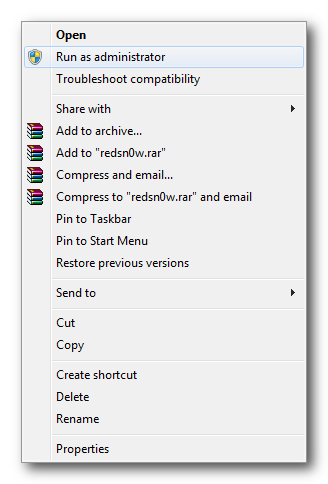
Right click or control-click the redsn0w application from the redsn0w folder we extracted earlier and choose
Run as administrator from the popup menu that appears.

 Step Three
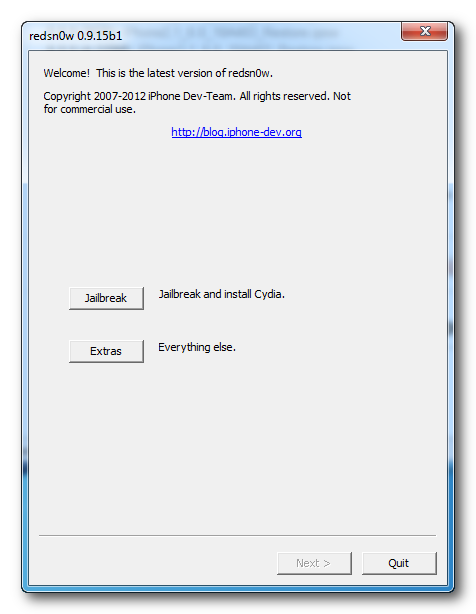
Click
Extras from the main menu.
 Step Four
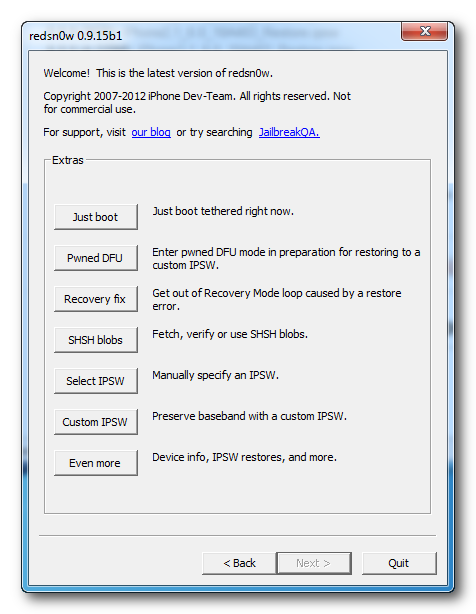
Click
Even More from the Extras menu.
 Step Five
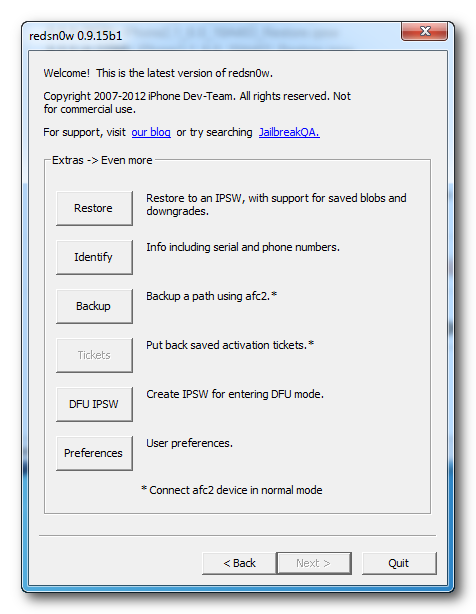
Click
Restore from the Even More menu.
 Step Six
Click
IPSW from the Restore menu, choose the IPSW you would like to restore to from the window that appears, and click
Open.
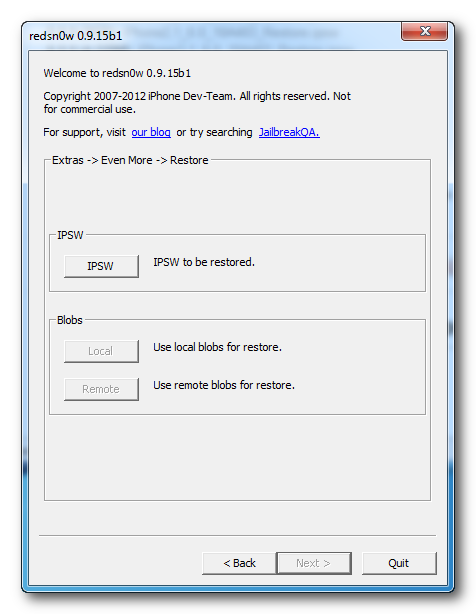
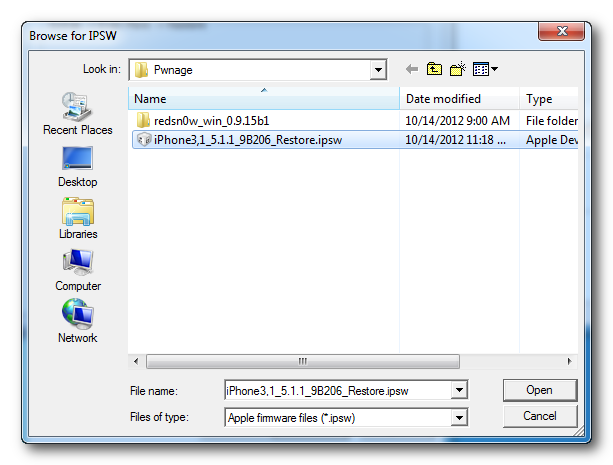 Step Seven
Redsn0w will ask you if you would like to prevent the baseband from being updated. Click
Yes.
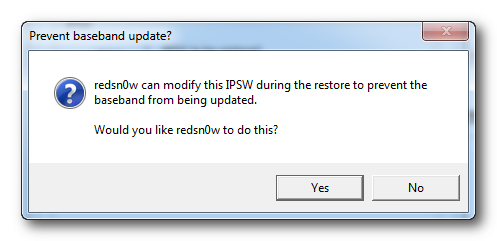 Step Eight
Redsn0w will inform you that Pwned DFU mode is needed to restore. Click the
OK button.
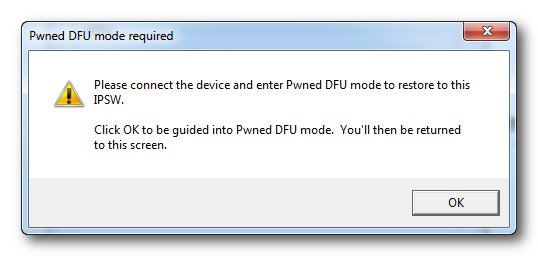 Step Nine
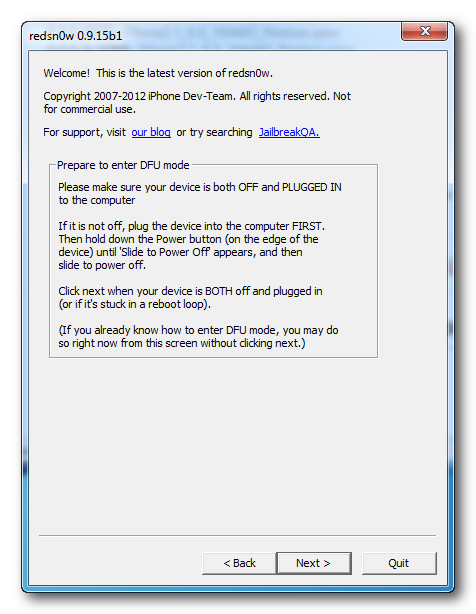
Connect your device, turn it off, and then click the Next button
 Step Ten
RedSn0w will now guide you through the steps to get into DFU mode. You can find more help with DFU mode
here.
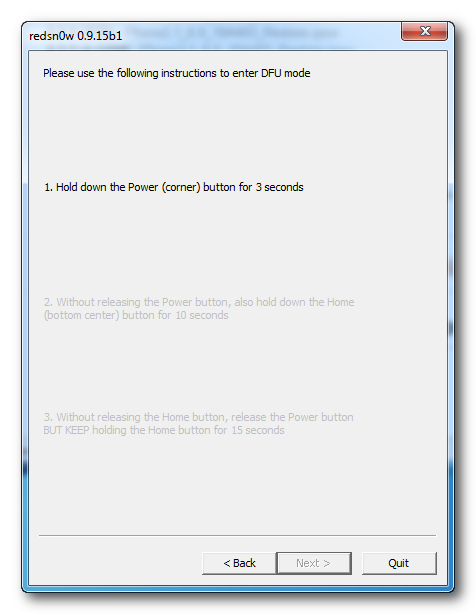
Hold down both the Home button and the Power button for 10 seconds.
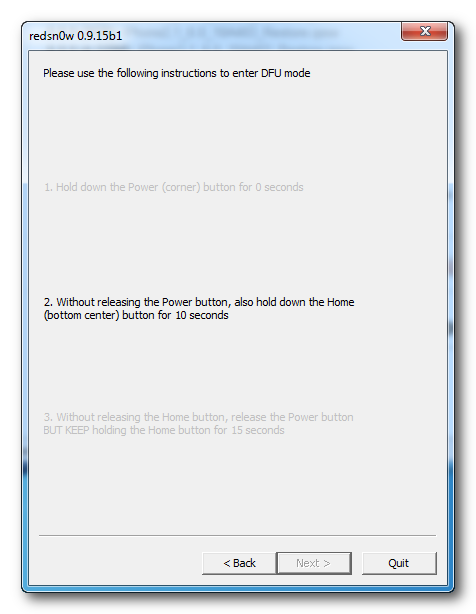
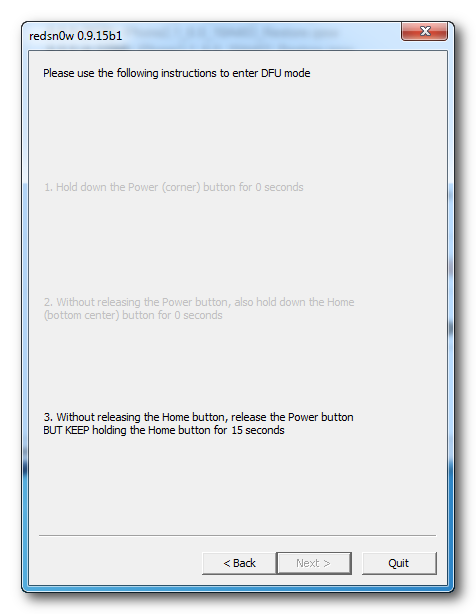
Release the Power button and continue holding the Home button until RedSn0w detects the device.
 Step Eleven
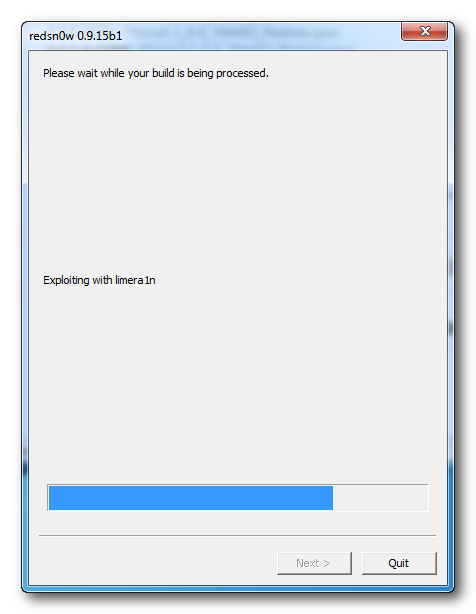
Your iPhone will now be exploited with limera1n.
 Step Twelve
RedSn0w will check Cydia to see if you have the correct blobs saved.
If RedSn0w is unable to find your blobs automatically you can try to click the
Remote button to try again or you can click the
Local button to search for blobs on your computer.
Step Thirteen
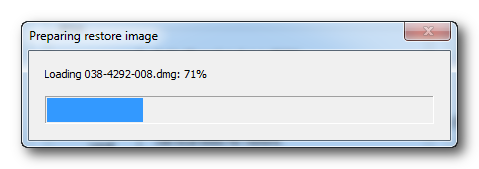
RedSn0w will now prepare a system restore image.
 Step Fourteen
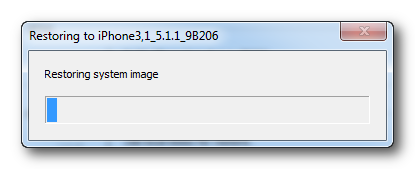
You device will then be restored to the new firmware.
 Step Fifteen
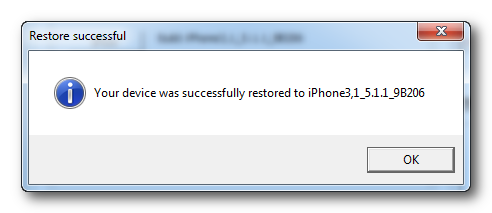
You'll be informed when your restore has completed successfully.


 elaz
elaz


