WordPress Plugin :- Local Payment Gateway Integration

XeducationSL

Member
Oct 1, 2021
15
17
3
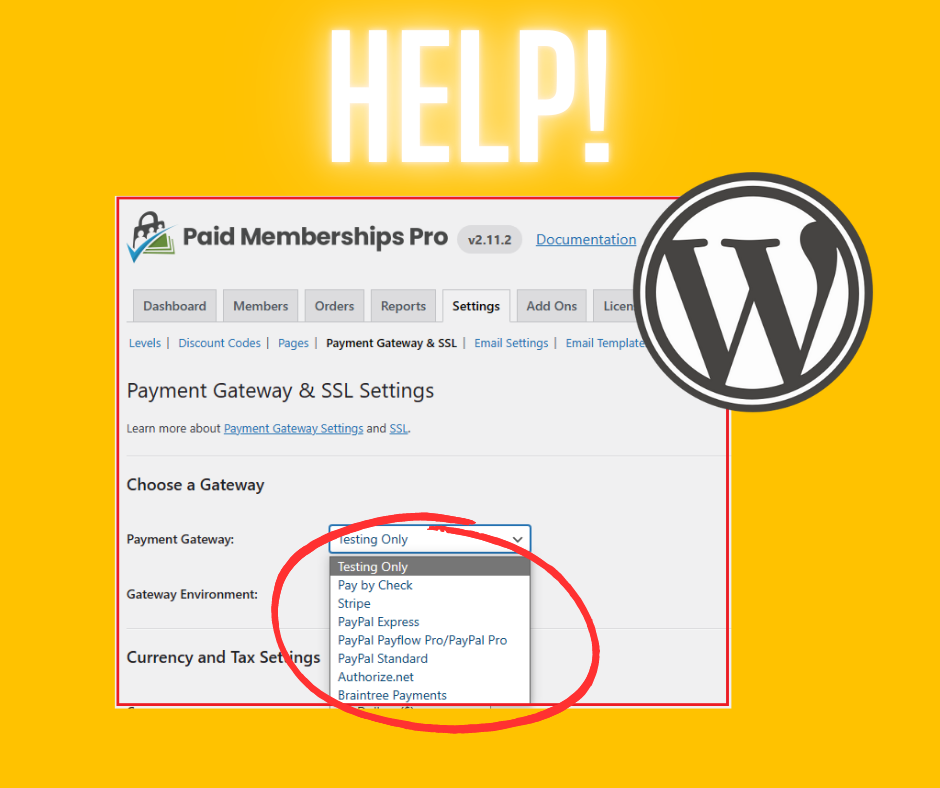
WordPress වැඩ්ඩො මට උදව් කරන්න 🙏

මගේ website එකට Paid Membership Pro" WordPress plugin එක මම පාවිච්චි කරනවා. මේකේ දැනට ලංකාවට support කරන payment gateways එකක් නෑ.

Payhere වගේ local payment gateway මේකට integrate කරලා දෙන්න පුළුවන් කෙනෙක් ඉන්නවද?

මේකට ඔයාලා දන්න වෙන මොකක් හරි solution එකක් තියෙනවද?
Yellow Did you know interesting fact Facebook post (3).png
 

koj500

Well-known member
  • Nov 1, 2014
    867
    816
    113

    Plugin for WooCommerce​

    Integrating PayHere with your WooCommerce website is super easy with our PayHere Plugin for WooCommerce. You just have to download it from Wordpress Plugin Store, upload it to your server & configure it with your Merchant Account details to start accepting online payments via PayHere.


    WooCommerce Settings​

    1. Download the PayHere Plugin for WooCommerce directly from Here
    2. Upload the ‘woocommerce-payhere’ folder to your WordPress ‘plugins’ directory under ‘/wp-content/plugins’
    3. In your WordPress admin, go to Plugins and Activate the WooCommerce PayHere Payment Gateway plugin
    4. Go to your WooCommerce > Settings page, click on Checkout tab & click the PayHere link
    5. Tick the checkbox to Enable PayHere
    6. Enter the payment title and description or keep the default
    7. Enter your Merchant ID (It’s on the Account approval mail sent by PayHere or at Account > Business section of your PayHere Merchant Portal)
    8. Enter your Secret Key. (Must be the same value you set at PayHere Merchant portal)
    9. Do not tick the checkbox to Enable Sandbox Mode. (Tick it if you need to test your integration with a PayHere Sandbox Account.)
    10. Click Save Changes.

    PayHere Settings​

    1. Sign in to your PayHere account
    2. Click the Account tab and then Edit link on Business section
    3. Enter your Secret Key (Must be the same value entered in your WooCommerce admin)
    4. Do not enter a Return URL as it’ll be handled by WooCommerce
    5. Click Save Changes